

nxBlend
nxBlend averages a particle’s parameters toward those of its neighbors, smoothing variation across the particle cloud.
For each particle it gathers the other particles within a set distance and blends their radius, scale, mass, rotation and color toward a shared value. You choose which of those parameters are blended and how strongly, so you can even out a noisy attribute or let two streams of particles settle toward a common look where they meet.
A curtain of particles showers down over Suzanne, pink on one side and blue on the other. nxBlend averages each particle’s color toward its neighbors, so where the two colors meet they blend toward purple, draping her in a smooth pink to purple to blue band.
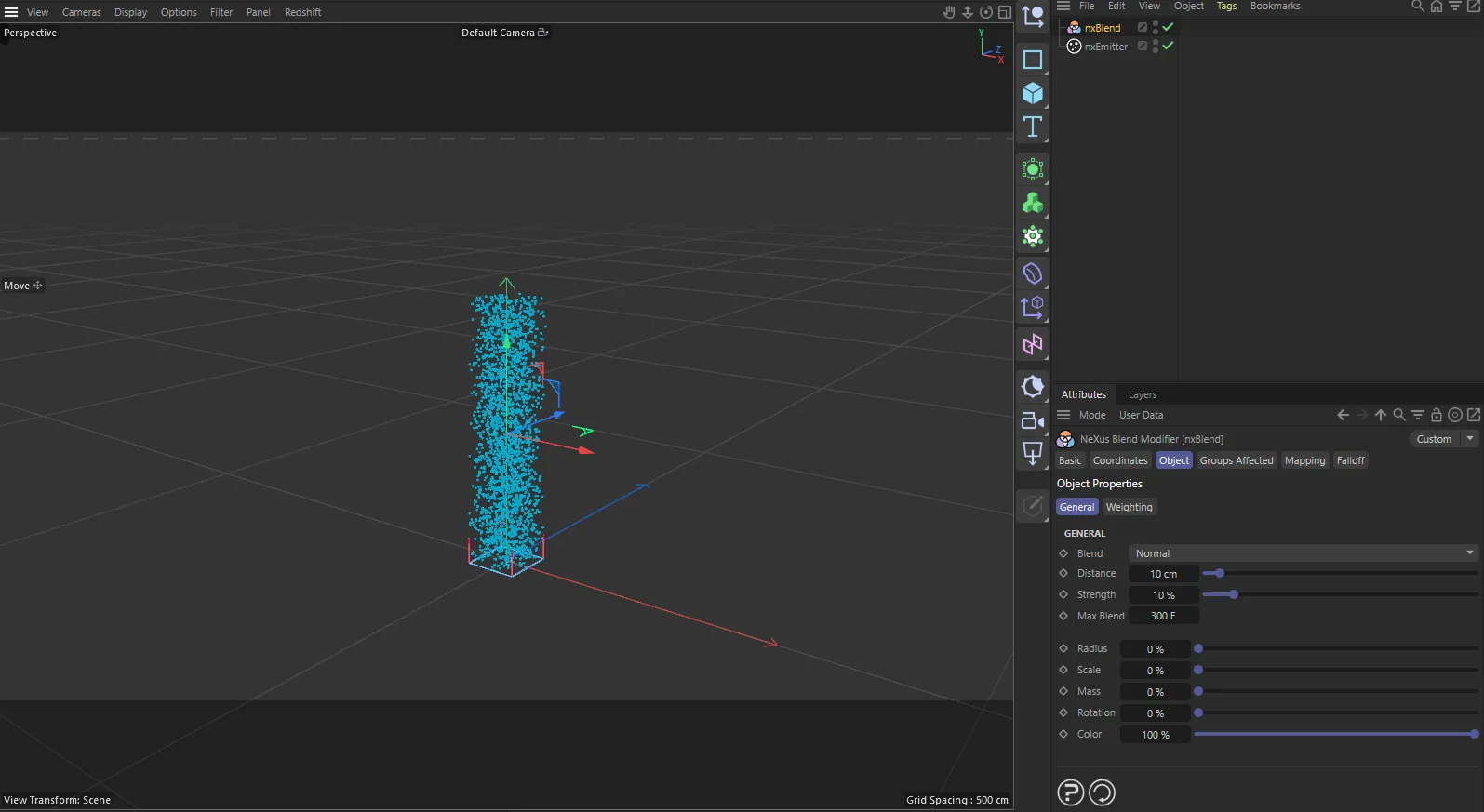
nxBlend in Cinema 4D. Its settings sit in the Attribute Manager.
Object Properties
Section titled “Object Properties”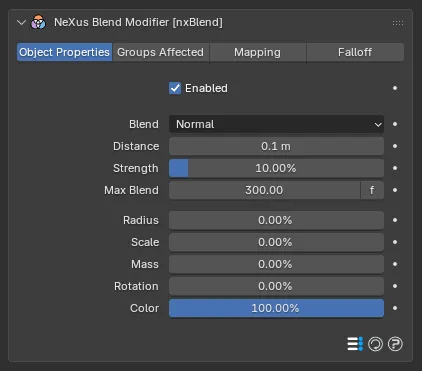
The nxBlend panel in Properties ▸ Physics.
Enabled
Section titled “Enabled”Turns the whole nxBlend on or off. Disable it to switch off all blending without deleting the modifier.
Sets the blend mode, the way a neighbor’s value is combined into the result. Set as Normal, by default, which averages the values together.
The other modes are Addition, Subtract, Multiply, Difference, Screen and Overlay. These mix the neighboring values the way the matching layer blend modes combine two values, for less literal, more stylized results.
Distance
Section titled “Distance”The radius around each particle that nxBlend searches for neighbors. A particle’s parameters are only blended with neighbors that fall within this Distance. Defaults to 0.1m.
Higher settings pull in more distant neighbors, so the blend reaches across more of the cloud and smooths more broadly. Lower settings keep the blend local, so only tightly packed particles affect each other.
Strength
Section titled “Strength”Sets the overall strength of the blend, how far each parameter is moved toward the neighborhood value. Defaults to 10%.
At low values the blend is gentle and variation is only softened. Raising it drives parameters harder toward the shared value. The slider goes up to 100% for a full blend and can be pushed to 1000% for an exaggerated result.
Two overlapping groups of particles, one pink and one blue. With the blend off, on the left (Strength 0%), every particle keeps its birth color, so where the groups overlap they stay a hard mix of separate pink and blue dots. On the right the blend is on at full Strength, averaging each particle’s Color toward its neighbors within the Distance, so the overlap settles into a smooth purple.
Max Blend
Section titled “Max Blend”The maximum particle age at which blending still applies. Once a particle is older than this, nxBlend leaves it alone. Defaults to 300 frames.
Click the f / s label on the row to switch this value between frames and seconds.
Use a lower value to blend particles only while they are young, for example to even out an attribute shortly after birth and then leave it fixed for the rest of the particle’s life.
The following settings control how much each individual parameter is blended. Each is a percentage: 0% leaves that parameter untouched. Higher values blend it more strongly toward the neighborhood value. They are scaled by the overall Strength above.
Radius
Section titled “Radius”How much a particle’s radius is blended toward its neighbors. Defaults to 0%, so radius is not blended until you raise it.
How much a particle’s scale is blended toward its neighbors. Defaults to 0%.
How much a particle’s mass is blended toward its neighbors. Defaults to 0%.
Rotation
Section titled “Rotation”How much a particle’s rotation is blended toward its neighbors. Defaults to 0%.
How much a particle’s color is blended toward its neighbors. Enabled by default at 100%, so out of the box nxBlend smooths particle color and nothing else.
Groups Affected
Section titled “Groups Affected”Use the Groups Affected tab to restrict nxBlend to particles in specific nxGroup groups, rather than affecting every particle.
Mapping
Section titled “Mapping”Use the Mapping tab to drive nxBlend’s settings from particle data instead of fixed values, so a particle’s own attributes can change how much it blends. See Mapping for how this works.
Falloff
Section titled “Falloff”Use the Falloff tab to limit where nxBlend acts. Add one or more nxFalloff objects to the list and blend them, so only particles inside the falloff region are affected.
Copyright © 2026 INSYDIUM LTD. All Rights Reserved.