

nxSplash
nxSplash shapes a splash from your NeXus particles, pushing them outward along an editable cone so you can art-direct crowns and sprays.
Add it from Add ▸ INSYDIUM NeXus ▸ Dynamics ▸ nxSplash. It arrives as an empty that draws a cone of Bezier handles in the viewport. Any particles that pass within Distance of the cone are pushed outward along its profile, from the bottom ring up toward the top ring, for the window set by Start Time and Duration.
nxSplash is a shaping force, not an emitter. It is designed to run on top of an nxFluids simulation: the fluid provides the particles at the point of impact and nxSplash throws them up into a directed splash. All of its settings live in Properties ▸ Physics.
An nxSplash cone sits at the surface of a pool of NeXus liquid. When it fires, it throws the surface liquid up and out along its profile into a directed crown, rising from the pool and falling back.
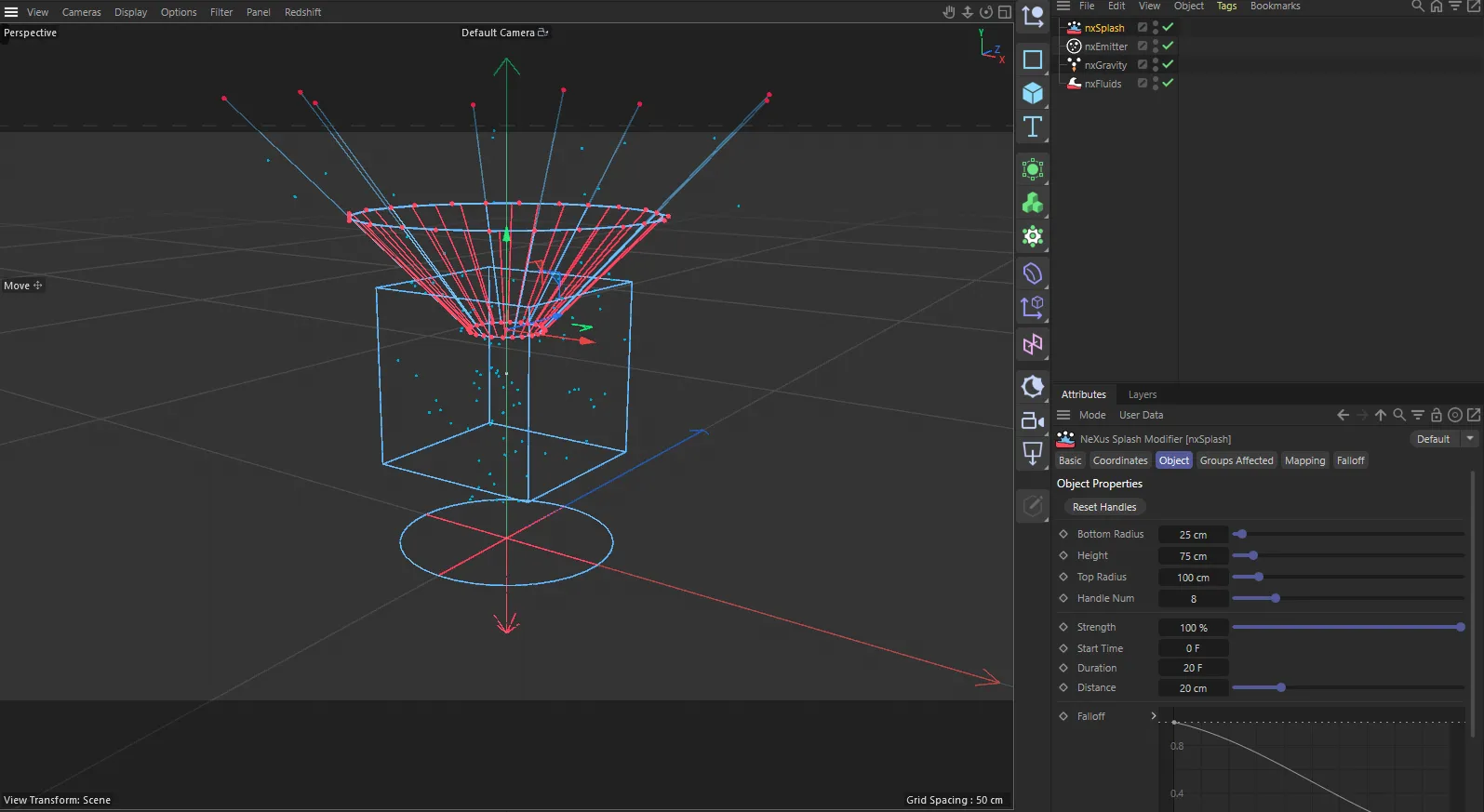
nxSplash in Cinema 4D. Its settings sit in the Attribute Manager.
Object Properties
Section titled “Object Properties”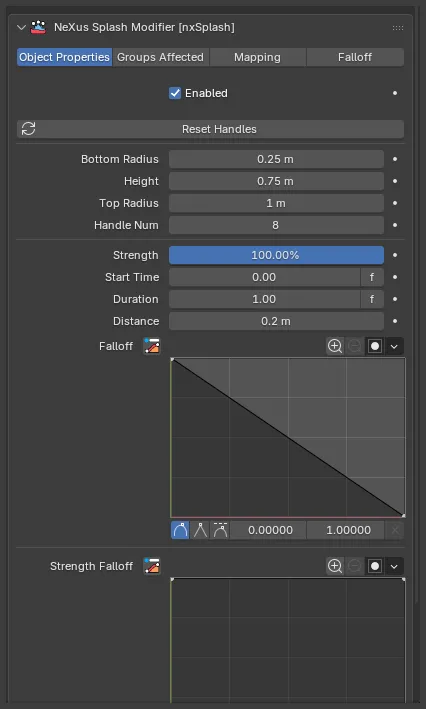
The nxSplash panel in Properties ▸ Physics, on the Object Properties tab.
The shape of the splash is defined by a cone drawn in the viewport. Click and drag its yellow Bezier handles to sculpt the profile, from a straight-sided cone into a flared crown or a curled lip. The radius, height and handle-count fields below set the cone’s starting shape, then you refine it by hand.
Enabled
Section titled “Enabled”Turns nxSplash on or off. Disable it to switch off the splash without deleting it.
Reset Handles
Section titled “Reset Handles”Resets all Bezier handles to their default positions, rebuilding the cone from the current Bottom Radius, Height, Top Radius and Handle Count. Use it to return to a clean cone after experimenting with handle adjustments.
Bottom Radius
Section titled “Bottom Radius”The radius of the bottom ring of the cone. Defaults to 0.25m.
Particles are drawn into the splash when they fall within the Distance value of this ring, so the bottom ring should sit within Distance of the particles or nothing happens.
Height
Section titled “Height”The height of the cone. Defaults to 0.75m. The taller the cone, the higher the splash is thrown.
Top Radius
Section titled “Top Radius”The radius of the top ring of the cone. Defaults to 1m.
The top and bottom radii together set the angle at which particles leave the fluid surface. A wide top ring over a narrow bottom ring throws the particles out in a broad flare. Matching the two gives a straight column.
Handle Count
Section titled “Handle Count”The number of Bezier handles arranged around the cone. Defaults to 8, with a minimum of 3. The outward force is directed along these handles, so more handles give a smoother, more detailed splash profile.
Strength
Section titled “Strength”The strength of the outward push. Defaults to 100%. Values above 100% are allowed, for a more violent splash.
Start Time
Section titled “Start Time”The time at which the splash begins. Defaults to 0. Set it so the splash starts as an object hits the fluid, for example.
The value shows an f toggle you can click to switch between frames and seconds, a convention shared across NeXus time fields.
Duration
Section titled “Duration”How long the splash stays active. Defaults to 20 frames. The effect runs from Start Time until Start Time plus Duration, then stops.
Distance
Section titled “Distance”How far from the bottom ring a particle can be and still be pulled into the splash. Defaults to 0.2m.
Increasing it draws in more particles from further out, which can increase the number of particles in the splash.
Falloff
Section titled “Falloff”A falloff curve for the splash across the Distance range. Particles closest to the cone follow the left of the curve and those at the edge of Distance follow the right. By default it ramps from full effect at the cone down to zero at the Distance edge.
If you raise the right-hand point of the curve above zero on the Y-axis, particles beyond the Distance setting start to feel the splash too, where they would otherwise be untouched.
Strength Falloff
Section titled “Strength Falloff”A separate falloff curve for the Strength of the effect, letting the push build or ease across the splash rather than applying evenly.
Groups Affected
Section titled “Groups Affected”Use the Groups Affected tab to restrict nxSplash to particles in specific nxGroup groups, rather than affecting every particle near the cone. This is useful when you want only the spawned splash particles thrown up, not the rest of the fluid.
Mapping
Section titled “Mapping”Use the Mapping tab to drive nxSplash’s settings from particle data instead of fixed values, so a particle’s own attributes can change the splash it feels. See Mapping for how this works.
Falloff
Section titled “Falloff”Use the Falloff tab to limit where nxSplash acts. Add one or more nxFalloff objects to the list and blend them, so the splash only affects particles inside the falloff region.
Copyright © 2026 INSYDIUM LTD. All Rights Reserved.