

nxCache
nxCache records a NeXus simulation to disk so it can be played back without recalculating it.
Once a simulation is cached, NeXus reads the stored particle data straight from disk instead of solving it again each time you play the scene.
Add it from Add ▸ INSYDIUM NeXus ▸ nxCache. It arrives as an empty. All of its settings live in Properties ▸ Physics.
Caching has several uses:
- You can scrub backwards and forwards through the timeline.
- You run a complex animation once, then play it back from the cache. Whether that is faster than simulating live depends on your hardware. On fast storage it usually is, though a GPU simulation can sometimes run live quicker than it reads from disk.
- Once a frame is cached it plays back the same way every time, so the result is repeatable and does not change between sessions.
- The cache is kept with the scene, so it is there again when you reopen the file.
- When rendering across a network, every machine reads the same cached data, so there is no discontinuity between frames rendered on different machines.
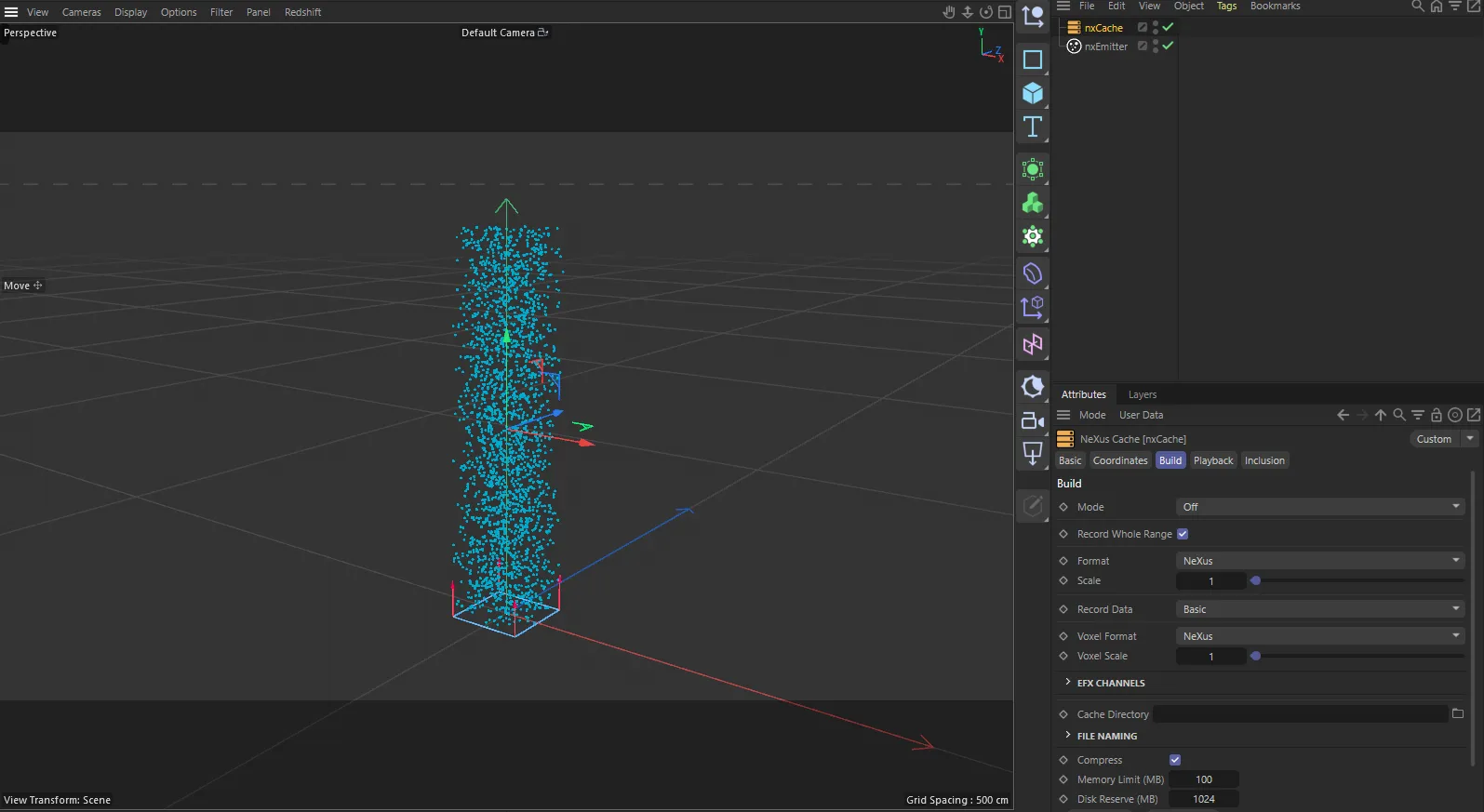
nxCache in Cinema 4D. Its settings sit in the Attribute Manager.
Object Properties
Section titled “Object Properties”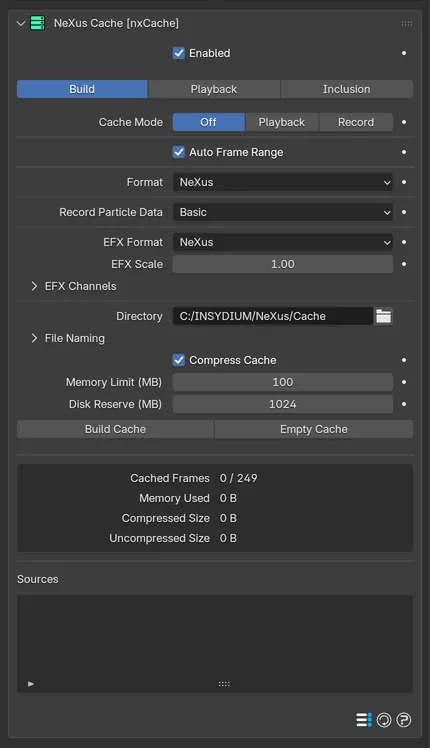
The nxCache panel in Properties ▸ Physics, on its Build tab.
nxCache has a single panel of settings, split across three internal tabs at the top: Build, Playback and Inclusion.
Enabled
Section titled “Enabled”Turns nxCache on or off. Disable it to stop it reading or recording without deleting it.
The Build tab sets how the cache is recorded and where its files are written.
Cache Mode
Section titled “Cache Mode”Sets what nxCache does with the cache. Set as Off, by default.
- Off: caching is disabled.
- Playback: cached data is read back during playback, so the simulation is not recalculated.
- Record: simulation data is recorded to the cache as the scene plays.
Auto Frame Range Beta
Section titled “Auto Frame Range Beta”Takes the range of frames to record from the scene’s own frame range. On by default. Turn it off to record only part of the scene with Start and Stop.
Start Beta
Section titled “Start Beta”Available when Auto Frame Range is off. The first frame written to the cache. Defaults to 0.
Stop Beta
Section titled “Stop Beta”Available when Auto Frame Range is off. The last frame written to the cache. Defaults to 250.
Format
Section titled “Format”The file format used for the cache data. Set as NeXus, the native format, by default.
The other options let you write the cache in a format another application can read: Alembic, X-Particles, BGEO, GEO, PDB, PDB32, PDB64, PDA, PTC, PDC, PRT, BIN, Alembic (Single File) and PLY.
Alembic (Single File) writes the whole recording into one animated Alembic file. PLY writes a Gaussian splat point cache. Beta 3
Available when Format is not NeXus. A unit scale applied when reading and writing cache files, so cached positions and velocities can match the scale used in another application. Defaults to 1.0.
Record Particle Data
Section titled “Record Particle Data”Sets which particle data channels are recorded. Set as Basic, by default.
- Basic: records position, velocity and basic particle data.
- All: records every available particle data channel.
- Custom: choose exactly which channels to record.
Selecting Custom reveals a grid of channel toggles: Velocity (on by default), Color, Mass, Fuel, Rotation, Time, Display, Group (on by default), Temperature, Smoke, Scale, Life, Radius and Distance. Particle IDs are always recorded with the positions, so there is no separate ID toggle. Enable only the channels you need to keep the cache small.
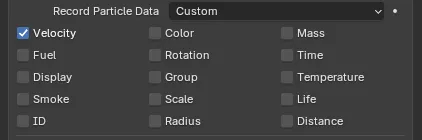
The channel grid revealed when Record Particle Data is set to Custom.
EFX Format
Section titled “EFX Format”The file format used for the ExplosiaFX voxel cache, when caching a simulation that produces voxel data. Set as NeXus, by default. The other options are OpenVDB and X-Particles EFX.
EFX Scale
Section titled “EFX Scale”A unit scale applied when reading and writing the EFX voxel cache. Defaults to 1.0.
EFX Channels
Section titled “EFX Channels”A collapsible group that sets which voxel channels are written and what each one is named. This is useful with OpenVDB, so the grid names match those expected by the third-party application or render engine you are taking the files into.
Smoke and Temperature are recorded by default. Fuel, Velocity and Color are off by default. Each channel has a name field beside it, holding the grid name written to the file.
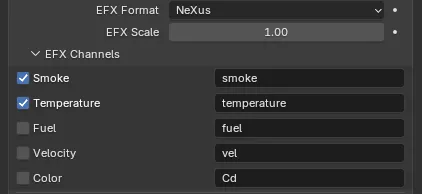
The EFX Channels group expanded, with a name field beside each channel.
Directory
Section titled “Directory”The folder where cache files are written. It defaults to the NeXus cache folder set in the add-on preferences.
File Naming
Section titled “File Naming”Cache ID, Separator and Index Padding are grouped under a collapsible File Naming fold, closed by default. Expand it to control how cache files are named on disk.
Cache ID
Section titled “Cache ID”A unique ID for this cache, written as a subfolder inside the Directory, so several scenes can share one cache directory without overwriting each other. A new ID is generated automatically when you add nxCache. Click the refresh button beside the field to generate a fresh one.
Separator
Section titled “Separator”The character placed between the object name and the frame index in cache file names. Defaults to an underscore.
Index Padding
Section titled “Index Padding”The number of digits in the zero-padded frame index in file names. Defaults to 6 and can range from 1 to 12.
Compress Cache
Section titled “Compress Cache”Compresses the cache data to reduce disk usage. On by default. With large particle counts compression can add a noticeable cost to both building and reading the cache.
Memory Limit (MB)
Section titled “Memory Limit (MB)”The maximum amount of memory, in megabytes, the cache may use. Defaults to 100.
Disk Reserve (MB) Beta
Section titled “Disk Reserve (MB) Beta”The free space, in megabytes, to keep on the cache drive. If the next frame would leave less free space than this, caching stops and a warning tells you how much space the frame needs and how much is left. Free up space, lower Disk Reserve or point Directory at another drive, then record the cache again. Defaults to 1024.
Build Cache
Section titled “Build Cache”Runs the frame range and records it to the cache in one pass, showing a progress dialog. With Auto Frame Range off, only the frames from Start to Stop are written. When it finishes it switches Cache Mode to Playback, so the scene reads back the cache you just built.
If nxCache is disabled, clicking Build Cache re-enables it automatically before building.
If the cache directory already holds data you are prompted to Overwrite it, Continue filling in any missing frames or Cancel.
Empty Cache
Section titled “Empty Cache”Deletes all cached frames, freeing the memory and removing the files from disk. You are asked to confirm first.
Below the buttons, a read-only panel reports on the last build: Cached Frames, Memory Used, Compressed Size (shown only while Compress Cache is on, with the compression ratio beside it) and Uncompressed Size.
Sources
Section titled “Sources”The list of NeXus objects being cached. NeXus fills it automatically from the objects feeding this cache. Each row has a padlock and an enable toggle:
- The padlock locks a source, so its cached data is preserved and not re-recorded when the cache is rebuilt.
- The enable toggle switches a source in or out of the cache without removing it from the list.
Playback
Section titled “Playback”The Playback tab controls how the cache is read back, including retiming and the playback range.
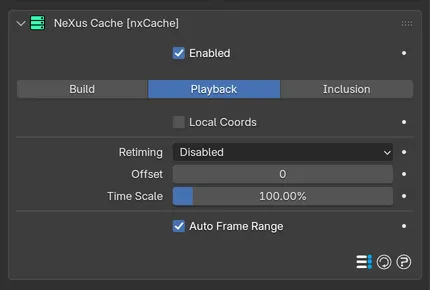
The nxCache panel on its Playback tab, with Retiming set to Disabled.
Local Coords Beta 3
Section titled “Local Coords Beta 3”Moves, rotates and scales the cached particles and meshes with the nxCache object. Off by default, so the cache plays back where it was recorded. Turn it on to place the cache somewhere else in the scene by moving the nxCache object.
Retiming
Section titled “Retiming”Remaps how cache time is played. Set as Disabled, by default.
- Disabled: the cache plays at its recorded timing. This reveals the Offset and Time Scale settings below.
- Frame: retime by keyframing a Frame value, which appears when this is selected.
- Time(s): retime by keyframing a Time value in seconds, which appears when this is selected.
- Custom: retime with a Timing spline curve. The X-axis is the scene time and the Y-axis is the cache frame to play, so you can ease or reverse playback.
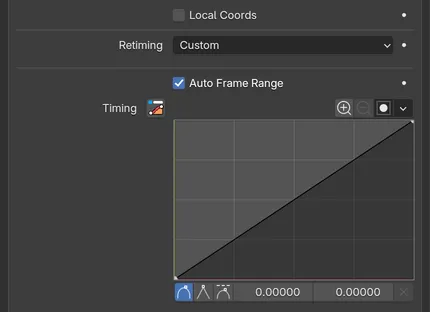
The Playback tab with Retiming set to Custom, showing the Timing spline.
Offset
Section titled “Offset”Available when Retiming is Disabled. Offsets the cache time, in frames. Defaults to 0.
Time Scale
Section titled “Time Scale”Available when Retiming is Disabled. Scales the cache playback speed. Defaults to 100%, so 200% plays the cache back twice as fast.
When retiming lands between two cached frames, for example when a Time Scale below 100% slows the cache down, nxCache blends the cached particles and ExplosiaFX channels between the two nearest frames, so slowed playback stays smooth.
Auto Frame Range
Section titled “Auto Frame Range”Takes the playback range from the scene’s own frame range. On by default. Turn it off to set the range by hand with Start and Stop.
Available when Auto Frame Range is off. The frame at which the cache starts being used. Defaults to 0.
Available when Auto Frame Range is off. The frame at which the cache stops being used. Defaults to 250.
Inclusion
Section titled “Inclusion”The Inclusion tab holds an Include/Exclude list that limits which NeXus objects are cached, rather than caching everything in the scene.
Add NeXus objects to the list, then use the per-item Included toggle to control whether each one is part of the cache.
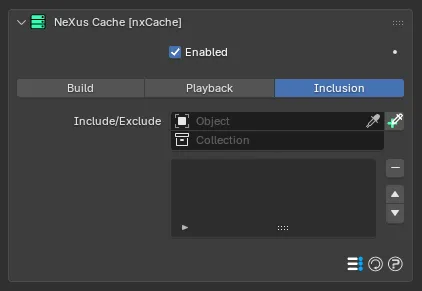
The nxCache panel on its Inclusion tab, showing the Include/Exclude list.
Copyright © 2026 INSYDIUM LTD. All Rights Reserved.