

nxConstraints
nxConstraints builds dynamic connections and forces between your NeXus particles: springs that hold them together, attraction and repulsion between them and fluid properties like viscosity and surface tension.
It works as a stack of layers, so you can combine several constraint types in one nxConstraints object and blend them. You can create stretchy springs between particles, pull them together or push them apart and simulate gloopy liquids or beading droplets.
Add it from Add ▸ INSYDIUM NeXus ▸ Dynamics ▸ nxConstraints. It arrives as an empty. Add one or more constraint layers, choosing a type for each, then blend them with their Weight. All of its settings live in Properties ▸ Physics.
A sheet of particles born together, knit into a cloth by a Connection Birth layer. The spring connections hold the particles together as one surface, so the sheet falls and drapes over Suzanne instead of scattering apart.
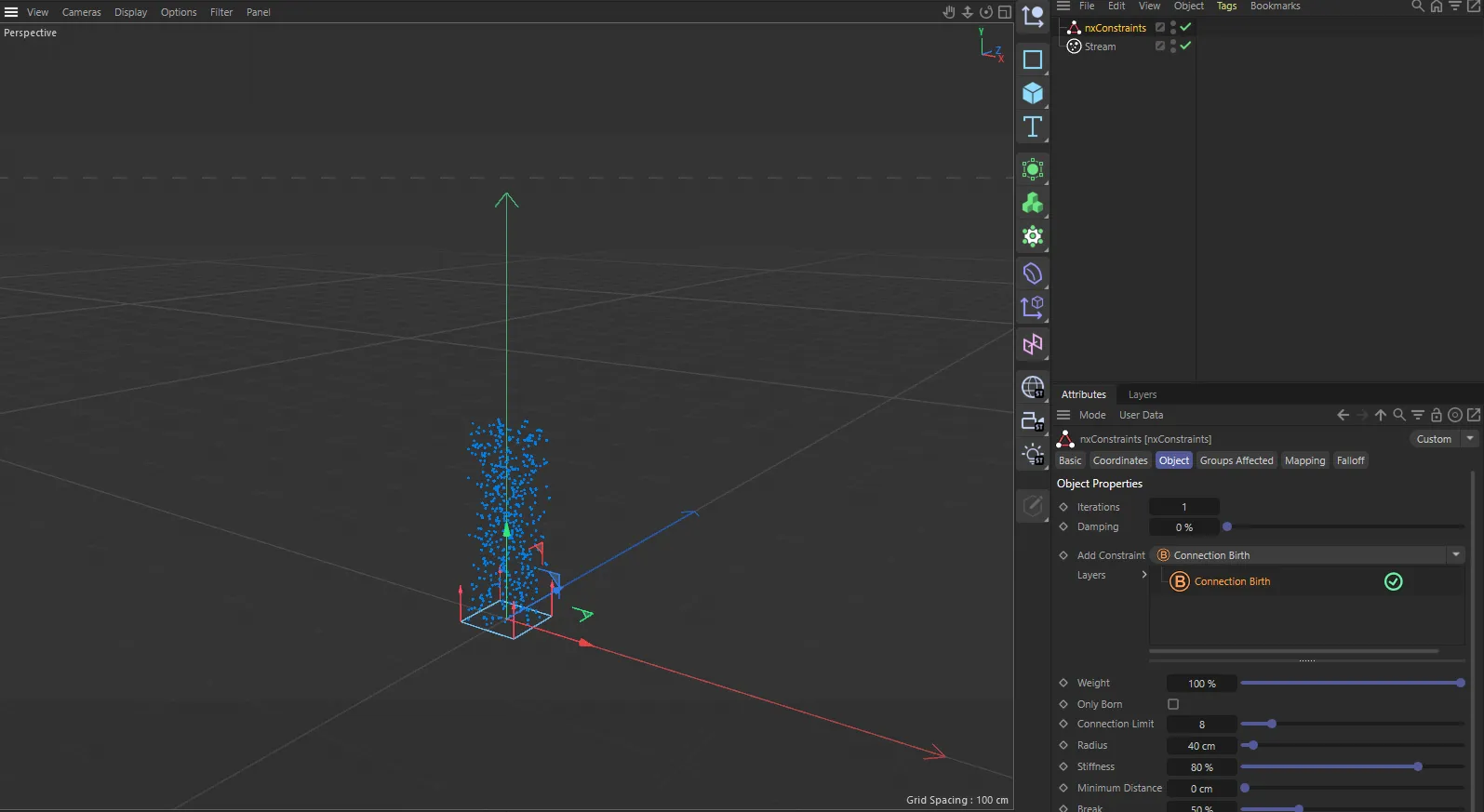
nxConstraints in Cinema 4D. Its settings sit in the Attribute Manager.
Object Properties
Section titled “Object Properties”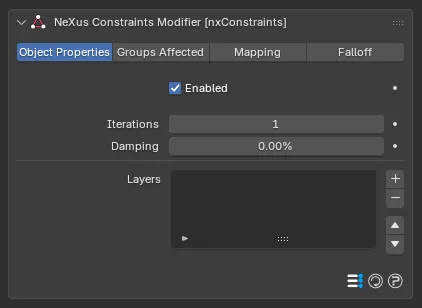
The nxConstraints panel in Properties ▸ Physics, on the Object Properties tab. A new nxConstraints starts with an empty Layers list.
Enabled
Section titled “Enabled”Turns nxConstraints on or off. Disable it to switch off every constraint layer without deleting the object.
Iterations
Section titled “Iterations”Sets the number of solver iterations run each frame. Higher values give greater accuracy to the constraint calculation. Defaults to 1.
A value of around 3 is a good starting point for most setups.
When using a Connections layer, higher Iterations also make the springs much stiffer. This is useful when Stiffness is already at its maximum but you still need more tension. High viscosity and high surface tension likewise need a raised Iterations value.
If the simulation becomes too stiff or unstable, temper it with the Damping parameter below or in the settings for the individual layer.
Damping
Section titled “Damping”Dampens the constraint forces globally. Raise it to bring a simulation under control when a high Iterations value makes it too energetic. Defaults to 0%.
Layers
Section titled “Layers”The stack of constraint layers. Use the + button to add a layer and choose its type from the menu that appears. Use the - button to remove the selected one. Each layer has an enable toggle on the right of its row (a green check when active), so you can switch a layer on or off without removing it. Use the up and down arrows to reorder the stack.
Select a layer to show its settings underneath the list. Each layer type has its own set of controls, described on the pages linked below.
Every layer has a Weight control that sets how much it contributes to the overall solution. With a single layer this can be left at its default, 100%. When you combine several layers you can lower a Weight to blend one in more gently or push it above 100% to give it more influence.
Constraint types
Section titled “Constraint types”Add a layer of any of the following types from the + menu. Each has its own page:
Connections hold particles together with springs:
- Connection Birth: connections generated once, at particle birth.
- Connection Distance: connections made and broken dynamically as particles come within range.
- Connection Custom: springs with separate compression and expansion control, plus plasticity.
The remaining types act on the particles around each other, within a radius:
- Collisions: particle to particle collisions that keep particles from intersecting.
- Forces: attraction and repulsion forces between particles.
- Viscosity: the internal friction of a fluid, for gloopy liquids like honey.
- Friction: static and kinetic friction between particles.
- Surface Tension: draws particles together into beads and blobs, like water droplets.
Groups Affected
Section titled “Groups Affected”Use the Groups Affected tab to restrict nxConstraints to particles in specific nxGroup groups, rather than affecting every particle. This is useful when you want only some particles to be connected or affected by the constraints.
Mapping
Section titled “Mapping”Use the Mapping tab to drive nxConstraints’ settings from particle data instead of fixed values, so a particle’s own attributes can change the constraints it feels. See Mapping for how this works.
Falloff
Section titled “Falloff”Use the Falloff tab to limit where nxConstraints acts. Add one or more nxFalloff objects to the list and blend them, so the constraints only affect particles inside the falloff region.
Copyright © 2026 INSYDIUM LTD. All Rights Reserved.