

nxOcean Beta 2
nxOcean generates an animated ocean surface on the GPU, complete with whitecap foam, spray and shore breaking.
It builds the sea from a wind-driven wave spectrum, so you set the wind and the sea state and nxOcean works out the waves. The wave field is a repeating tile that fills an ocean as large as you need. Foam forms on breaking crests and around colliders. Spray can be thrown into an emitter. A FLIP liquid can also blend into the sea for close-up interaction.
Add it from Add ▸ INSYDIUM NeXus ▸ Generators ▸ nxOcean. It arrives as an empty and also creates a child mesh object that receives the ocean surface. Drag the two resize handles in the viewport to change the Ocean Size. All of nxOcean’s settings live in Properties ▸ Physics.
The child mesh gets its own material, Water and Foam, the first time the surface is built. It is a regular node material that you can open and edit in the Shader Editor. The Display tab settings drive its water and foam nodes. Its foam comes from the mesh’s foam attributes. If you assign your own material to the child mesh instead, nxOcean keeps it.
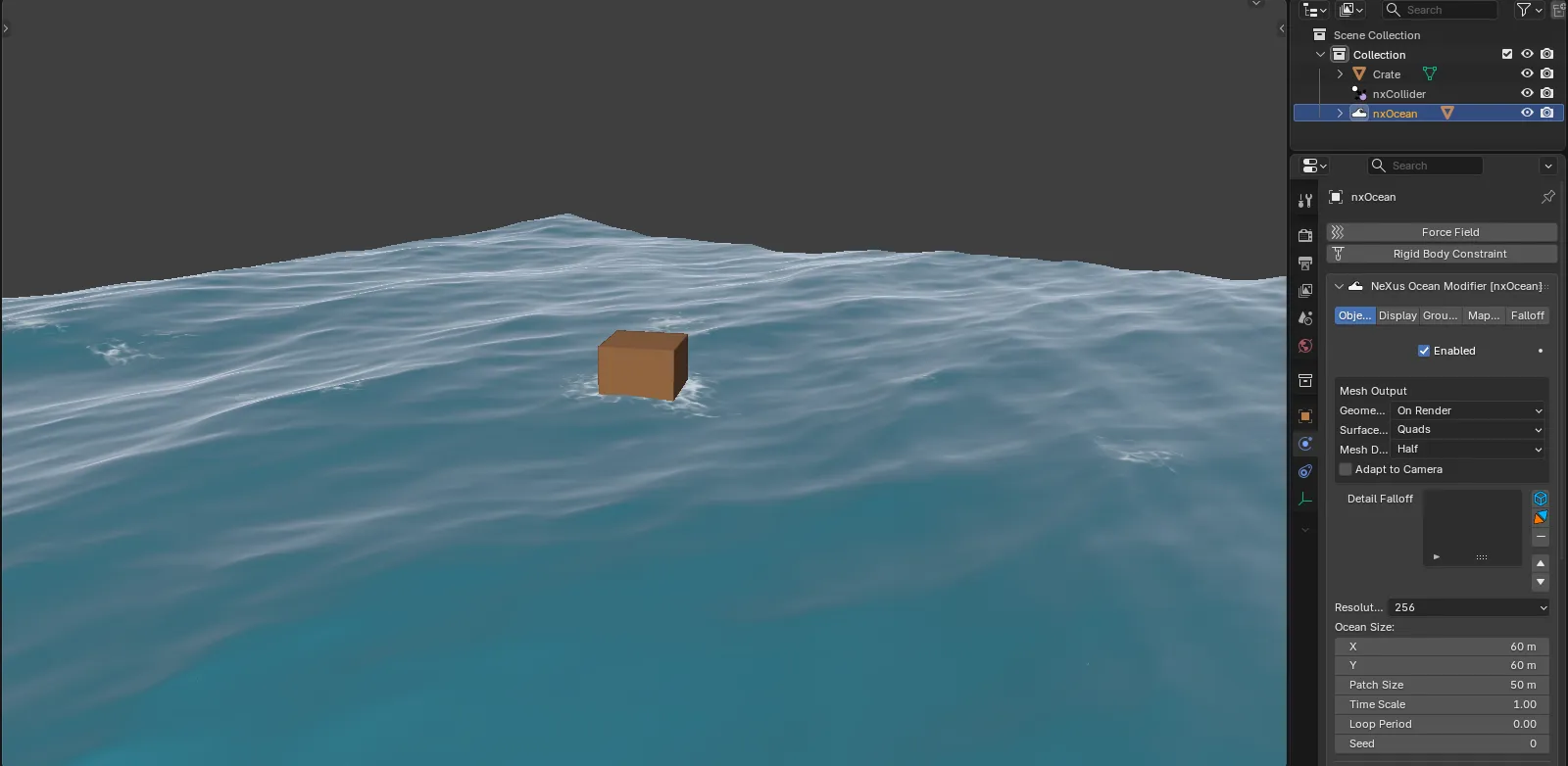
An nxOcean surface with whitecap foam and a box floating in the waves.
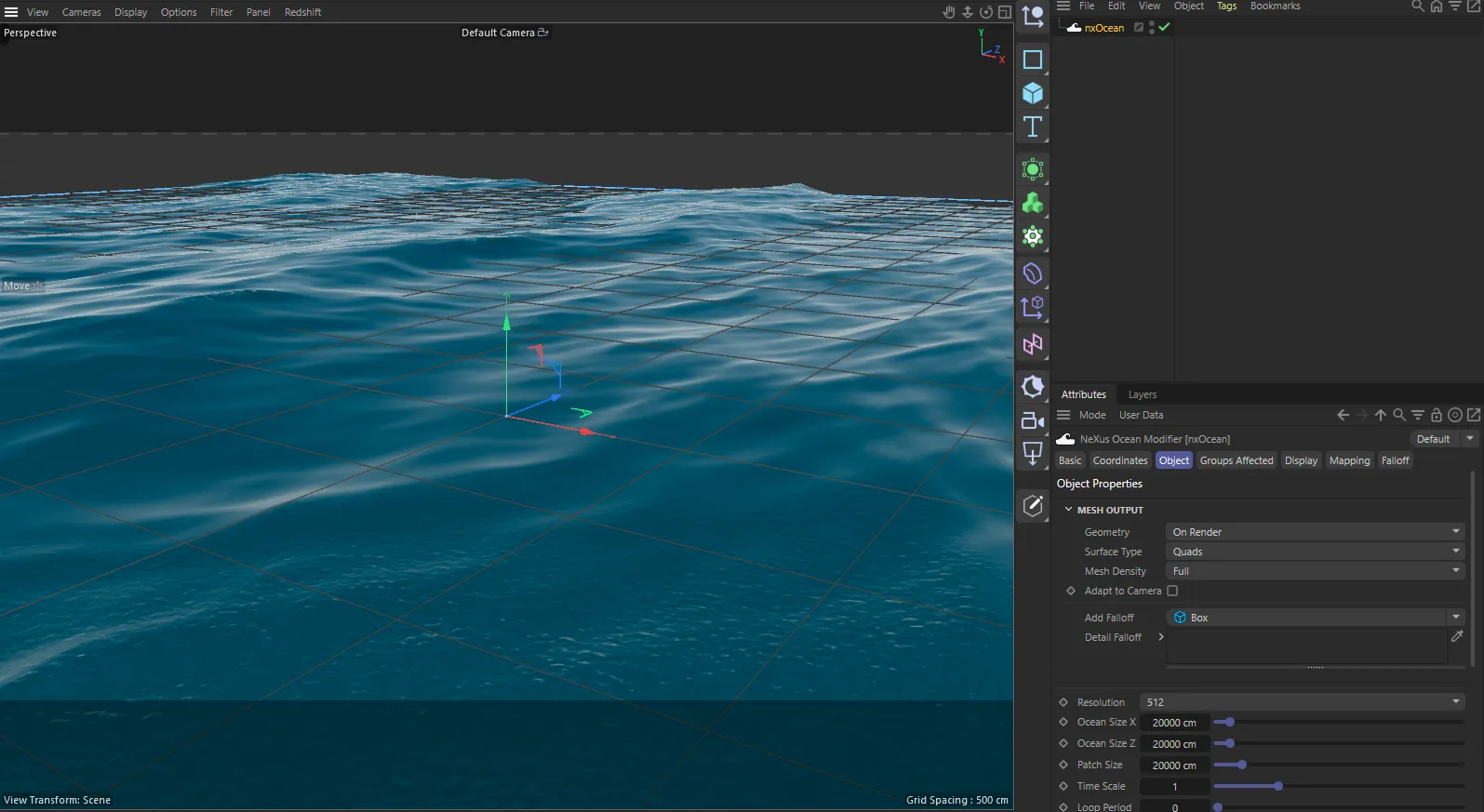
nxOcean in Cinema 4D. The settings are the same and sit in the Attribute Manager.
Object Properties
Section titled “Object Properties”Enabled
Section titled “Enabled”Turns nxOcean on or off. Disable it to stop generating the ocean without deleting it.
Mesh Output
Section titled “Mesh Output”These settings control the real mesh that nxOcean builds for rendering and export.
Geometry
Section titled “Geometry”Sets when the real, editable mesh is built. Set as On Render, by default.
- On Render: the viewport shows a fast GPU-drawn ocean and the real mesh is built only at render time.
- Live: builds the real mesh every frame in the viewport, so you can edit and export it.
- Manual: builds the real mesh only when you press Generate Mesh, from the current frame.
Surface Type
Section titled “Surface Type”Sets how the mesh’s polygons are laid out. Set as Quads, by default. The other option is Delaunay.
- Quads: regular quads at the density set by Mesh Density. When the mesh adapts to a camera or a Detail Falloff, the quads grow from Edge Length upward, with triangles only where their size changes.
- Delaunay: triangles between scattered points about Edge Length apart, with no regular pattern.
Mesh Density
Section titled “Mesh Density”Shown for Quads when the mesh is not adapting. Sets the polygon density of the mesh, without changing the waves or the viewport. Set as Full, by default, which matches the wave grid up to 1024 vertices per axis. The alternatives are Half, Quarter and Eighth, each halving the vertices per axis again.
Edge Length
Section titled “Edge Length”Shown for Delaunay or for Quads while the mesh is adapting. Sets the spacing of the Delaunay points or the size of the smallest adapting quads. Defaults to 0.4 m. Waves shorter than about twice this length are smoothed out of the mesh.
Adapt to Camera
Section titled “Adapt to Camera”Lengthens the mesh’s edges with distance from the camera, so they stay about Screen Edge pixels long in view and coarsens them outside the view. Off by default. This keeps the detail where the camera sees it.
Camera
Section titled “Camera”Shown with Adapt to Camera. The camera the mesh adapts to. Leave it empty to use the scene camera.
Screen Edge
Section titled “Screen Edge”Shown with Adapt to Camera. The longest edge in the camera’s view, in pixels of its render resolution. Defaults to 8 px. Edge Length still sets the shortest edge.
Horizon Thinning
Section titled “Horizon Thinning”Shown with Adapt to Camera. Also lengthens in-view edges where the camera looks along the water, so there are fewer vertices toward the horizon. Defaults to 0, which keeps Screen Edge in every direction.
Outside Growth
Section titled “Outside Growth”Shown with Adapt to Camera. How much longer the edges get per meter outside the camera’s view. Defaults to 0.25. Keeping it low keeps the water just out of frame (and in reflections) finer.
Max Edge
Section titled “Max Edge”Shown while the mesh is adapting. The longest edge anywhere: outside the view, far away and where the Detail Falloff is zero. Defaults to 50 m.
Generate Mesh
Section titled “Generate Mesh”Shown in Manual mode. Builds the real ocean mesh from the current frame.
Detail Falloff
Section titled “Detail Falloff”A list of falloffs that sets where the mesh keeps its detail. Add one or more nxFalloff objects with the add buttons. The mesh stays fine where the falloff is strong and coarsens toward Max Edge where it is zero. Each entry has its own blend mode and strength. Adding a falloff makes the mesh adapt, so Edge Length and Max Edge appear.
Wave Field
Section titled “Wave Field”These controls sit below the Mesh Output box and set up the wave field itself.
Resolution
Section titled “Resolution”The resolution of the wave grid. Higher values resolve finer ripples at more cost. Set as 512, by default. The options run from 64 to 4096.
Ocean Size
Section titled “Ocean Size”The world size of the visible ocean, on X and Y. Defaults to 200 m by 200 m. The wave patch repeats to fill it, so a larger value shows more ocean with the same waves.
Patch Size
Section titled “Patch Size”The size of the repeating wave tile. Defaults to 200 m. It sets the longest waves and how often the pattern repeats. Keep it larger than the peak wavelength of the wind sea, which is about 0.64 times the wind speed squared, in meters. Use Ocean Size to set the overall extent.
Time Scale
Section titled “Time Scale”A multiplier on the animation speed. Defaults to 1.
Loop Period
Section titled “Loop Period”Repeats the wave motion over this many seconds, for a seamless loop. Defaults to 0, which turns looping off. The foam keeps evolving and does not loop.
The random seed for the wave spectrum. Change it to get a different sea from the same settings. Defaults to 0.
The Waves section is the first of the four sections at the bottom of Object Properties. It holds the Wind, Spectrum, Shape and Secondary Waves groups.
Wind Speed
Section titled “Wind Speed”The wind speed driving the waves, in meters per second. Defaults to 12. Higher values give a bigger swell.
Wind Direction
Section titled “Wind Direction”The direction the wind blows toward. Defaults to +X.
Wind Alignment
Section titled “Wind Alignment”How tightly the waves run with the wind. Defaults to 4, a broad local wind sea. Raise it toward 30 for a narrow-band swell.
Wave Reflection
Section titled “Wave Reflection”The fraction of waves that travel against the wind. Defaults to 0. Raise it for a less directional sea.
Wind Gust
Section titled “Wind Gust”The strength of gusts that swell and ease the wave height over time. Defaults to 0, which turns gusts off.
Gust Rate
Section titled “Gust Rate”Shown when Wind Gust is above 0. How quickly the gusts come and go. Defaults to 0.2.
Spectrum
Section titled “Spectrum”The wave spectrum model that shapes the sea. Set as Phillips, by default. The other options are Pierson-Moskowitz and JONSWAP.
- Phillips: the classic Phillips spectrum.
- Pierson-Moskowitz: a fully developed open-ocean sea with a smooth rolloff.
- JONSWAP: a young, fetch-limited sea with a sharp peak.
Shown for JONSWAP. The distance the wind has blown over the water, in meters. Defaults to 100000. Shorter values give a younger, choppier sea.
Amplitude
Section titled “Amplitude”Scales the whole wave spectrum. Defaults to 1.
Peak Sharpness
Section titled “Peak Sharpness”Shown for JONSWAP. Concentrates the wave energy at the spectral peak, as a young sea does. Defaults to 3.3, the open-ocean standard. A value of 1 gives a fully developed sea.
Vertical Scale
Section titled “Vertical Scale”Stretches the surface vertically only, while the chop and whitecaps keep the full-size shape of the sea. Defaults to 1. Use Amplitude to scale the whole wave field instead.
Choppiness
Section titled “Choppiness”The sharpness of the wave crests, from their sideways displacement. Defaults to 1.3.
Crest Fold
Section titled “Crest Fold”The share of the sea’s area allowed to fold through itself at the crest. Defaults to 0.1%. Raising it lets more of the Choppiness through, so the crests sharpen. It sharpens crests but does not pitch them forward.
The water depth in meters. Defaults to 0, which means deep water.
Smallest Wave
Section titled “Smallest Wave”Removes waves shorter than this length. Defaults to 0, which picks a sensible default.
Secondary Waves: Amplitude
Section titled “Secondary Waves: Amplitude”The strength of a second wave system on top of the main sea. Defaults to 0, which turns it off.
Secondary Waves: Wind Speed
Section titled “Secondary Waves: Wind Speed”Shown when the secondary Amplitude is above 0. The wind speed of the secondary waves. Defaults to 6.
Secondary Waves: Direction
Section titled “Secondary Waves: Direction”Shown when the secondary Amplitude is above 0. The direction of the secondary waves. Defaults to the diagonal between +X and +Y.
The Foam section controls the whitecap foam. It holds the Wave Foam and Wave and Contact Foam groups.
Wave Foam Rate
Section titled “Wave Foam Rate”Multiplies the new foam made where waves compress and break. Defaults to 1. At 0 no new wave foam forms, while the existing foam keeps evolving.
Breaking Coverage
Section titled “Breaking Coverage”The share of the sea allowed to break, as a multiple of the whitecap coverage estimated from the sea state. Defaults to 1. At 0 nothing breaks. This sets how much foam is made, not the final coverage.
Wave Foam Life Scale
Section titled “Wave Foam Life Scale”Multiplies the 4.2 second decay time of the wave foam. Defaults to 1. As the foam fades, open water appears between the foam patches.
Delayed Foam Fraction
Section titled “Delayed Foam Fraction”The share of wave and contact foam held below the surface before it is released. Defaults to 0.5. The rest appears straight away where it forms.
Release Time (s)
Section titled “Release Time (s)”The time to release about 63% of the delayed foam while it moves with the water. Defaults to 1 s. At 0 all new foam appears straight away.
Surface Current
Section titled “Surface Current”An extra downwind water flow. Defaults to 0 m/s, which keeps only the wave-driven flow. It carries the foam and floating particles and drives the contact foam at hulls.
Interaction
Section titled “Interaction”The Interaction section sets how the ocean reacts to objects in it. It holds the Scene Colliders, Splash Foam and Shore groups. The scene colliders are your nxCollider objects.
Wave Masking
Section titled “Wave Masking”Reflects the waves off scene colliders such as islands and boats. Defaults to 0, where the waves pass through. At 1 a collider acts as a solid hull the waves bounce off.
Contact Source Scale
Section titled “Contact Source Scale”Multiplies the foam made at collider waterlines. Defaults to 1. Set it to 0 to turn contact foam off.
Wave Impact Foam
Section titled “Wave Impact Foam”Shown when Contact Source Scale is above 0. Scales the foam made where incoming waves meet collider waterlines. Defaults to 1.
Contact Foam Life
Section titled “Contact Foam Life”The time contact and splash foam takes to fade to 37% once its supply ends. Defaults to 84 frames. Use the toggle beside it to set the time in seconds, so it stays the same at any frame rate. At 0 there is no contact or splash foam.
A moving collider pushes a wake that travels across the surface. Defaults to 0, which turns the wake off.
Splash Foam
Section titled “Splash Foam”Makes foam where falling particles, such as FLIP splashes and drops, hit the surface. Defaults to 0, which turns it off.
Splash Band
Section titled “Splash Band”Shown when Splash Foam is above 0. How close to the surface a particle must be to leave foam, in meters. Defaults to 1.
Fades the waves toward a beach and breaks foam in the surf zone. Defaults to 0, which turns the shore off.
Shore Direction
Section titled “Shore Direction”Shown when Shore is above 0. The direction from open water toward the beach. Defaults to 0°.
Shore Distance
Section titled “Shore Distance”Shown when Shore is above 0. The distance from the center of the patch to the waterline, in meters. Defaults to 10.
Shore Falloff
Section titled “Shore Falloff”Shown when Shore is above 0. The width of the transition from open sea to shore, like a beach slope, in meters. Defaults to 15.
Particles
Section titled “Particles”The Particles section sets how the ocean acts on particles and throws spray.
Buoyancy
Section titled “Buoyancy”Makes particles float in the sea. It is the density of sea water over the density of the particles. Above 1 they float, with 1/Buoyancy of their volume under water. At 1 they are neutral. Below 1 they sink. Defaults to 0, which turns floating off.
Output Velocity
Section titled “Output Velocity”Exports the orbital velocity of the waves. Off by default. A FLIP liquid linked to this ocean receives the velocity without it. Foam always receives the water flow.
Spray Emitter
Section titled “Spray Emitter”The nxEmitter that spray and whitewater particles are born into. The spray settings below appear once you pick one.
Spray Source
Section titled “Spray Source”What throws the spray. Set as Breaking, by default. The other option is Foam.
- Breaking: crests as they break. The spray stops once the crest has passed.
- Foam: all foam above the Spray Threshold, including foam left behind by breaking.
Spray Rate
Section titled “Spray Rate”The number of spray particles per square meter of whitecap as it forms (Breaking) or of foam above the threshold per second (Foam). Defaults to 250. It does not depend on Resolution or Ocean Size.
Spray Threshold
Section titled “Spray Threshold”The foam level above which the sea throws spray. Defaults to 0.3. Lower values give more spray.
Spray Velocity
Section titled “Spray Velocity”The upward launch speed of the spray, in m/s. Defaults to 3.
Spray Life
Section titled “Spray Life”The lifetime of a spray particle, in seconds. Defaults to 2.
Spray Size
Section titled “Spray Size”The radius of a spray particle. Defaults to 0.03.
Droplet Size
Section titled “Droplet Size”The diameter of the drops the spray stands for, which sets how quickly air drag carries it with the ocean’s wind. Defaults to 0.5 mm. Fine drops blow downwind as mist and large ones fly in arcs. At 0 the wind does not affect the spray.
Spray Color
Section titled “Spray Color”The color of the spray particles. Defaults to white.
Re-absorb Spray
Section titled “Re-absorb Spray”Kills spray particles when they fall back below the surface, so the whitewater merges back into the water. On by default.
Display
Section titled “Display”The Display tab sets how the water and foam look. Some settings shade the viewport only. The rest also drive the Water and Foam material that renders.
Absorption
Section titled “Absorption”The color white light keeps through one meter of the rendered water. Defaults to the color of the clearest ocean water.
Scattering
Section titled “Scattering”The light scattered by particles in the rendered water, per meter. Defaults to 0.023, the value for a clear open ocean.
Water Color
Section titled “Water Color”The deep water color in the viewport. Renders take their color from Absorption and Scattering instead.
Surface Color
Section titled “Surface Color”The shallow water tint in the viewport.
Roughness
Section titled “Roughness”The roughness of the water surface. Defaults to 0.12. Low values give a sharp sun glint, high values a soft sheen.
Reflection
Section titled “Reflection”The strength of the sky reflection. Defaults to 1.
World Tint
Section titled “World Tint”How much the scene’s World color tints the reflection in the viewport. Defaults to 0.7. The rendered material uses Blender’s own lighting.
Micro Detail
Section titled “Micro Detail”Adds fine ripple detail to close-up viewport shading. Defaults to 0.5.
Use Scene Lights
Section titled “Use Scene Lights”Lights the water in the viewport with the scene’s own lamps, instead of the ocean’s built-in sun. Off by default. If no lamp is found, the built-in sun is used.
Lights
Section titled “Lights”Shown with Use Scene Lights. Limits the lighting to the lamps in this collection. Leave it empty to use every visible lamp in the view layer.
Sun Elevation
Section titled “Sun Elevation”The height of the built-in sun above the horizon. Defaults to 40.1°. Grayed out while Use Scene Lights is on.
Sun Azimuth
Section titled “Sun Azimuth”The compass direction of the built-in sun. Defaults to 34.4°. Grayed out while Use Scene Lights is on.
Sun Color
Section titled “Sun Color”The color of the built-in sun. Defaults to a warm white. Grayed out while Use Scene Lights is on.
Sun Strength
Section titled “Sun Strength”The brightness of the light on the water. Defaults to 1. With Use Scene Lights on, it multiplies the light the scene’s lamps give.
Foam Color
Section titled “Foam Color”The color of the whitecap foam. Defaults to an off-white.
Foam Opacity
Section titled “Foam Opacity”The opacity of the foam over the water. Defaults to 1.
Foam Brightness
Section titled “Foam Brightness”Scales how bright the foam is, from a dense-foam reference at 1. Defaults to 1. It does not change the area the foam covers.
Foam Contrast
Section titled “Foam Contrast”The contrast of the bubble shading in the viewport at close range. Defaults to 2. It does not change the foam coverage.
Working with a FLIP liquid
Section titled “Working with a FLIP liquid”nxOcean can carry a FLIP liquid, so a boat wake, a splash or a breaking wave is simulated up close while the open sea stays a light, animated surface.
To set it up, link the ocean in an nxFluids object that uses the FLIP or APIC solver, with the Ocean field on its Domain tab. Press Open Walls to Ocean there to open the side and floor walls, lower the domain floor under the deepest troughs and fill the liquid to the still sea level. The ocean then drives the liquid through the open walls. Ocean Strength, Ocean Band and Ocean Crossover set how strongly and over how wide a band the two blend.
An nxMesher that surfaces that liquid blends its surface into the sea. Its Blend into Ocean option, on its Bounds tab, is on by default. nxOcean then cuts its own surface away wherever the FLIP surface stands in and writes its foam onto the blended FLIP surface, which takes the ocean’s surface material. In the Ocean Blend group of nxMesher, Calm Smoothing and Ocean Detail let calm water take its small waves from the sea instead of the particles. The Calm Mask settings decide which parts of the liquid count as calm.
Groups Affected
Section titled “Groups Affected”Use the Groups Affected tab to restrict nxOcean to particles in specific nxGroup groups, rather than affecting every particle.
Mapping
Section titled “Mapping”Use the Mapping tab to drive nxOcean’s settings from particle data instead of fixed values. See Mapping for how this works.
Falloff
Section titled “Falloff”Use the Falloff tab to limit where nxOcean acts. Add one or more nxFalloff objects to the list and blend them. This is separate from the Detail Falloff list, which only shapes the mesh.
In Cinema 4D
Section titled “In Cinema 4D”Add it from INSYDIUM ▸ NeXus ▸ Generators ▸ nxOcean. Lengths are in centimeters, so the default Ocean Size reads as 20000cm. Ocean Size is two fields, Ocean Size X and Ocean Size Z, because Y is up. Speeds such as Wind Speed show as a length, for example 1200cm. Lights is a list of light objects rather than a collection. An empty list still uses every lamp. Detail Falloff uses an Add Falloff button and does not show the falloff’s own settings inline.
Copyright © 2026 INSYDIUM LTD. All Rights Reserved.