

nxFalloff
nxFalloff is a spatial falloff object that limits where another NeXus modifier acts.
On its own nxFalloff does nothing. You add it to the Falloff tab of a modifier such as nxGravity so that modifier only affects particles inside the falloff region. A single falloff shape can drive several modifiers at once. You can stack more than one falloff in the same list and blend them together.
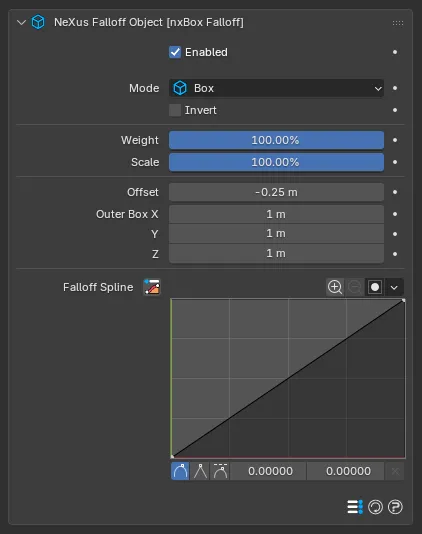
The nxFalloff panel in Properties ▸ Physics, in Box mode.
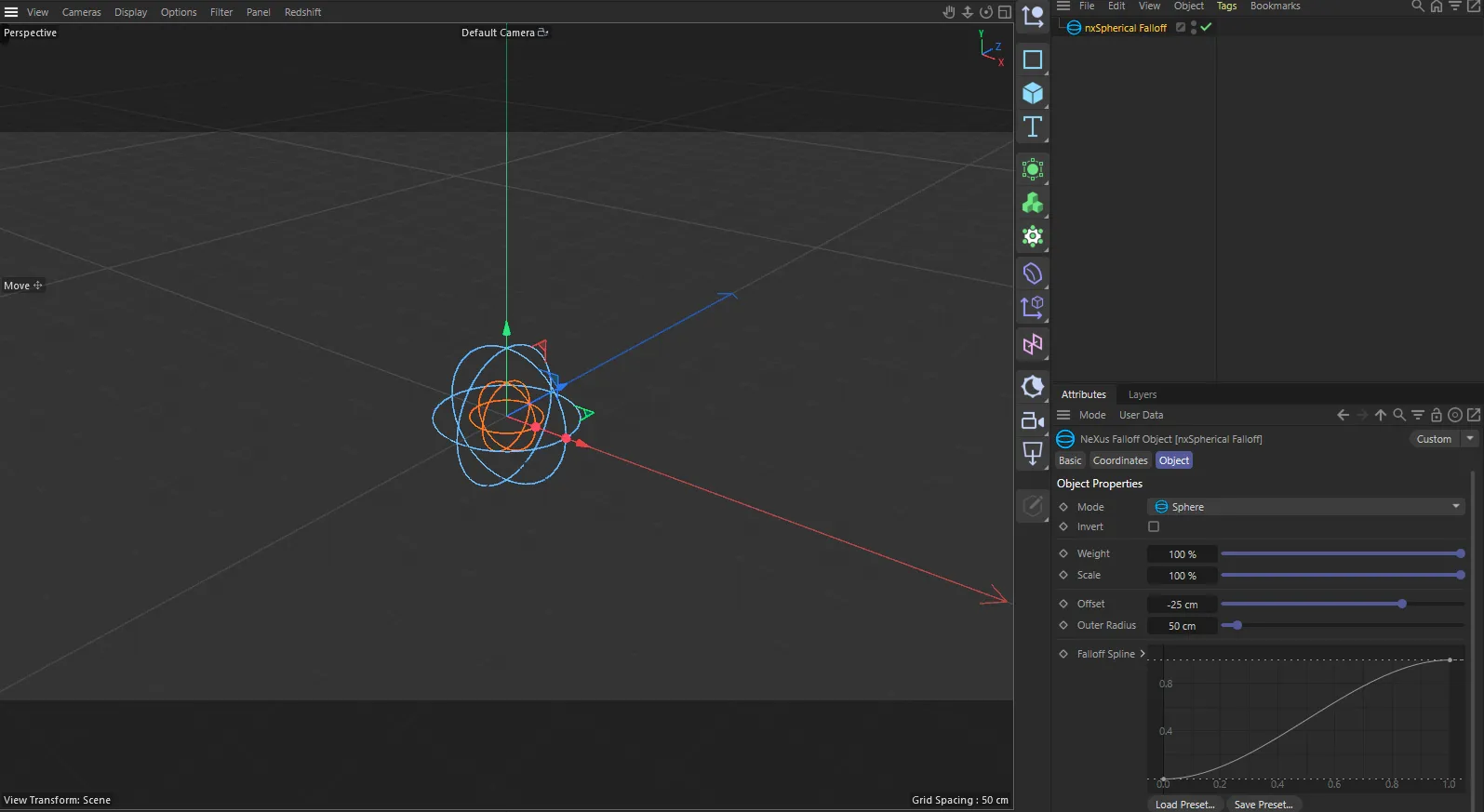
nxFalloff in Cinema 4D. Its settings sit in the Attribute Manager.
Adding a falloff
Section titled “Adding a falloff”Unlike most NeXus objects, nxFalloff is not in the Add ▸ INSYDIUM NeXus menu. You create it from the modifier you want to limit.
Open that modifier in Properties ▸ Physics and switch to its Falloff tab. Use the add button on the Falloffs list to create a new nxFalloff and add it to the list in one step. The new object appears in the scene with a gizmo showing its region. Its full settings are drawn inline beneath the list entry.
The first add button opens a menu of every shape. The new nxFalloff arrives already set to the shape you pick. The second adds an nxFalloff Modifier, a layer that reshapes the falloffs below it in the list. Layered modifiers such as nxColor also have a Falloff list on each layer, which works the same way. Beta
Position and rotate the nxFalloff object in the viewport to place the region, then shape it with the settings below.
Object Properties
Section titled “Object Properties”nxFalloff has a single panel. The available controls change with the Mode you pick.
Enabled
Section titled “Enabled”Turns the nxFalloff on or off. Disable it to switch off its region without deleting the object.
Selects the shape of the falloff region. Set as Box, by default. The other options are Linear, Sphere and Noise.
The beta adds Cylinder, Torus, Box Frame, Capsule and Cone, plus Object, Points, Spline and Attribute, which measure against geometry in your scene. They are described below. Beta
Beta 3 adds Curvature, AO and Wet. They read values from a mesh, so they work only in a vertex map. They are described below. Beta 3
Changing the mode renames the object (for example nxBox Falloff, nxLinear Falloff, nxSpherical Falloff or nxNoise Falloff) and swaps the shape controls and the viewport gizmo.
Invert
Section titled “Invert”Flips the falloff, so the region that was at full strength drops to zero and the area outside becomes active. Use it to cut a hole in an effect instead of defining a volume for it. Off by default. Hidden in Curvature, AO and Wet modes.
Weight
Section titled “Weight”The overall output strength of the falloff. Set as 100%, by default. Lower it to scale the whole falloff down so the modifier it feeds never reaches full strength inside the region. Hidden in Wet mode.
Uniformly scales the falloff shape. Set as 100%, by default. This resizes the whole region at once, on top of the shape’s own size settings. The viewport drawing follows it too, including the inner core of a Box or Sphere. Hidden in Curvature, AO and Wet modes.
Box mode
Section titled “Box mode”
A rectangular falloff region. The outer box is the full extent. An inner box marks the core that stays at full strength, with a smooth transition between the two.
Offset
Section titled “Offset”Sets the soft transition band inside the box. Set as -0.25m, by default. At 0 the falloff is hard at the box surface. Negative values pull the full-strength inner core inward, so the gap between the inner core and the outer box becomes the smooth falloff band. It is clamped so it cannot pull the core past the box center.
Outer Box
Section titled “Outer Box”Sets the full X, Y and Z extent of the box. Defaults to 1m on each axis. You can also drag the box handles in the viewport.
Linear mode
Section titled “Linear mode”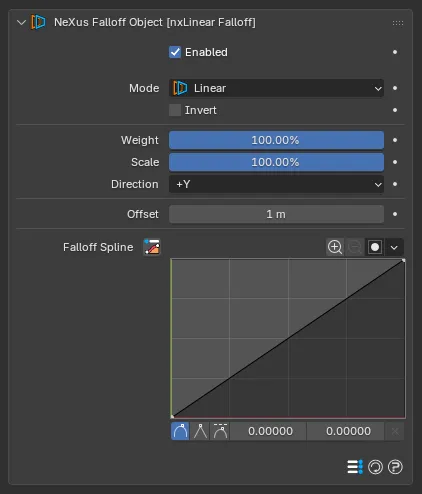
A directional falloff that fades along a single axis.
Direction
Section titled “Direction”Selects the axis the falloff fades along. Set as +Y, by default. The other options are +X, -X, -Y, +Z and -Z.
Offset
Section titled “Offset”Sets the distance the falloff reaches from the object origin out to its far edge. Defaults to 1m. The gradient runs from full strength at the origin down to zero at this distance.
Sphere mode
Section titled “Sphere mode”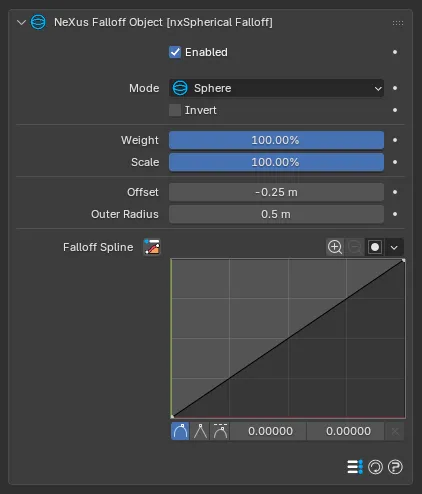
A radial falloff that fades outward from the object center.
Offset
Section titled “Offset”Sets the soft transition band inside the sphere. Set as -0.25m, by default. At 0 the edge is hard. Negative values pull the full-strength inner core inward, so the shell between the inner core and the outer radius becomes the smooth falloff. It is clamped so it cannot pull the core past the sphere center.
Outer Radius
Section titled “Outer Radius”Sets the full radius of the sphere. Defaults to 0.5m.
Noise mode
Section titled “Noise mode”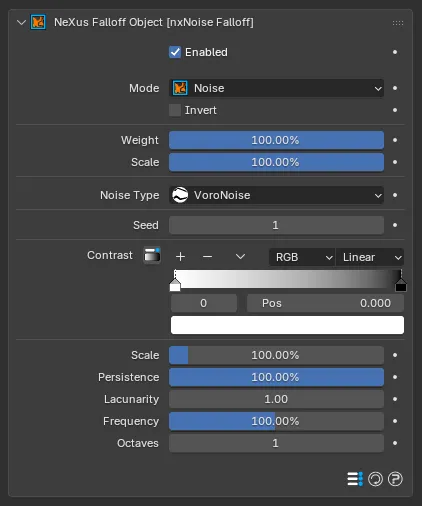
A procedural 3D noise field used as the falloff shape, for a broken-up or organic region rather than a clean solid volume.
Noise Type
Section titled “Noise Type”Sets the kind of noise. Set as Voronoise, by default. The other options are Simplex, Curl, Turbulence, Wavy Turbulence, FBM and Cubic.
Randomizes the noise pattern while keeping all other settings the same. Defaults to 1. Change it for a different pattern from the same values.
Contrast
Section titled “Contrast”A gradient that remaps the noise values. Defaults to a white-to-black ramp. Push it toward a harder split for a crisp on/off region or soften it for a gentle blend.
The size of the noise features. Set as 100%, by default. This is the noise feature size, separate from the object Scale above.
Persistence
Section titled “Persistence”How much each successive octave contributes, which controls how the strength changes across octaves. Set as 100%, by default.
Lacunarity
Section titled “Lacunarity”How the frequency changes from one octave to the next. Defaults to 1.
Frequency
Section titled “Frequency”The base frequency of the noise. Set as 100%, by default. Raise it for finer, more rapid variation across the field.
Octaves
Section titled “Octaves”The number of noise layers combined. Defaults to 1. More octaves add finer detail on top of the base pattern.
Cylinder, Torus, Box Frame, Capsule and Cone modes Beta
Section titled “Cylinder, Torus, Box Frame, Capsule and Cone modes Beta”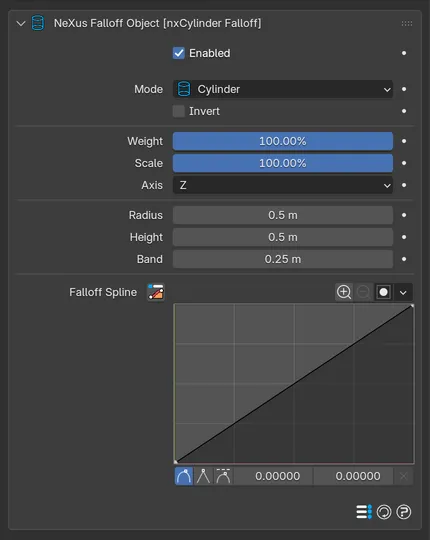
nxFalloff in Cylinder mode, with Radius, Height and Band.
Solid shapes built around an axis. They share one set of size controls, so switching between them keeps the size you have dialed in. Each shape relabels the two size fields to suit it.
- Cylinder: a solid cylinder.
- Torus: a ring around the axis.
- Box Frame: a square frame, like a torus with straight sides, hollow in the middle.
- Capsule: a cylinder with rounded ends.
- Cone: a cone with its base at the negative end of the axis.
Selects the axis the shape runs along. Set as Z, by default. The other options are X and Y.
Radius / Height
Section titled “Radius / Height”The two sizes of the shape. Radius and Height each default to 0.5m. Height is half the shape’s length along the Axis.
The labels change with the shape: a Torus shows Ring Radius and Tube Radius, a Box Frame shows Frame Size and Height and a Cone shows Base Radius and Height.
Shown only in Box Frame mode. Sets the thickness of the frame’s wall.
When you first switch an untouched falloff to Box Frame, its sizes are set to suit a frame: Frame Size 2m, Height 0.4m, Wall 0.9m and Band 0.2m.
The thickness of the soft ramp inside the shape’s surface. Defaults to 0.25m. Everything farther in than this is at full strength.
Object, Points, Spline and Attribute modes Beta
Section titled “Object, Points, Spline and Attribute modes Beta”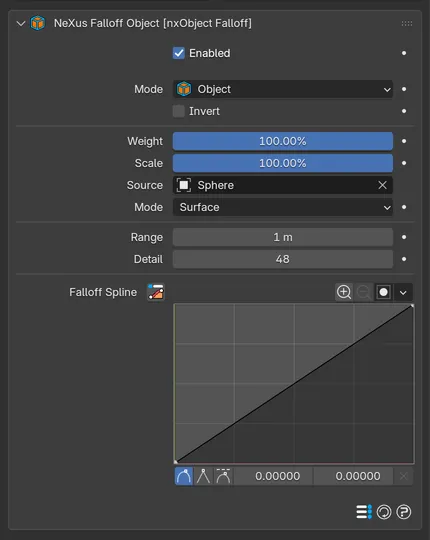
nxFalloff in Object mode, measuring from the surface of a sphere.
These modes measure against geometry in your scene instead of a built-in shape.
- Object: the distance to another mesh’s surface or the volume inside it.
- Points: the distance to the nearest of a mesh’s points.
- Spline: the distance to a curve.
- Attribute: a mesh’s own vertex map, read back as a falloff, so you can paint the region by hand.
Source
Section titled “Source”The object the falloff measures against. Object, Points and Attribute take a mesh. Spline takes a curve.
Attribute
Section titled “Attribute”Shown only in Attribute mode. The name of the vertex map to read, either an attribute or a vertex group. Defaults to nx_field.
Shown only in Object mode. Sets how the falloff relates to the surface. Set as Surface, by default. The alternative is Solid.
- Surface: strongest at the surface, fading away on both sides.
- Solid: full strength everywhere inside, fading outward only.
How far the falloff reaches from the geometry. Defaults to 1m.
Detail
Section titled “Detail”The number of cells across the falloff’s grid, from 4 to 128. Defaults to 48. Higher values resolve finer shapes and use more memory.
Curvature, AO and Wet modes Beta 3
Section titled “Curvature, AO and Wet modes Beta 3”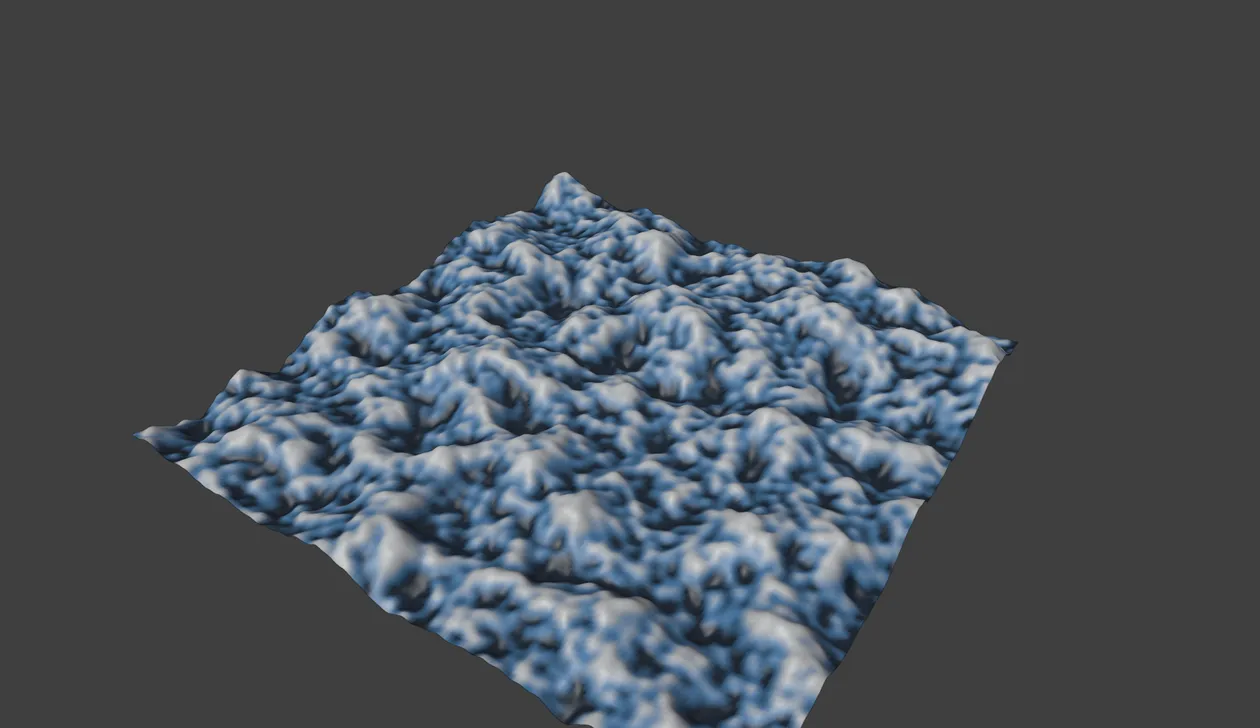
A Curvature falloff in a vertex map lights the ridges and leaves the hollows dark.
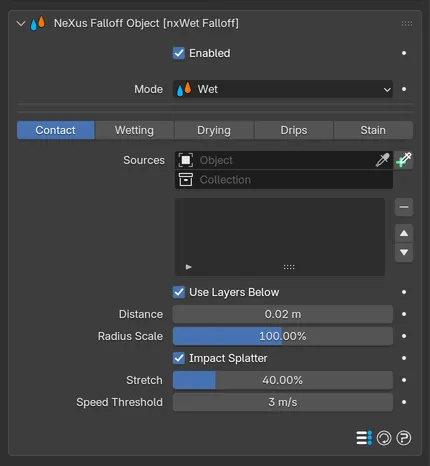
nxFalloff in Wet mode, with its five tabs.
These modes read a value from the mesh itself instead of measuring a shape in space. They work only in the Falloff list of a vertex map, where there is a mesh to measure. You can still pick them in any other Falloff list, but there they have no mesh and read as 0.
- Curvature: how convex or concave the mesh is at each point.
- AO: how open each point of the mesh is, so creases and hollows come out dark.
- Wet: the wetness that particles and objects leave on the mesh as the scene plays.
These modes hide Invert, Scale and the Falloff Spline. Wet also hides Weight.
Curvature
Section titled “Curvature”- Type: which curvature lights the field. Set as Both, by default, where flat areas sit at half, convex areas above it and concave areas below. The other options are Convex and Concave, which show only that kind.
- Radius: how far around each point the curvature is measured. Defaults to 0.3m.
- Contrast: pushes values away from the middle. Defaults to 1.
- Distance: how far each ray looks for the mesh. Defaults to 0.5m.
- Samples: the number of rays per point, from 1 to 256. Defaults to 32. More rays give a smoother result and take longer.
Wet builds up over time as particles and objects touch the mesh, then soaks in, spreads, runs and dries. Its settings are split across a row of five tabs: Contact, Wetting, Drying, Drips and Stain. Because it builds up frame by frame, use the vertex map’s Live mode.
The three time settings (Dry Time, Film Dry Time and Run Time) have the f / s toggle, so you can enter them in frames or seconds.
Contact sets what wets the mesh.
- Sources: a list of the nxEmitters and objects that wet the mesh. It takes nxEmitters, meshes, curves, surfaces and text objects. Leave it empty and every particle in the scene wets the mesh. Once you add anything to the list, only the particles of the nxEmitters in it wet the mesh.
- Use Layers Below: the falloff layers below this one in the list wet the mesh too. On by default.
- Distance: how far past a particle or object the mesh gets wet. Defaults to 0.02m.
- Radius Scale: scales each particle’s radius before Distance is added. Defaults to 100%.
- Impact Splatter: fast hits spread their water along the way they slide. On by default.
- Stretch: how far a grazing hit draws its splat out. Defaults to 40%.
- Speed Threshold: hits faster than this splatter. Defaults to 3m/s.
Wetting sets how the water soaks in and spreads.
- Absorb Rate: how fast surface water soaks in. Defaults to 50%.
- Saturation: how much water the surface can soak up. Defaults to 70%.
- Film: how much water can sit on the surface. Defaults to 30%.
- Spread: how fast soaked water bleeds into drier points. Defaults to 25%.
- Channel: which part of the wetness the layer outputs. Set as Wetness, by default, which is the soaked and surface water together. The other options are Saturation (soaked water only), Film (surface water only) and Stain (the pigment left behind).
Drying sets how the mesh dries.
- Dry Time: how long soaked water takes to dry. Defaults to 96 frames. At 0 it never dries.
- Film Dry Time: how long surface water takes to dry. Defaults to 24 frames. At 0 it never dries.
- Sun: a light in the scene. Faces turned toward it dry faster. Empty by default.
- Shade: how much slower hollows and covered points dry. Defaults to 50%.
- Edge Drying: how much faster the rim of a wet patch dries. Defaults to 35%.
Drips sets how water runs down the mesh.
- Drips: surface water runs down slopes. On by default.
- Threshold: how full the film must be before it runs. Defaults to 60%.
- Length: how far a drip runs before it is spent. Defaults to 0.4m.
- Speed: how fast drips run. Defaults to 35%.
- Gravity: scales the drip speed. Defaults to 100%. At 0% drips stop.
- Axis: the way drips run. Set as -Z, by default. The other options are +X, -X, +Y, -Y and +Z.
- Style: how drips run. Set as Sheet, by default, so surface water runs as a sheet. The alternative is Lines, where drops run down in lines.
With Style set to Lines, more controls appear:
- Count: the number of drops formed per second. Defaults to 50.
- Width: how wide each line is. Defaults to 0.02m.
- Wander: how far lines snake sideways. Defaults to 20%.
- Run Time: how long a drop runs. Defaults to 48 frames. At 0 it runs until it is spent.
- Pulse: releases drops in bursts. Defaults to 0%.
- Adhesion: how strongly drops follow wet trails and join. Defaults to 50%.
Stain sets the color the particles leave behind.
- Stain: the particle color is left on the mesh. On by default.
- Strength: how much pigment the water carries. Defaults to 50%.
- Edge Ring: how much pigment gathers at the drying rim. Defaults to 30%.
With Stain on and Channel set to Stain, the vertex map also writes the stain colors to a color attribute named after the map with _stain added, for example nx_field_stain.
Falloff Spline
Section titled “Falloff Spline”
A curve that remaps the falloff profile. It runs as a straight ramp from 0 to 1 by default. Reshape it to make hard edges, ease-in and ease-out transitions or custom profiles.
The Falloff Spline is shown in every mode except Noise, which uses the Contrast gradient instead. It is also hidden in Curvature, AO and Wet modes.
Blending falloffs
Section titled “Blending falloffs”You can add more than one nxFalloff to a modifier’s Falloffs list. Each entry in the list has its own Enabled toggle plus two blend controls that decide how it combines with the falloffs below it. NeXus works from the bottom of the list up.
How this falloff combines with the ones below it in the list. Set as Normal, by default. The other options are Add, Subtract, Multiply, Difference, Screen, Overlay, Min and Max.
Strength
Section titled “Strength”How strongly this falloff’s contribution blends in. Set as 100%, by default. Lower it to fade this falloff back against the others in the list.
Copyright © 2026 INSYDIUM LTD. All Rights Reserved.