

Vertex Maps Beta
A vertex map writes the value of one or more falloffs into a mesh, one value per vertex, so the mesh carries the field as ordinary Blender data.
Each map writes a point float attribute on the mesh. Once written, anything that reads an attribute can use it: Geometry Nodes, shaders and the NeXus objects listed below. A map can also mirror itself into a vertex group, for Blender’s own modifiers and weight paint.
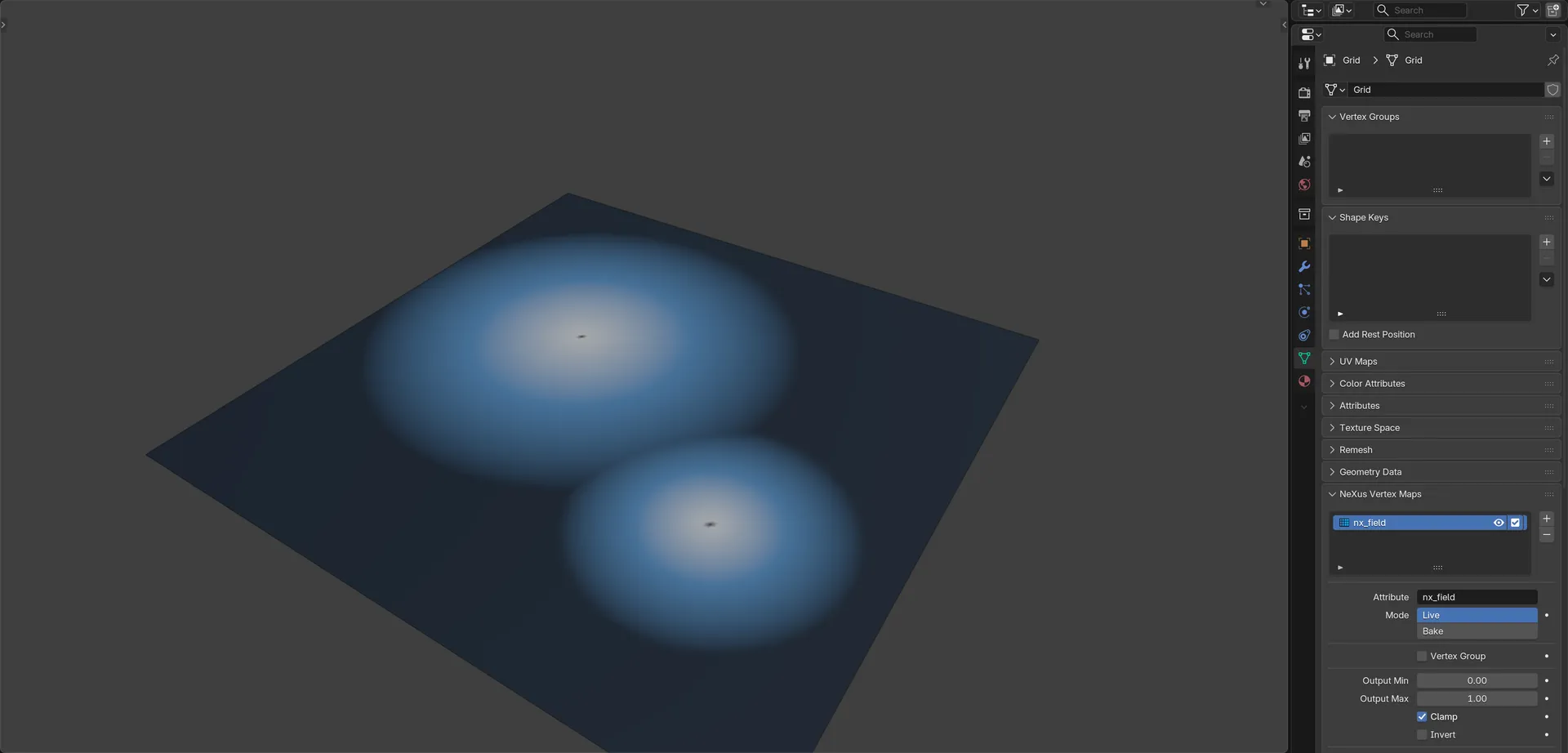
Two spherical falloffs written onto a grid mesh as a NeXus vertex map, shown in the viewport with Show in Viewport. The NeXus Vertex Maps panel is in the mesh’s Object Data properties.
The NeXus Vertex Maps panel
Section titled “The NeXus Vertex Maps panel”Select any mesh and open Properties ▸ Object Data. The NeXus Vertex Maps panel sits there with Blender’s own Vertex Groups, UV Maps and Attributes panels. It is shown for every mesh, whether or not the scene has any NeXus objects yet.
The list holds the mesh’s vertex maps. Use the + and - buttons beside it to add or remove a map. Removing a map also removes the attribute it wrote. Each row shows:
- The map’s attribute name, which you can rename straight from the row.
- An eye, which colors the mesh with this map in the viewport. See Show in Viewport below.
- A checkbox that turns the map on or off. A map that is off is not written.
Select a map in the list to show its settings below.
Map settings
Section titled “Map settings”Attribute
Section titled “Attribute”The name of the point float attribute this map writes. A new map is named nx_field (or nx_field_2 and so on if that name is taken). Renaming it removes the attribute under the old name, so no stale copy is left on the mesh.
When the map is written. Set as Live, by default.
- Live: rewrites the map every frame and whenever you move one of its falloffs, so a moving or growing field animates.
- Bake: writes the map only when you click Bake, so you can paint on top of it afterward without the next frame overwriting your changes.
Vertex Group
Section titled “Vertex Group”Also writes the map to a vertex group, so Blender’s own modifiers (such as Displace, Mask and Warp) and weight paint can use it. Off by default. Turning it off removes the group again.
When on, a Group field picks the vertex group to write. Leave it empty to use the attribute’s own name.
Output Min and Output Max
Section titled “Output Min and Output Max”What a field value of 0 and a field value of 1 become in the written map. Default to 0 and 1.
Holds the written value inside the Output Min to Output Max range. On by default.
Invert
Section titled “Invert”Writes one minus the field, so the inside and outside of the falloffs swap. Off by default. The field is inverted before it is mapped into the output range.
Show in Viewport
Section titled “Show in Viewport”Colors the mesh with this map, through the Color gradient shown below it. Off by default. This is the same as the eye in the list. Only one map on a mesh can be shown at a time, so turning it on for one map turns it off for the others.
While it is on, the 3D views switch to Solid shading with Attribute color, so the map is visible. Turning off the last shown map sets the color back to Material.
Shown when Show in Viewport is on. The gradient the map is colored through, from 0 on the left to 1 on the right. It runs from dark blue to white, by default. It only affects the viewport display, not the values written.
Falloff
Section titled “Falloff”The falloffs that make up this map. It works like the Falloff tab on any NeXus modifier: add nxFalloff shapes, blend them per row and add nxFalloff Modifier layers to reshape them.
To make a map grow or leave a trail over time, add one of the memory layers (Freeze, Decay, Delay or Grow) from the Add Layer button. On a mesh, Grow spreads along the mesh’s own edges. The memory resets on the scene’s first frame and whenever you scrub backward, so use Live mode for these.
Writes the map into the mesh now, at the current frame. Available only once the map has at least one falloff.
Removes the attribute this map writes (and its mirrored vertex group) and leaves the map itself in place.
Using a vertex map in NeXus
Section titled “Using a vertex map in NeXus”Any NeXus control that reads a point float attribute or a vertex group can read a vertex map. Type the map’s attribute name or pick its mirrored vertex group:
- nxEmitter: in the Objects list, set Selection to Attribute to weight emission by the map, so particles are born only where it is high enough.
- nxExplosiaFX: on a mesh source, set a channel’s Weight By to Attribute to weight that channel’s emission, such as smoke or fuel, by the map.
- nxCollider: set Map By to Attribute to drive Bounce, Friction, Adhesion or Scatter from the map across the surface.
- nxFalloff: in Attribute mode, a falloff reads a mesh’s vertex map back as a field, so a baked and hand-painted map can drive any other NeXus object.
In Cinema 4D
Section titled “In Cinema 4D”There is no NeXus vertex map panel. Use Cinema 4D’s own Vertex Map tag instead.
Copyright © 2026 INSYDIUM LTD. All Rights Reserved.