

nxFluids
nxFluids turns your NeXus particles into a fluid simulation, with a choice of four solvers: PBD, SPH and the grid-based FLIP and APIC.
It reads the particles from your emitters and solves them as a liquid or granular material each frame, so a stream of particles behaves like water, oil, sand or snow. The solve runs on the GPU.
Add it from Add ▸ INSYDIUM NeXus ▸ Dynamics ▸ nxFluids. It arrives as an empty. All of its settings live in Properties ▸ Physics. Its object scale is locked, since the simulation domain is sized by its own properties rather than the object transform.
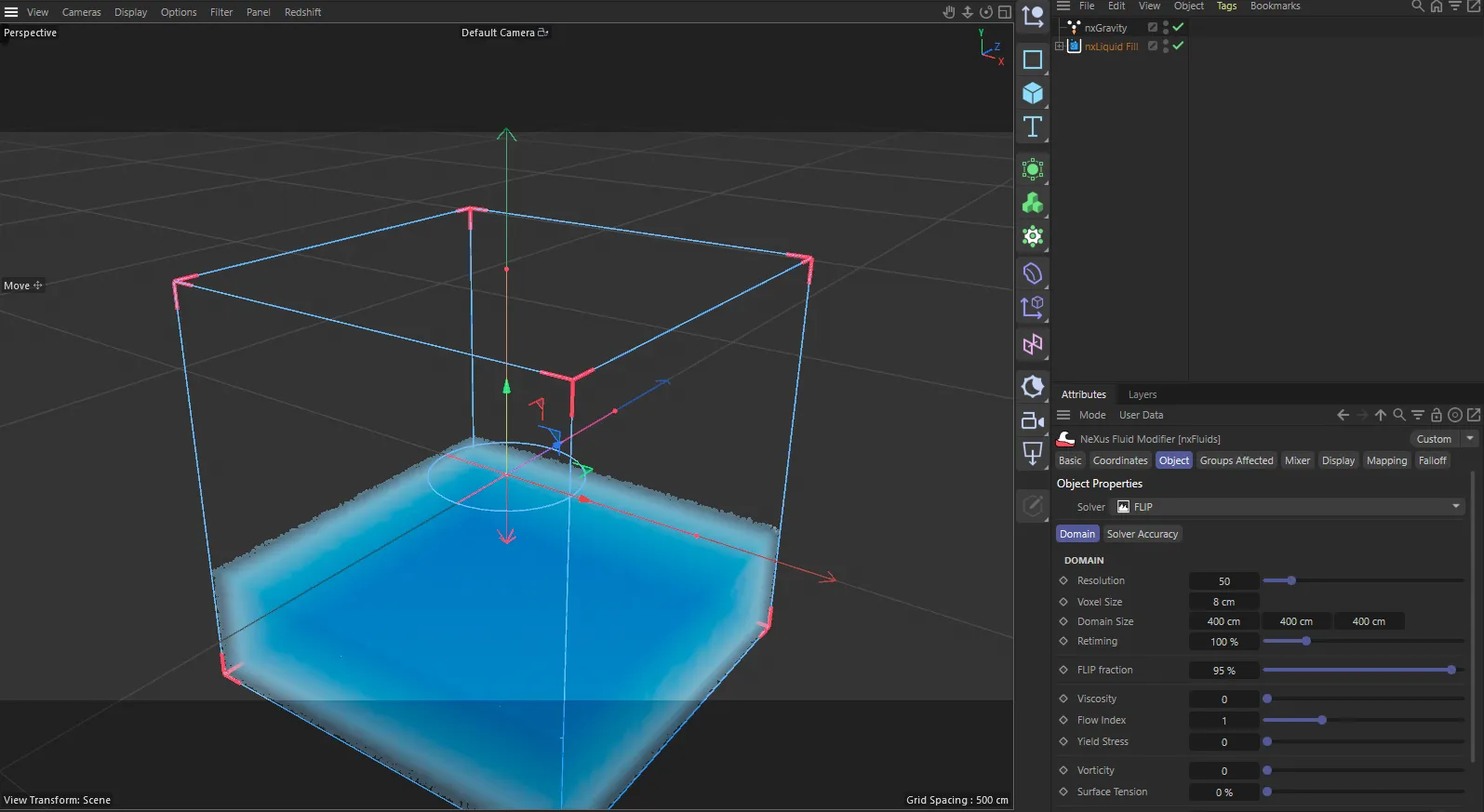
nxFluids in Cinema 4D. Its settings sit in the Attribute Manager.
Choosing a solver
Section titled “Choosing a solver”The Solver dropdown at the top of the panel sets the simulation method. Set as PBD, by default. The alternatives are SPH, FLIP and APIC. Changing it swaps the entire parameter set below, so each solver has its own page.
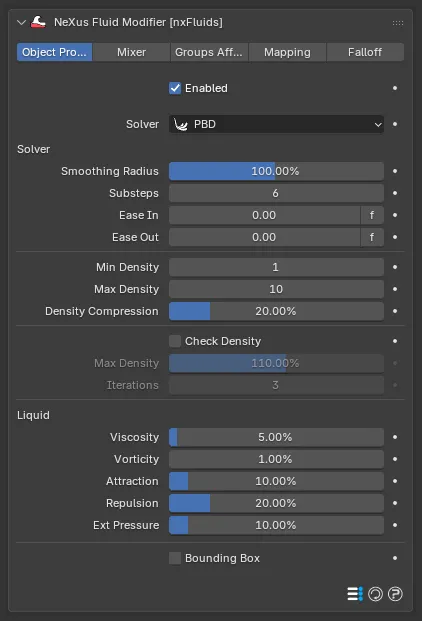
The nxFluids panel in Properties ▸ Physics, on the Object Properties tab, shown with the default PBD solver. The Solver dropdown near the top chooses between PBD, SPH, FLIP and APIC. Every parameter below it changes to match the selected solver.
Position Based Dynamics is a fast, stable solver suited to small to mid-scale scenes. It works very well alongside nxConstraints and other modifiers to create stylized simulations that push beyond what is strictly physically accurate.
nxFluids - PBD solver parameters
Smoothed-Particle Hydrodynamics suits mid to large-scale scenes where realism is key. SPH can also solve granular materials, for sand and snow.
nxFluids - SPH solver parameters
FLIP and APIC
Section titled “FLIP and APIC”FLIP (Fluid-Implicit-Particle) and APIC (Affine Particle-In-Cell) are grid-based solvers for large-scale, high-detail simulations. They transfer particle velocities to and from a background voxel grid each frame. FLIP blends grid-based and particle-based velocity updates. APIC preserves more angular momentum for a more energetic, swirling result.
A FLIP or APIC domain can also be coupled to an nxOcean, so a local liquid simulation blends into an open sea. Beta 2
nxFluids - FLIP/APIC solver parameters
Emission and the Mixer
Section titled “Emission and the Mixer”nxFluids does not emit particles itself. Add one or more nxEmitter objects to produce the particles and the nxFluids solver treats them as fluid.
By default every emitter shares the solver-level fluid settings. To give individual emitters or groups their own properties, use the Mixer tab. This is how you mix fluids in one scene, for example water from one emitter and sand from another (or liquids of different viscosity).
Object Properties
Section titled “Object Properties”The Object Properties tab holds the Solver dropdown and the parameters for the selected solver. See the solver pages above for every control.
Alongside Object Properties, every solver exposes Mixer, Groups Affected, Mapping and Falloff tabs. FLIP and APIC add a Display tab, covered on the FLIP/APIC page.
Enabled
Section titled “Enabled”Turns nxFluids on or off. Disable it to stop the fluid solve without deleting the modifier.
Bounding Box
Section titled “Bounding Box”FLIP and APIC always simulate inside their own domain box. PBD and SPH have no domain of their own, so they offer an optional Bounding Box to contain the fluid and stop it falling away. It is drawn at the bottom of the Object Properties tab for those two solvers and is covered on the PBD and SPH pages.
Groups Affected
Section titled “Groups Affected”Use the Groups Affected tab to restrict nxFluids to particles in specific nxGroup groups, rather than solving every particle. This is useful when only part of a scene should be treated as fluid.
Mapping
Section titled “Mapping”Use the Mapping tab to drive nxFluids’ settings from particle data instead of fixed values, so a particle’s own attributes can change how it is solved. See Mapping for how this works.
Falloff
Section titled “Falloff”Use the Falloff tab to limit where nxFluids operates. Add one or more nxFalloff objects to the list and blend them, so only particles inside the falloff region are affected.
Copyright © 2026 INSYDIUM LTD. All Rights Reserved.