

nxSpeed
nxSpeed changes the speed of your NeXus particles, speeding them up or slowing them down. It works as a stack of layers, so you can combine several speed operations and blend them together.
Add it from Add ▸ INSYDIUM NeXus ▸ Modifiers ▸ nxSpeed. It arrives as an empty. Add one or more speed layers, set each to an operation, then blend them. All of its settings live in Properties ▸ Physics.
A stream of particles picking up speed as an Incremental layer adds to their speed each frame, breaking over Suzanne.
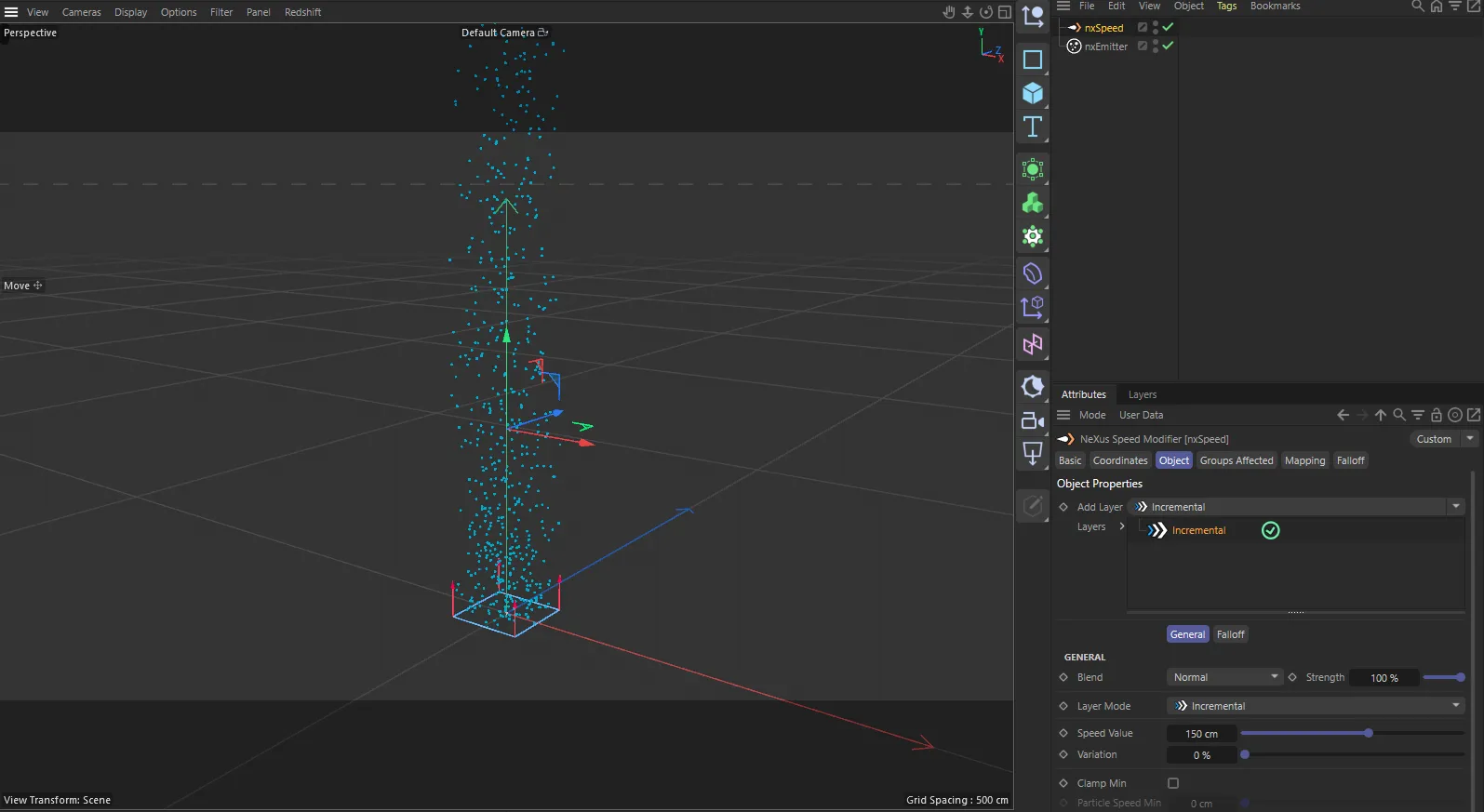
nxSpeed in Cinema 4D. Its settings sit in the Attribute Manager.
Object Properties
Section titled “Object Properties”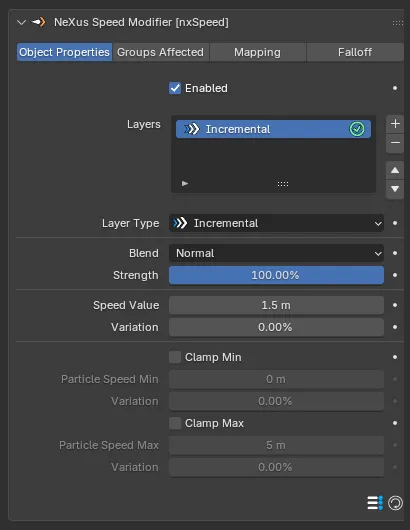
The nxSpeed panel in Properties ▸ Physics, on the Object Properties tab, showing an Incremental layer.
Enabled
Section titled “Enabled”Turns nxSpeed on or off. Disable it to switch off its effect without deleting it.
Layers
Section titled “Layers”The stack of speed layers. Use the + button to add a layer and choose its operation from the menu that appears. Use the - button to remove the selected one. Each layer has an enable toggle on the right of its row, so you can switch a layer on or off without removing it.
Layers are processed from the top of the stack down, each blending with the result of the layers above it. Select a layer to show its settings underneath.
Layer Settings
Section titled “Layer Settings”These settings apply to the layer selected in the Layers list. The top block is shared by every layer. The controls below it change with the Layer Type.
Layer Type
Section titled “Layer Type”Sets the operation this layer performs. A new nxSpeed starts with an Incremental layer. The layer types are Incremental, Absolute, Acceleration, Use Spline and Range, each described below.
Sets how this layer combines with the layers above it. Set as Normal, by default. The other options are Add, Subtract, Multiply, Difference, Screen, Overlay, Min and Max.
Strength
Section titled “Strength”Sets how strongly this layer contributes to the blend. Defaults to 100%.
Incremental
Section titled “Incremental”The default operation. It adds the Speed Value to each particle’s speed every frame, so the particles build up (or lose) speed for as long as they are affected.
Speed Value
Section titled “Speed Value”The amount added to a particle’s speed each frame. Defaults to 1.5m. Keep it low, since the speed can build up quickly. Use a negative value to slow the particles down.
0.5m
3m
The Speed Value is 0.5m, on the left, and 3m, on the right. A small value speeds the stream up gently, so it travels a short way. A large value accelerates it hard, throwing the particles much further.
Variation
Section titled “Variation”Adds a random amount to the speed change, so the particles do not all speed up at the same rate. Defaults to 0%.
Absolute
Section titled “Absolute”Sets each particle’s speed directly to the Speed Value, rather than building it up. It uses the same Speed Value and Variation controls as Incremental, but the value becomes the particle’s new speed instead of an amount added each frame.
Acceleration
Section titled “Acceleration”Multiplies each particle’s speed every frame, for an accelerating or decelerating change. In 2026.0 this layer type was labeled Exponential and its value Acceleration. The labels now match Cinema 4D.
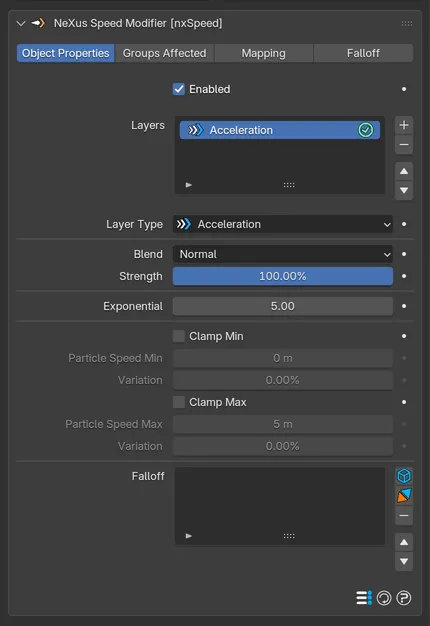
An Acceleration layer, with its single Exponential control above the shared speed clamps.
Exponential
Section titled “Exponential”The factor that multiplies the speed each frame. Defaults to 5. A positive value accelerates the particles, building up speed exponentially. A negative value decelerates them, slowing them to a halt.
The value now reaches the simulation at its full strength. In 2026.0 it was scaled down a second time, so a scene made there accelerates much harder in this version. Lower the value to get the old result back.
Use Spline
Section titled “Use Spline”Drives each particle’s speed from a curve, mapping the curve up to a maximum speed.
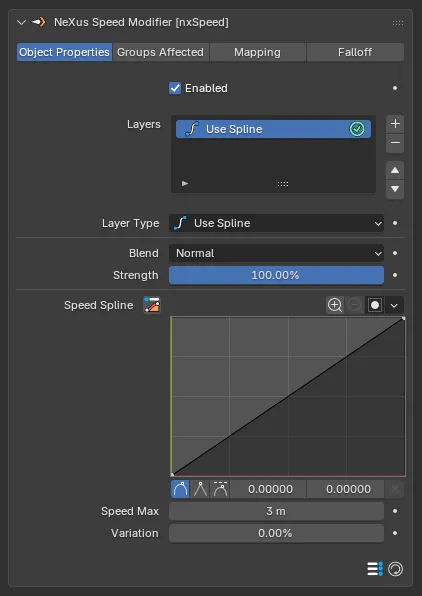
A Use Spline layer, driving the speed from the Speed Spline curve up to Speed Max.
Speed Spline
Section titled “Speed Spline”The curve that shapes the speed over the particle’s life.
Speed Max
Section titled “Speed Max”The speed the top of the curve maps to. Defaults to 3m.
Variation
Section titled “Variation”Adds a random amount to the speed, so the particles do not all follow the curve identically. Defaults to 0%.
Transitions each particle’s speed from a Speed Start to a Speed End over a time window.
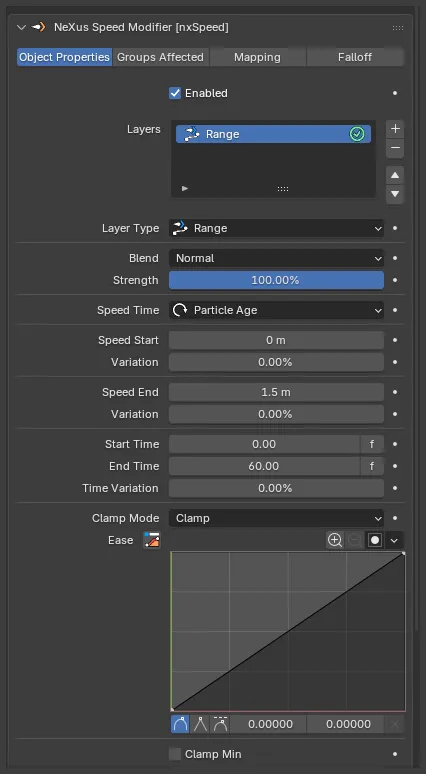
A Range layer set to Particle Age, transitioning from Speed Start to Speed End over the time window, with an Ease curve shaping the change.
Speed Time
Section titled “Speed Time”Sets what the transition is timed against. Set as Particle Age, by default. The other options are On Birth and Frame Time.
- On Birth: measured from the particle’s birth. Only the Speed End and its Variation are used, so the Speed Start, the timing controls, Clamp Mode, Ease and the speed clamps below are all hidden.
- Particle Age: measured by how old each particle is.
- Frame Time: measured in scene frames.
Speed Start
Section titled “Speed Start”The speed the particle transitions from, with its own Variation for a per-particle spread.
Speed End
Section titled “Speed End”The speed the particle transitions to, with its own Variation for a per-particle spread.
Start Time / End Time
Section titled “Start Time / End Time”The window over which the transition happens.
Time Variation
Section titled “Time Variation”Adds a random spread to the transition timing, so the particles do not all change at the same moment. Defaults to 0%.
Clamp Mode
Section titled “Clamp Mode”Sets how the ease curve behaves outside the time window. Set as Clamp, by default. The other options are Clamp In Range, Repeat and Continue.
A curve that eases the transition between Speed Start and Speed End.
Speed Clamps
Section titled “Speed Clamps”Incremental, Absolute, Acceleration and Range layers each end with a pair of speed clamps, so a speed change cannot push a particle beyond a set range.
Clamp Min
Section titled “Clamp Min”Stops a particle’s speed falling below a floor. Off by default. Enable it, then set the floor in Particle Speed Min, with its own Variation.
Clamp Max
Section titled “Clamp Max”Stops a particle’s speed rising above a ceiling. Off by default. Enable it, then set the ceiling in Particle Speed Max, with its own Variation.
Groups Affected
Section titled “Groups Affected”Use the Groups Affected tab to restrict nxSpeed to particles in specific nxGroup groups, rather than affecting every particle.
Mapping
Section titled “Mapping”Use the Mapping tab to drive nxSpeed’s settings from particle data instead of fixed values, so a particle’s own attributes can change the speed it feels. See Mapping for how this works.
Falloff
Section titled “Falloff”Use the Falloff tab to limit where nxSpeed acts. Add one or more nxFalloff objects to the list and blend them, so the speed change only affects particles inside the falloff region.
Copyright © 2026 INSYDIUM LTD. All Rights Reserved.