

nxGroup
nxGroup tags NeXus particles as members of a numbered group, so you can give them their own look and behavior and target them separately from the rest of the simulation.
Add it from Add ▸ INSYDIUM NeXus ▸ nxGroup. It arrives as an empty. NeXus gives each nxGroup its own Group ID automatically and renames the empty to match (nxGroup_01, nxGroup_02 and so on). All of its settings live in Properties ▸ Physics, on the Object Properties tab.
A group on its own does nothing until particles are routed into it. Add the nxGroup to an emitter’s Groups list and the emitter assigns emitted particles to it. Once particles carry a group number, other modifiers can act on just that group through their Groups Affected tab. See Using groups below.
One emitter feeding three nxGroups, each with its own Color. The particles are split across the groups and shower onto Suzanne as an intermixed spray of red, blue and yellow.
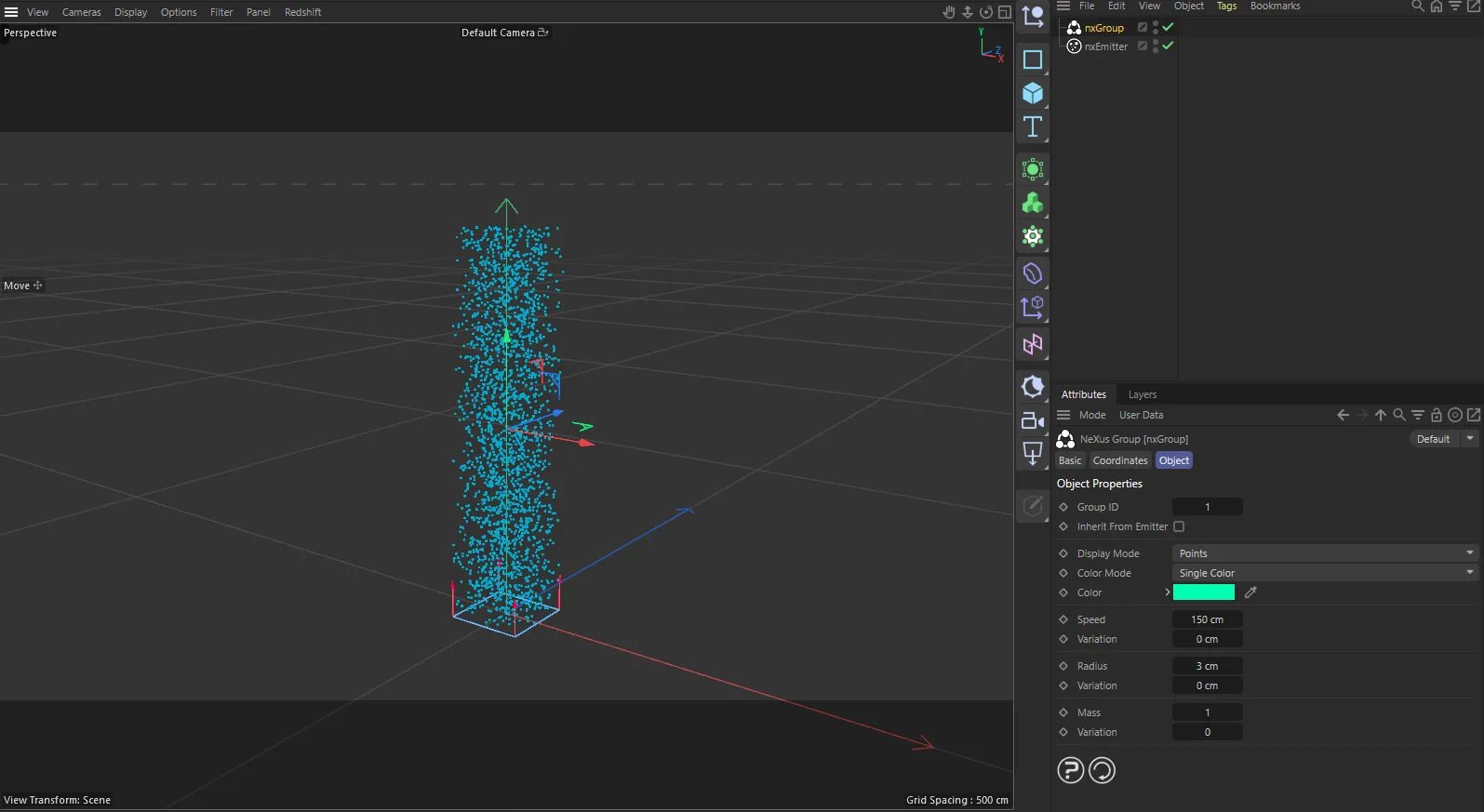
nxGroup in Cinema 4D. Its settings sit in the Attribute Manager.
Object Properties
Section titled “Object Properties”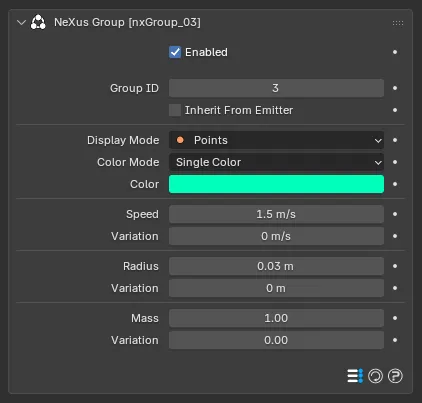
The nxGroup panel in Properties ▸ Physics.
Enabled
Section titled “Enabled”Turns nxGroup on or off. Disable it to stop tagging particles with this group without deleting it.
Group ID
Section titled “Group ID”The numeric identifier that tags every particle in this group. NeXus sets it automatically when you add the nxGroup (one above the highest existing group’s number) and renames the empty to match. You can edit it to renumber the group. Defaults to 1 and cannot go below 1.
Inherit From Emitter
Section titled “Inherit From Emitter”When enabled, the group uses the emitter’s speed, radius, mass, color and display mode for its particles instead of the values set below. The group still tags its particles with its own Group ID, so you can still target them. Off by default.
Turning this on disables the rest of the panel, since those values are then taken from the emitter.
Display Mode
Section titled “Display Mode”Sets how this group’s particles are drawn in the viewport. Set as Points, by default. The alternatives are Square, Line, Box 3D, Box 3D Filled, Circle, Circle Filled, Pyramid, Pyramid Filled, Arrow, Arrow Filled, Sphere, Axis and None. Set it to None to hide the group in the viewport.
Giving each group its own display mode makes it easy to tell groups apart while you work.
Color Mode
Section titled “Color Mode”Sets how the group’s particle colors are determined. Set as Single Color, by default, which colors every particle in the group with the Color swatch below. The other options are Gradient and Noise.
Gradient and Noise each show their own controls in place of the Color swatch. Beta 3
Available when Color Mode is Single Color. The display color for this group. Defaults to green. Give each group a distinct color so its particles stand out from the others in the viewport.
Gradient controls Beta 3
Section titled “Gradient controls Beta 3”Shown when Color Mode is Gradient. They color each particle from a gradient, driven by a particle value.
- Color: the gradient itself. It runs from blue to white, by default.
- Parameter: the particle value that drives the gradient. Set as Speed, by default. The other options are Age, Radius, Scale, Fluid Density, Fluid Density/Velocity, Granular, Fluid Surface, Mass, Temperature, Smoke, Fuel, Distance Traveled, Direction, Rotation, Solver Material, Solver Blend and Random.
- Axis: shown when Parameter is Direction or Rotation. Picks which component drives the gradient: Heading (the default), Pitch, Bank or HPB Combined.
- Autoscale: fits the gradient range to the particle values automatically. On by default.
- Min and Max: the value range mapped across the gradient. They default to 0 and 5. They are grayed out while Autoscale is on.
These match the Gradient color mode on the nxEmitter Display tab.
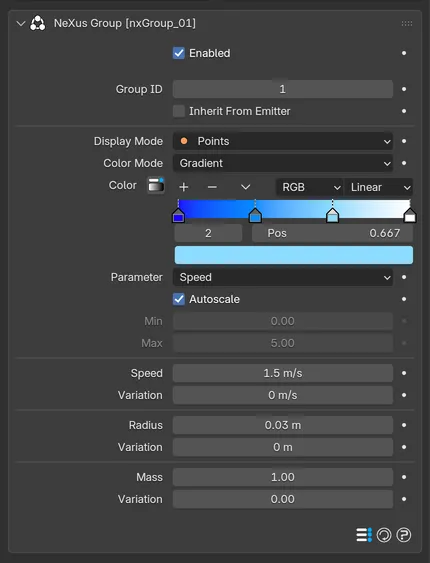
Color Mode set to Gradient, with the gradient, Parameter and Autoscale controls.
Noise controls Beta 3
Section titled “Noise controls Beta 3”Shown when Color Mode is Noise. They color the particles from a noise pattern.
- Noise Type: set as Voronoise, by default. The other options are Simplex, FBM, Turbulence, Wavy Turbulence and Cubic.
- Color Channel: how the noise becomes a color. Set as Gradient, by default, which maps the noise through a Gradient that runs from white to black. Noise uses the noise directly for the red, green and blue channels.
- Seed: offsets the noise pattern. Defaults to 1.
- Scale: the size of the noise. Defaults to 100%.
- Persistence: how much each octave’s strength falls off. Defaults to 100%.
- Lacunarity: how much finer each octave gets. Defaults to 1.
- Frequency: the base frequency of the noise. Defaults to 100%.
- Octaves: the number of noise layers. Defaults to 1 and ranges from 1 to 20.
- Low Clip and High Clip: clip the noise output. They default to 0% and 100%.
- Brightness and Contrast: shape the noise output. They default to 0% and 100%.
The initial speed of the group’s particles, in meters per second. Defaults to 1.5 m/s.
The Variation field below adds a random amount to the speed, so the group’s particles do not all launch at the same rate. Defaults to 0, which gives every particle the same speed.
Radius
Section titled “Radius”The physical radius of each particle in the group. Defaults to 0.03 m.
The Variation field below adds a random amount to the radius, so the particles are not all the same size. Defaults to 0.
The mass of each particle in the group. Defaults to 1. Mass affects how strongly forces such as nxGravity push the particles around.
The Variation field below adds a random amount to the mass. Defaults to 0.
Using groups
Section titled “Using groups”nxGroup is one half of a two-step workflow. First you route particles into the group, then you act on the group elsewhere.
Route particles in. Add the nxGroup to a NeXus emitter’s Groups list. The emitter’s Mode control, on its Groups tab, decides how emitted particles are shared out across the groups you have added: Random assigns each particle to a random group, Sequential cycles through the groups in turn and First Group Only puts every particle in the first group.
First Group Only
Random
The same emitter feeding three colored groups. With First Group Only every particle takes the first group, so the curtain is a single color. With Random the particles spread across all three groups, mixing the colors.
Act on the group. Most NeXus modifiers have a Groups Affected tab. Add an nxGroup to that list and the modifier only affects particles carrying that group’s number, rather than every particle in the scene. This is how you steer a single force, collider or generator at one group while leaving the rest of the simulation untouched. See nxGravity or nxCollider for a modifier that uses Groups Affected.
Copyright © 2026 INSYDIUM LTD. All Rights Reserved.