

nxWarp Beta 2
nxWarp bends, twists, tapers and reshapes your particle stream inside a cage.
Add it from Add ▸ INSYDIUM NeXus ▸ Warps, which has one entry per warp type: nxWarpBend, nxWarpBulge, nxWarpCast, nxWarpFFD, nxWarpFlatten, nxWarpHelix, nxWarpMelt, nxWarpNoise, nxWarpPath, nxWarpSBend, nxWarpScroll, nxWarpShear, nxWarpSpherify, nxWarpSquash, nxWarpTaper, nxWarpTwist, nxWarpWave, nxWarpWind and nxWarpWrap. Each one adds an nxWarp already set to that type. You can switch the type at any time from the panel. All of its settings live in Properties ▸ Physics.
In the viewport the cage draws as a blue outline. The cage is centered on the object across its X and Y axes and runs up its Z axis from the object’s origin. A red spine and arrow show where the warp carries the stream. Drag the handles to resize the cage and, for types with an Angle, to set the angle.
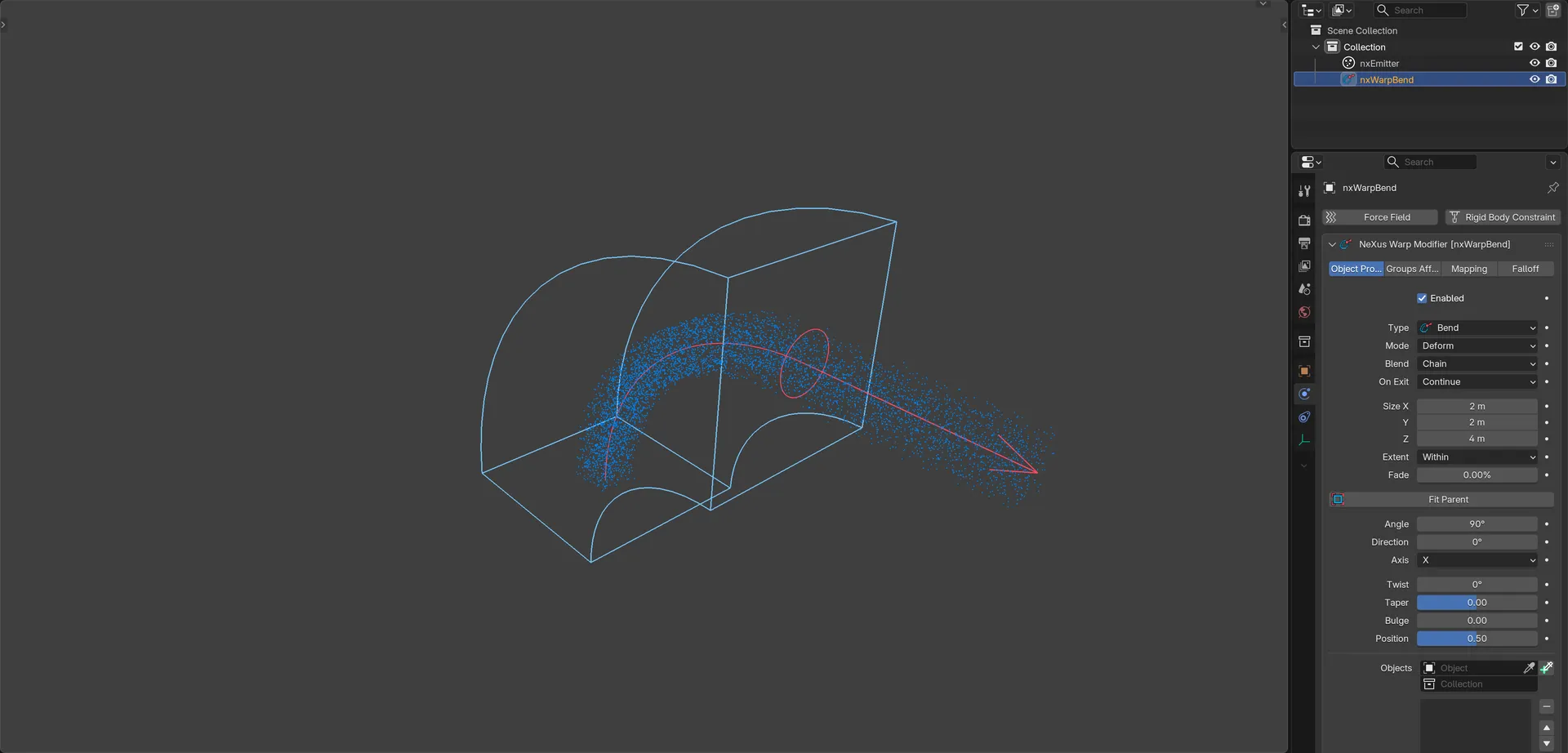
A Bend warp turns a rising particle stream through 90°. The blue cage shows the warp and the red spine shows where it carries the stream.
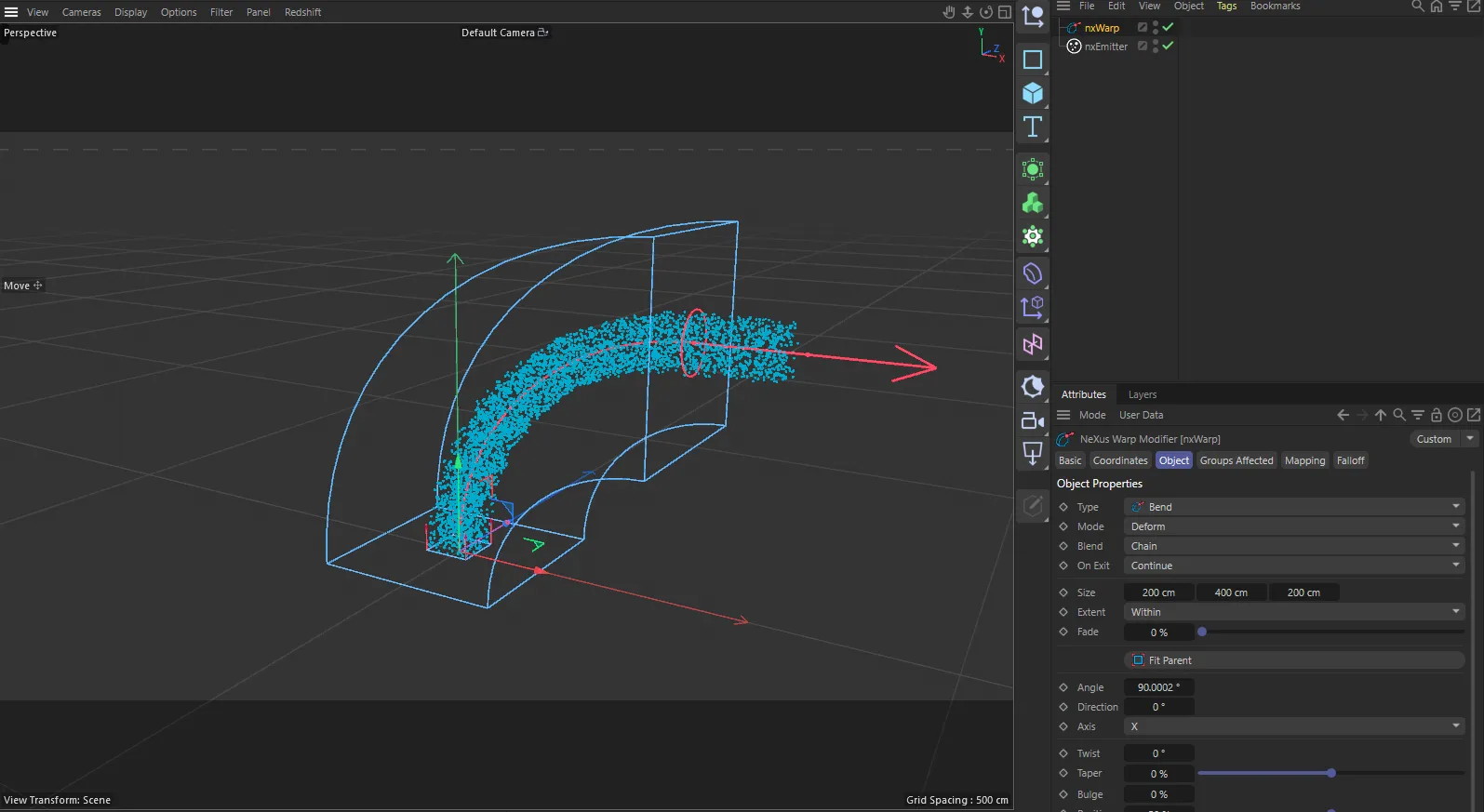
nxWarp in Cinema 4D. The settings are the same and sit in the Attribute Manager.
Object Properties
Section titled “Object Properties”Enabled
Section titled “Enabled”Turns nxWarp on or off. Disable it to switch off the warp without deleting it.
Sets what the warp does to the stream. Set as Bend, by default. Each type adds its own controls, covered in Warp Types below. Changing the type also renames the object to match, for example nxWarpTwist.
Sets whether the warp changes the result or the simulation itself. Set as Deform, by default. The other options are Guide and Flow.
- Deform: reshapes what is shown and exported, leaving the simulation untouched. In this mode nxWarp also bends the mesh, curve, surface and lattice objects you add to the Objects list.
- Guide: steers the particles so the simulation itself follows the shape.
- Flow: turns the particles so the stream flows along the shape, held inside a tube set by Profile.
Sets how this warp combines with the warps before it. Only shown in Deform mode. Set as Chain, by default.
- Chain: bends the stream as the warps before it left it.
- Add: bends the unwarped stream and adds the result to the warps before it.
- Average: takes the middle of this bend and the warps before it.
- Strongest: keeps whichever moves each point further.
Guide Strength
Section titled “Guide Strength”How hard the particles are steered each frame. Only shown in Guide and Flow modes. Defaults to 100%.
On Exit
Section titled “On Exit”What happens to a particle as it leaves the top of the cage. In Guide and Flow modes it is set as Nothing, by default.
- Nothing: the particle carries on as it was once it leaves.
- Kill: the particle is removed as it leaves the cage.
- Change Group: the particle moves into the nxGroup set in Group as it leaves.
- Continue: the particle keeps being steered past the top of the cage. Guide mode only.
In Deform mode, On Exit is only shown while Extent is Within and has its own options. Set as Continue, by default.
- Continue: the bend at the top keeps going past it, leaving the simulation untouched.
- Straighten: the particle returns to its real path, eased by Fade.
- Release: writes the bent position and speed into the simulation and lets the particle go.
- Kill: removes the particle as it leaves the top.
- Change Group: moves the particle into the group set in Group as it leaves the top.
The nxGroup a particle joins as it leaves the cage. Only shown when On Exit is Change Group.
The size of the cage along X, Y and Z. Z is the length of the cage. Defaults to 2m, 2m and 4m.
Extent
Section titled “Extent”Sets how far past the cage the warp reaches. Set as Within, by default.
- Within: warps only what is inside the cage.
- Limited: warps from the bottom of the cage up and carries the result past the top.
- Unlimited: keeps warping past both ends of the cage.
How far in from the cage walls the warp fades in, so the edge of the effect is soft. Only shown when Extent is Within, in Deform and Guide modes. Defaults to 0%.
Soft Entry
Section titled “Soft Entry”How gently the stream is eased in at the mouth of the cage. Only shown in Flow mode. Defaults to 0.2m.
Fit Parent
Section titled “Fit Parent”Click to fit the cage to the bounding box of the object nxWarp is parented to. If it has no parent, it fits to the first enabled object in the Objects list. The cage is resized and the nxWarp object is moved and rotated to line up with that object.
How far the stream corkscrews about its own path along the cage. Available on every type. Defaults to 0°.
Narrows the stream along the cage. Positive values narrow the top of the cage and negative values narrow the bottom. Available on every type. Defaults to 0, with a range of -1 to 1.
How much the section swells along the cage. Negative values pinch it instead. Available on every type. Defaults to 0.
Position
Section titled “Position”Where the Bulge peaks, from the bottom of the cage (0) to the top (1). Defaults to 0.5.
Profile
Section titled “Profile”The shape of the tube the stream is held in. Only shown in Flow mode. Set as Square, by default. The other options are Circle, Star and Custom.
- Star: adds Points (the number of points on the star, defaults to 5) and Point Depth (how deep the valleys cut between them, defaults to 0.5).
- Custom: adds a Section graph where you draw the shape of the tube.
Objects
Section titled “Objects”The objects nxWarp works on besides the particles. Add Mesh, Curve, Surface or Lattice objects and, in Deform mode, nxWarp bends them too, through a shape key named nxWarp. It also bends the object it is parented to. You can add nxMesher, nxTrail, nxDeformer, nxBioLogic and nxExplosiaFX objects as well.
While nothing in the list is enabled, nxWarp reaches all of those NeXus objects. Enable entries to limit it to just those objects. Each entry has an enable toggle on the right of its row, so you can leave an object out without removing it.
Warp Types
Section titled “Warp Types”Each type adds its own controls, shown below Fit Parent. Strength defaults to 0.5 on every type that has it, unless noted.
Bends the stream around an arc.
- Angle: how far the cage turns from bottom to top. A new nxWarpBend starts at 0°, so it stays straight until you raise it.
- Direction: which way around the cage the bend leans. Defaults to 0°.
- Axis: which way the cage bends, X or Y. Set as X, by default.
Swells the stream at the middle of the cage.
- Strength: how much the middle swells. Negative values pinch it.
- Curvature: blends from a straight change along the cage (0) to a curved one (1). Defaults to 1.
- Fillet: eases in and out of the shape at both ends. Off by default.
Pushes the stream onto a shape.
- Shape: Sphere, Cylinder (upright) or Box (the faces of the cage). Set as Sphere, by default.
- Strength: how far the stream is pushed onto the shape.
- Radius: the radius of the sphere or cylinder. Defaults to 1m.
Reshapes the stream with a lattice. Drag the red cage points in the viewport to shape it.
- Points: how many cage points run along X, Y and Z, from 2 to 10. Defaults to 3 on each axis. Changing it resets the points.
- Interpolation: how the points blend into a shape. Set as Bezier, by default. B-Spline only lets nearby points pull, Catmull-Rom and Cardinal pass through every point (Cardinal tighter) and Linear runs straight between them.
- Strength: how strongly the cage shape is applied. Starts at 1.
- Reset Cage: puts every cage point back where it started.
Flatten
Section titled “Flatten”Squeezes the stream flat along one axis.
- Axis: the cage axis that is flattened, X, Y or Z. Set as Z, by default.
- Strength: how flat the stream is squeezed. At 1 it is fully flat.
Coils the stream around the length of the cage. Drag the red rings in the viewport to set the radii.
- Turns: how many times the coil winds along the cage. Defaults to 1.
- Start Radius, Mid Radius and End Radius: the coil radius at the bottom, middle and top of the cage. Each defaults to 0.4m.
- Direction: where around the cage the coil starts. Defaults to 0°.
Sags the stream down to the floor of the cage and spreads it out.
- Strength: how far the stream sags.
- Frequency: the size of the uneven pattern that makes some areas sag more than others. Defaults to 0.5.
- Seed: the random seed for that pattern. Defaults to 0.
Displaces the stream with one of the NeXus noises.
- Noise Type: Simplex, Curl, Turbulence, Wavy Turbulence, Voronoise, fBm or Cubic. Set as Simplex, by default.
- Direction: Up pushes along the cage’s Z axis, All Axes pushes in every direction. Set as Up, by default.
- Amplitude: how far the stream is pushed. Defaults to 0.5m.
- Octaves: how many layers of finer noise are added, from 1 to 20. Defaults to 1.
- Seed: the random seed. Defaults to 0.
- Noise Offset: slides the noise through the cage.
- Scale: the size of the noise. Defaults to 100%.
- Axis Direction Scale: how far the noise pushes along each axis, from 0 to 1. Defaults to 1 on each axis.
- Persistence: how much each octave’s strength drops. Defaults to 1.
- Lacunarity: how much each octave’s frequency rises. Defaults to 1.
- Frequency: how fast the noise moves. Defaults to 100%.
Carries the stream along a path you draw.
- Amount: how far the path pushes the stream sideways. Defaults to 0.5m.
- Direction: which way around the cage the path pushes. Defaults to 0°.
- Path: a graph of the path. Left to right is the bottom to the top of the cage. The height of the curve is the sideways push, scaled by Amount. It starts as a single hump.
S Bend
Section titled “S Bend”Bends the stream one way and then back the other.
- Angle: how far the first part turns. Defaults to 90°.
- Second Angle: how far the second part turns. Positive values bend back into an S. Defaults to 90°.
- Split: where along the cage the bend turns back, from 0 to 1. Defaults to 0.5.
- Direction: which way around the cage the bend leans. Defaults to 0°.
- Axis: which way the cage bends, X or Y. Set as X, by default.
Scroll
Section titled “Scroll”Rolls the stream up like a scroll or a carpet.
- Roll: how much of the cage is rolled up, from the top back toward the base. Defaults to 0%.
- Radius: the radius of the core of the roll. Defaults to 0.2m.
- Spacing: the gap each turn of the roll adds to the one inside it. Defaults to 0.05m.
- Direction: which way around the cage the roll leans. Defaults to 0°.
- Axis: turns the cage to line the roll up with X, Y or Z. Set as Z, by default.
Slides the stream sideways along the cage, more at the top.
- Direction: which way the stream slides. Defaults to 0°.
- Strength: how far it slides, as a share of the cage width.
- Curvature: blends from a straight slide (0) to a curved one (1). Defaults to 1.
- Fillet: eases in and out of the shape at both ends. Off by default.
Spherify
Section titled “Spherify”Pulls the stream toward a sphere around the cage center.
- Strength: how far the stream is pulled onto the sphere.
- Radius: the radius of the sphere. Defaults to 1m.
Squash and Stretch
Section titled “Squash and Stretch”Stretches or squashes the stream along the cage.
- Strength: positive values stretch, negative values squash.
- Keep Volume: narrows the stream as it stretches and widens it as it squashes, so it keeps its volume. On by default.
Narrows the stream toward the top of the cage.
- Strength: how much the top narrows. Negative values widen it.
- Curvature: blends from a straight taper (0) to a curved one (1). Defaults to 1.
- Fillet: eases in and out of the shape at both ends. Off by default.
Twists the stream around the length of the cage.
- Angle: how far the top turns relative to the bottom. Defaults to 90°.
Ripples the stream up and down with a wave.
- Shape: Planar waves run along the cage’s X axis, Radial waves spread out from the center. Set as Planar, by default.
- Amplitude: the height of the wave. Defaults to 0.5m.
- Frequency: how many waves fit in each meter. Defaults to 0.5.
- Phase: offsets the wave, in waves. Defaults to 0.
- Speed: how fast the wave moves, per second. Defaults to 0, so the wave stays still.
- Decay: how quickly a Radial wave fades away from the center. Defaults to 0.
Ruffles the stream with gusting waves.
- Amplitude: the height of the gusts. Defaults to 0.5m.
- Frequency: how many gusts fit in each meter. Defaults to 0.5.
- Speed: how fast the gusts move, per second. Defaults to 0.
- Turbulence: how much finer gusts add to the main one, from 0 to 1. Defaults to 0.5.
Rolls the stream around a cylinder or sphere.
- Shape: Cylinder (upright) or Sphere. Set as Cylinder, by default.
- Angle: how far around the shape the cage wraps. Starts at 180°.
- Strength: how strongly the wrap is applied. Starts at 1.
- Radius: the radius of the shape. Defaults to 1m.
Groups Affected
Section titled “Groups Affected”Use the Groups Affected tab to restrict nxWarp to particles in specific nxGroup groups, rather than affecting every particle.
Mapping
Section titled “Mapping”Use the Mapping tab to drive nxWarp’s settings from particle data instead of fixed values. See Mapping for how this works.
Falloff
Section titled “Falloff”Use the Falloff tab to limit where nxWarp acts. Add one or more nxFalloff objects to the list and blend them, so the warp only affects particles inside the falloff region.
In Cinema 4D
Section titled “In Cinema 4D”Add it from INSYDIUM ▸ NeXus ▸ Warps. The cage length runs along Y instead of Z, so Size defaults to 200cm, 400cm and 200cm. Axis on Flatten and Scroll defaults to Y. On Bend and S Bend, the Y bend axis bends toward the cage’s local Z. FFD has three fields, Points X, Points Y and Points Z, instead of one. In Deform mode nxWarp bends only the object it sits under. The Objects list only includes or excludes objects (it does not accept Surface or Lattice objects).
Copyright © 2026 INSYDIUM LTD. All Rights Reserved.