

nxPin Beta
nxPin holds selected particles still. Use it to anchor cloth, rope and soft bodies or to hold part of a simulated material in place.
Add it from Add ▸ INSYDIUM NeXus ▸ Dynamics ▸ nxPin. Choose which particles to hold with Select By, then choose whether they hold in place or ride along with an object with Pin Mode. All of its settings live in Properties ▸ Physics.
A held particle stops moving: nxPin clears its velocity and freezes it every frame until it is released. It pairs well with nxConstraints for cloth and rope and with nxMPM for solid and granular materials.
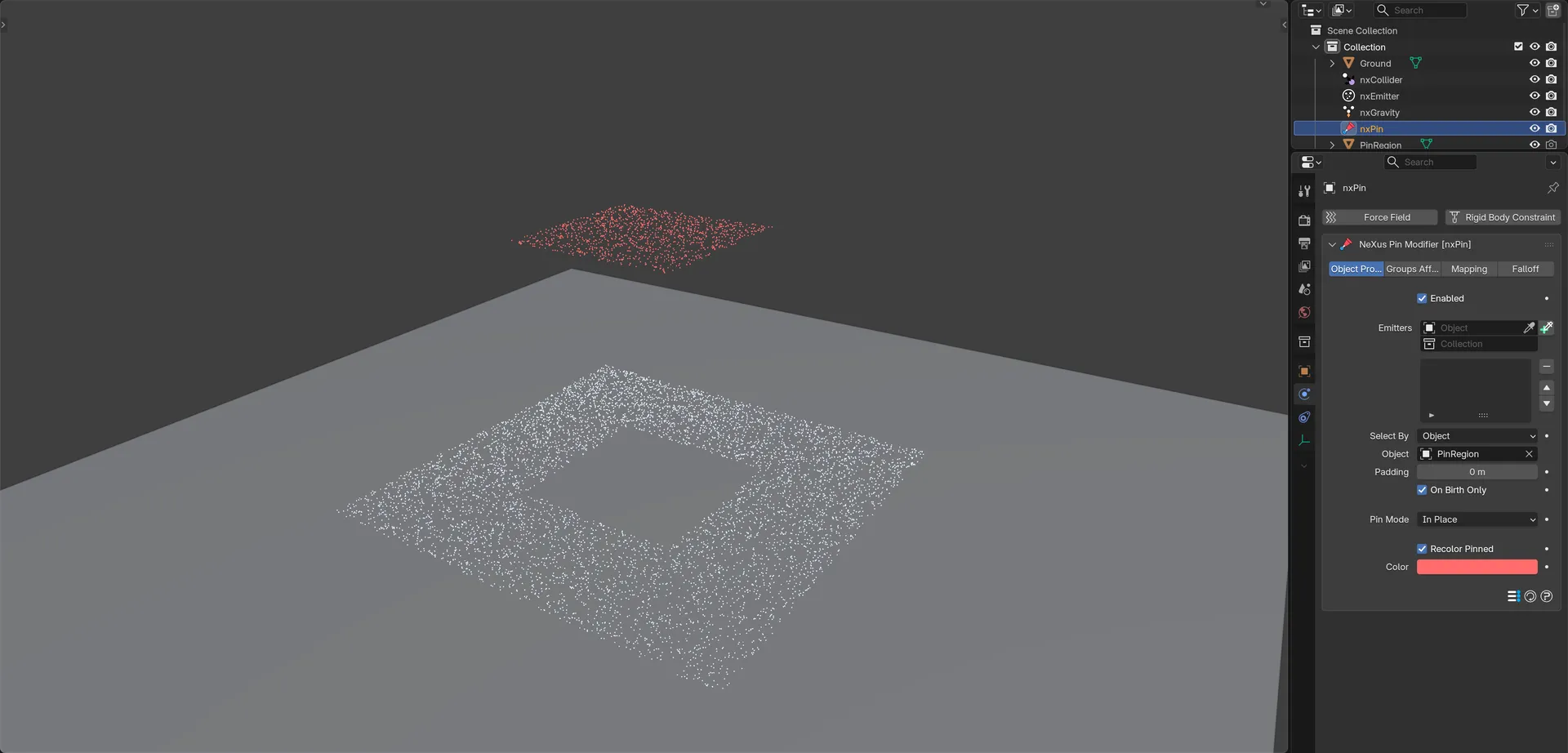
A sheet of particles falls onto the ground, except the patch nxPin holds in place. Recolor Pinned tints the held particles red. They leave a matching hole in the sheet below.
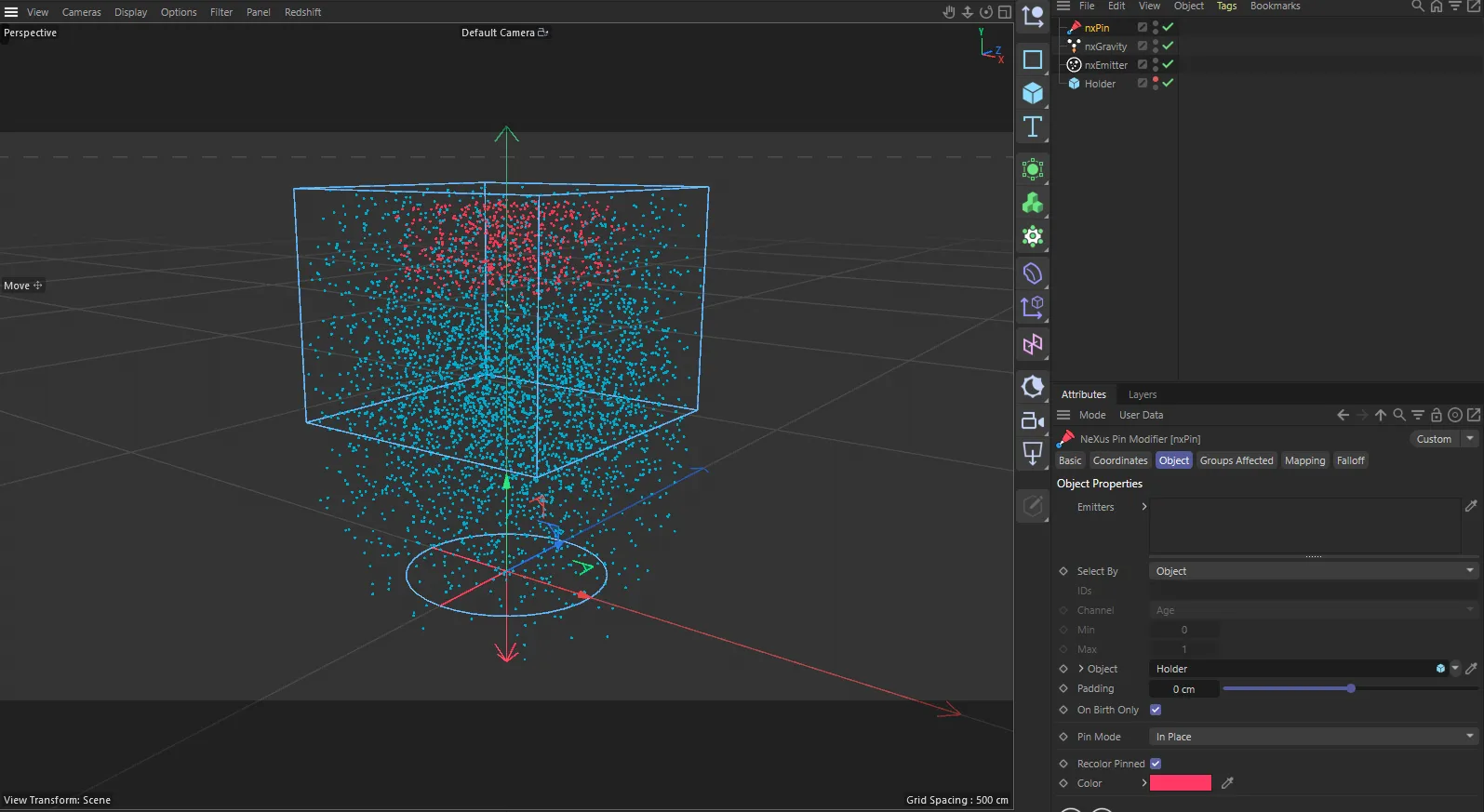
nxPin in Cinema 4D. The settings are the same and sit in the Attribute Manager.
Object Properties
Section titled “Object Properties”Enabled
Section titled “Enabled”Turns nxPin on or off.
Emitters
Section titled “Emitters”Restricts the pin to particles from the nxEmitter objects in this list. Leave it empty to pin particles from every emitter.
Select By
Section titled “Select By”Which particles the pin holds. Set as Falloff / Groups, by default. The alternatives are ID List, Particle Data and Object.
- Falloff / Groups: no extra filter. nxPin holds every particle the Falloff and Groups Affected tabs let through. Where a falloff is only partly on, it holds that share of the particles, picked at random.
- ID List: holds only the particle IDs you list in IDs.
- Particle Data: holds only particles whose chosen Channel reads between Min and Max.
- Object: holds the particles inside an object’s bounds. The object does both jobs: it picks the particles and, in To Object mode, carries them.
With the defaults and no falloff, nxPin holds every particle the moment it is born. Use the Falloff tab, Groups Affected or another Select By mode to choose which ones.
ID List only. The particle IDs to pin, as single IDs and ranges separated by commas, for example 3, 7, 12-40. Up to 16 entries are used. A note appears when you reach that limit.
Channel
Section titled “Channel”Particle Data only. The particle value that decides. Set as Age, by default. The alternatives are grouped:
- Particle: Age, Lifetime, Speed, Radius, Scale and Color Brightness.
- Physical: Mass, Temperature, Smoke, Fuel and Fluid Density.
- Spatial: Distance Traveled.
Age and Lifetime are in seconds.
Min and Max
Section titled “Min and Max”Particle Data only. Pins particles whose Channel value is at or above Min and at or below Max. They default to 0 and 1.
Object
Section titled “Object”Object only (and To Object mode). The object that selects and, in To Object mode, carries the particles. The same object is used for both jobs. With Select By set to Object, a note reminds you to pick one if it is empty.
A mesh selects by its bounding box. A curve selects the particles close to the curve itself, not its bounding box, so a circle pins a ring rather than the square around it. An empty selects a cube the size of its display size.
Padding
Section titled “Padding”Object only. Grows the object’s bounds so particles sitting just outside are caught too. Defaults to 0m. Negative values shrink the bounds. Padding is measured in world units, however the object is scaled.
On Birth Only
Section titled “On Birth Only”Only catches particles on the frame they are born. On by default. Particles that drift or fall through the selection later are ignored. Particles already caught stay caught.
Pin Mode
Section titled “Pin Mode”Where held particles are held. Set as In Place, by default. The other option is To Object.
- In Place: holds particles exactly where they were caught.
- To Object: holds particles relative to the Object, so they move, rotate and scale with it. Each particle binds to the object from where it is when it is first held, so you can pick or change the object mid-simulation without the particles jumping to it. If no object is picked, the particles hold in place and a note says so.
Recolor Pinned
Section titled “Recolor Pinned”Tints the particles this pin is holding, so you can see them in the viewport. On by default. Released particles get their original color back.
The tint applied to pinned particles. Defaults to red. Available when Recolor Pinned is on.
Holding and releasing
Section titled “Holding and releasing”Once caught, a particle stays caught if Pin Mode is To Object, On Birth Only is on or Select By is Object.
Otherwise nxPin checks its selection again every frame and releases particles that no longer match. For example, with Select By set to Particle Data, Channel set to Age and On Birth Only off, the default Min and Max of 0 and 1 hold each particle for its first second, then let it go.
nxPin only releases particles it holds itself. A particle held by nxSticky or nxCover is left alone.
Releasing pinned material with nxMPM
Section titled “Releasing pinned material with nxMPM”An nxMPM solver can knock pinned particles loose when the material around them moves fast enough. Set Select By to Particle Data, Channel to Speed, turn On Birth Only off and keep Pin Mode at In Place. Then set Wake Speed on the nxMPM, at or above this pin’s Max. Raise the nxMPM’s Wake Spread to let the release travel on through the held material.
Groups Affected
Section titled “Groups Affected”Use the Groups Affected tab to restrict nxPin to particles in specific nxGroup groups, rather than affecting every particle.
Mapping
Section titled “Mapping”Use the Mapping tab to drive nxPin’s settings from particle data instead of fixed values. See Mapping for how this works.
Falloff
Section titled “Falloff”Use the Falloff tab to limit where nxPin acts. Add one or more nxFalloff objects to the list and blend them, so only particles inside the falloff region are held. With Select By set to Falloff / Groups, this is the selection itself.
In Cinema 4D
Section titled “In Cinema 4D”Add it from INSYDIUM ▸ NeXus ▸ Dynamics ▸ nxPin. Settings that do not apply to the current Select By or Pin Mode are grayed out rather than hidden. Lengths are in cm. That includes Padding and the Min and Max thresholds for the Speed, Radius and Distance Traveled channels, so the same number sets a different threshold than in Blender.
Copyright © 2026 INSYDIUM LTD. All Rights Reserved.