

nxFlock
nxFlock makes your NeXus particles behave like a flock, reading each other’s positions and velocities to move as a coordinated group, react to targets and steer around obstacles.
Add it from Add ▸ INSYDIUM NeXus ▸ Modifiers ▸ nxFlock. It arrives as an empty, already set up with a working set of flocking behaviors. Its per-object settings are split into three sections, Behaviors, Reactions and Avoidance, selected with the buttons partway down the panel. All of its settings live in Properties ▸ Physics.
A flock of particles moving as one past Suzanne, added to the Avoidance geometry. The particles hold together as a group and steer around her, parting and closing up again once she is behind them.
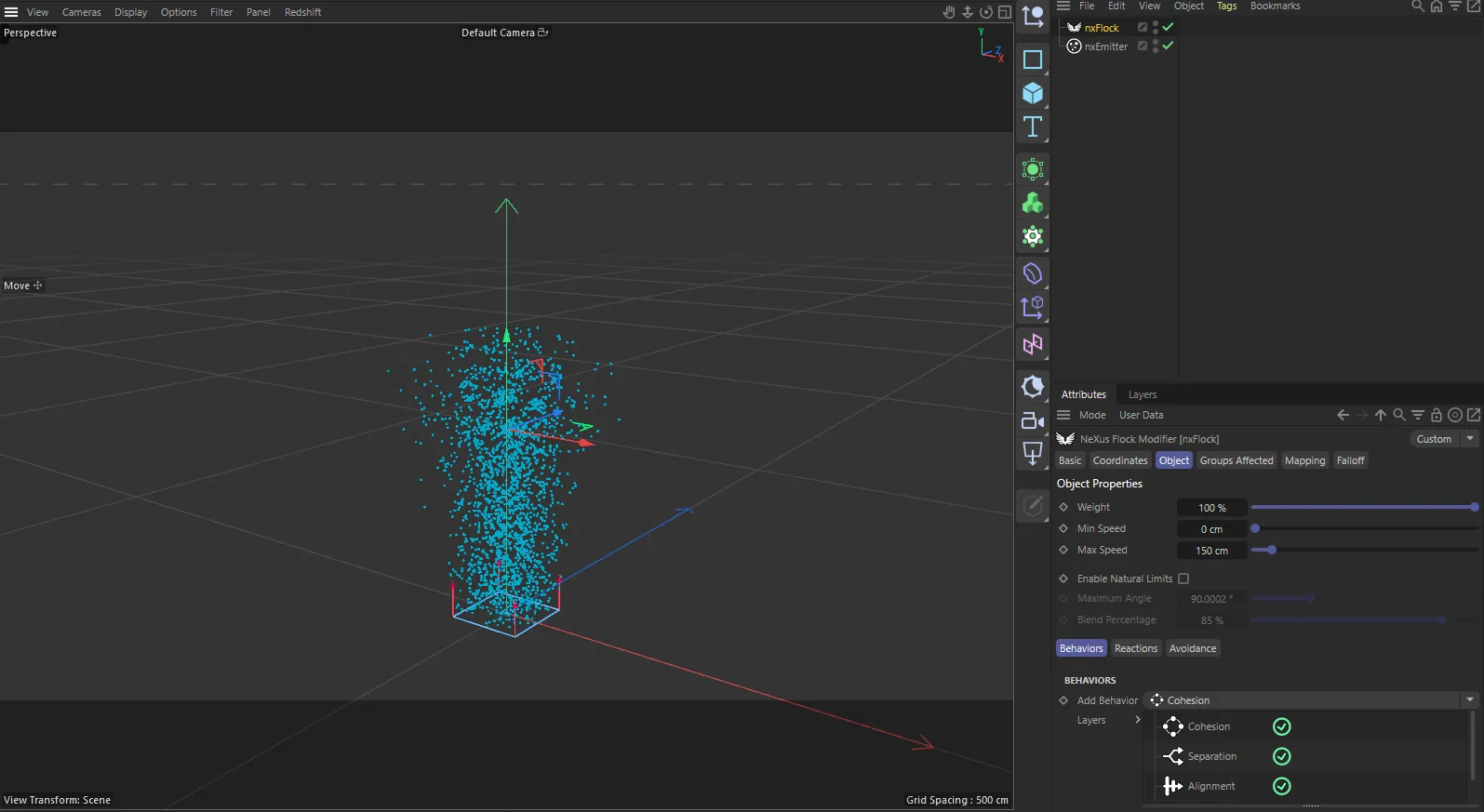
nxFlock in Cinema 4D. Its settings sit in the Attribute Manager.
Object Properties
Section titled “Object Properties”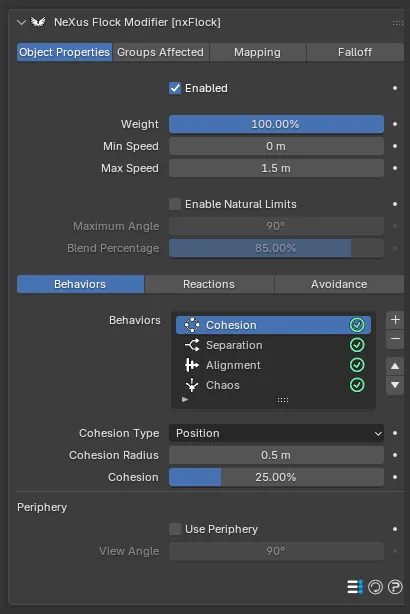
The nxFlock panel in Properties ▸ Physics, on the Behaviors section.
Enabled
Section titled “Enabled”Turns the whole nxFlock on or off. Disable it to switch off the flocking without deleting the modifier.
Weight
Section titled “Weight”The overall strength of the whole effect, blending in every behavior, reaction and avoidance at once. Defaults to 100%.
Min Speed
Section titled “Min Speed”The slowest a particle can move while nxFlock is affecting it. Defaults to 0 m.
Max Speed
Section titled “Max Speed”The fastest a particle can move while nxFlock is affecting it. Defaults to 1.5 m.
Enable Natural Limits
Section titled “Enable Natural Limits”Caps how sharply a particle can turn each step, for more natural, less snappy motion. Off by default. Turn it on to reveal the Maximum Angle and Blend Percentage controls.
Maximum Angle
Section titled “Maximum Angle”Available when Enable Natural Limits is on. The most a particle can turn in a single step. Defaults to 90°.
Blend Percentage
Section titled “Blend Percentage”Available when Enable Natural Limits is on. How much of the new direction blends against the old when a turn is capped. Defaults to 85%.
Behaviors
Section titled “Behaviors”The Behaviors section holds a list of flocking behaviors that blend together to give the final motion. It arrives with Cohesion, Separation, Alignment and Chaos already added and enabled. Add more with the + button, including Swarming.
Select an entry to reveal its settings. Each entry has an enable toggle on the right of its row, so you can switch a behavior on or off without removing it.
Most behaviors share a Radius (which sets how far a particle looks for its neighbors) and a strength (which can be set negative to reverse the behavior). They also share the Periphery controls described at the end of this section.
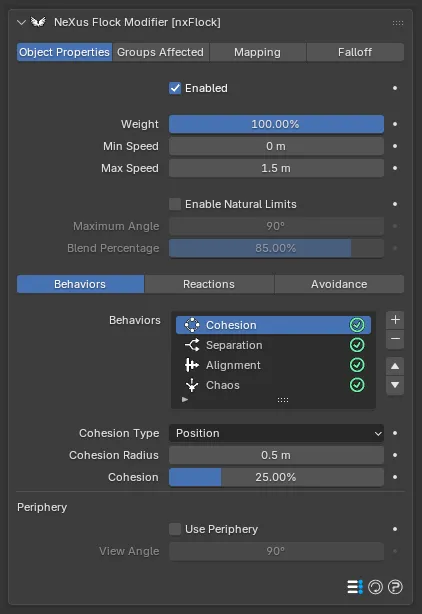
The Behaviors section, showing the list of behaviors with Cohesion selected and its settings below.
Cohesion
Section titled “Cohesion”Pulls a particle toward the center of its nearby neighbors, so the flock draws together. Cohesion Type sets how it finds that center, Position by default, with Mass the alternative that weights it toward larger gatherings. Cohesion Radius defaults to 0.5 m and the Cohesion strength to 25%. A negative Cohesion acts like Separation, pushing particles apart.
10%
90%
At a low Cohesion the particles stay loose and spread out. At a high one they pull in tight and move as a dense clump.
Separation
Section titled “Separation”Steers a particle away from its neighbors so they do not crowd together. Separation Radius defaults to 0.25 m and sets the spacing the particles try to keep. The Separation strength defaults to 80%. A negative value acts like Cohesion, drawing particles together.
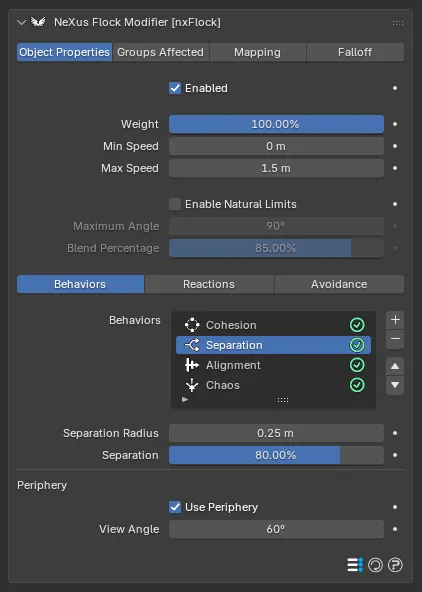
The Separation settings, with Use Periphery on by default.
Alignment
Section titled “Alignment”Turns a particle to match the average heading of its neighbors, so the flock moves in a common direction. Align Radius defaults to 0.2 m and the Alignment strength to 1%. Its settings are laid out exactly like Separation, with the radius and strength relabeled Align Radius and Alignment.
Adds random, turbulent motion so the flock does not move too uniformly. Weight sets the strength, defaulting to 100%. Scale sets the size of the noise pattern, defaulting to 200%, where larger values give smoother motion and smaller ones more chaos. Frequency sets how fast the noise changes, defaulting to 100%. Chaos has no Periphery controls.
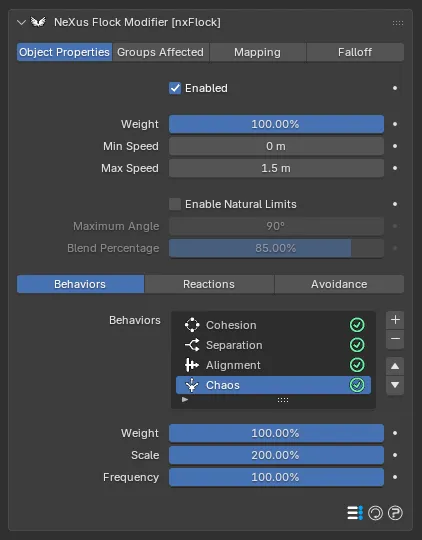
The Chaos settings. It is the only behavior without a Periphery section.
Swarming
Section titled “Swarming”Makes particles congregate with others of the same kind while staying part of the flock, so you can segregate or mix populations. It works on a particle’s happiness, which drives its speed: happy particles move slowly, unhappy ones move faster to find a better spot. It needs at least two emitters or two groups.
Others Make Me Happy flips the rule, so particles of a different kind make a particle happy rather than its own kind. Off by default. Radius sets how far a particle looks for neighbors, defaulting to 0.5 m. Happiness Ratio sets how many like neighbors it takes to be happy, defaulting to 60%. Speed When Happy and Speed When Unhappy set the two speeds, defaulting to 75% and 125%. Swarming Type sets what counts as its kind, Emitter by default, with Group and Object the alternatives.
With Swarming Type set to Object, an Object field appears. Pick any object in the scene. A neighbor then counts as the same kind when it lies within Radius of that object. With no object picked, the behavior does nothing. Beta 3
Set Happiness Ratio high and most particles stay happy and move at the Speed When Happy, so the flock settles. Set it low and most turn unhappy and speed up to the Speed When Unhappy, giving more restless motion.
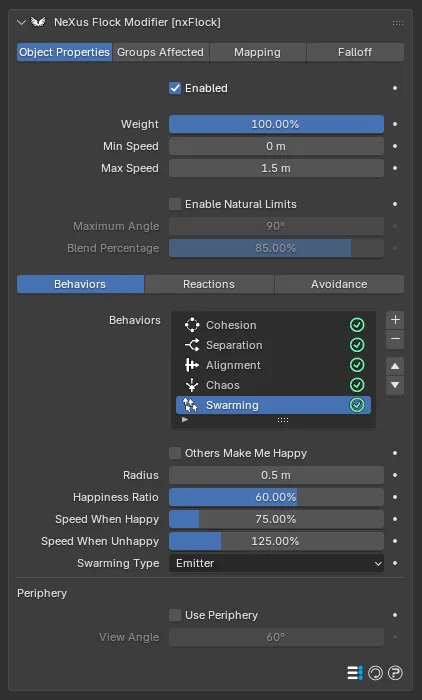
The Swarming settings. Add it from the + button, as it is not one of the behaviors present by default.
Periphery
Section titled “Periphery”Present for every behavior except Chaos. Use Periphery limits a particle to only sense neighbors within its field of view, rather than all around it. Off by default. View Angle sets that field of view. It works best paired with the other behaviors, letting particles that cannot see the group drift away and form separate clusters.
Reactions
Section titled “Reactions”The Reactions section holds a list of reactions that steer the flock toward or around a target. Add one with the + button and choose its type, Pursuit, Flee, Arrive or Orbit. Each reaction adds a reactor to the scene as a child empty of the nxFlock object, which you move to position the target.
Select an entry to reveal its settings. Each has an enable toggle on the right of its row. Every reaction shares the settings below, then adds its own type-specific controls.
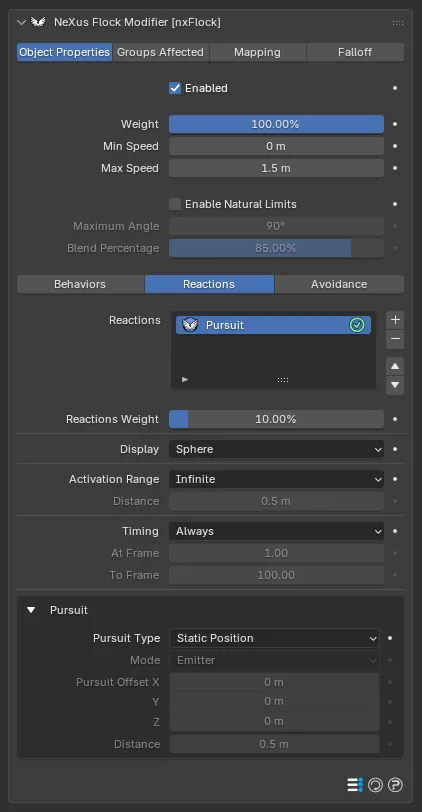
The Reactions section, showing a Pursuit reactor with the shared settings above its type-specific controls.
Reaction Weight
Section titled “Reaction Weight”The strength of this reaction. Defaults to 10%. At 0% the reaction has no effect.
Display
Section titled “Display”How the reactor draws in the viewport. Set as Sphere, by default. The other options are Box, Cross and None. With Activation Range set to Distance, the drawn size shows the reactor’s active area.
Activation Range
Section titled “Activation Range”Sets whether the reactor acts at any distance or only close up. Set as Infinite, by default, so it always acts. The alternative is Distance, where it only acts on particles within the Distance below.
Distance
Section titled “Distance”Available when Activation Range is set to Distance. The distance within which the reactor acts on a particle. Defaults to 0.5 m.
Timing
Section titled “Timing”Sets when the reactor is active over the timeline. Set as Always, by default. The other options are Before, After, On, Pulse and Between.
- Before: active before the At Frame frame.
- After: active after the At Frame frame.
- On: active only on the At Frame frame.
- Pulse: active on every multiple of the At Frame frame, for example on 10, 20, 30 when set to 10.
- Between: active between the At Frame and To Frame frames.
At Frame
Section titled “At Frame”The frame the Timing option works from. Defaults to 1.
To Frame
Section titled “To Frame”Available when Timing is set to Between. The frame the Between range runs to. Defaults to 100.
Pursuit
Section titled “Pursuit”The particles chase a target. Pursuit Type sets what they chase, Static Position by default, which chases the reactor empty itself. The other options are Center Position, Center of Mass and Nearest, which chase other particles and need at least two emitters or groups. Mode sets whether those targets come from an Emitter or a Group. Distance, available with Nearest, sets the distance at which a particle stops chasing its target.
When the type is not Static Position, add the chasing emitters or groups to the Friendly list and the chased ones to the Enemy list.
The particles flee from a target. It works exactly like Pursuit with the roles reversed: the Friendly list holds those fleeing and the Enemy list holds those they flee from. With Flee Type set to Static Position, the particles flee from the reactor empty itself. Its settings are laid out identically to the Pursuit panel above.
Arrive
Section titled “Arrive”The particles move to the reactor and slow to a stop as they reach it. Speed sets the speed they travel at before slowing, defaulting to 0.5 m.
With Activation Range set to Distance, the particles slow down across that Distance. With it set to Infinite, they slow over a distance worked out from their Speed and the Reaction Weight, so they settle on the target without overshooting. Beta 3
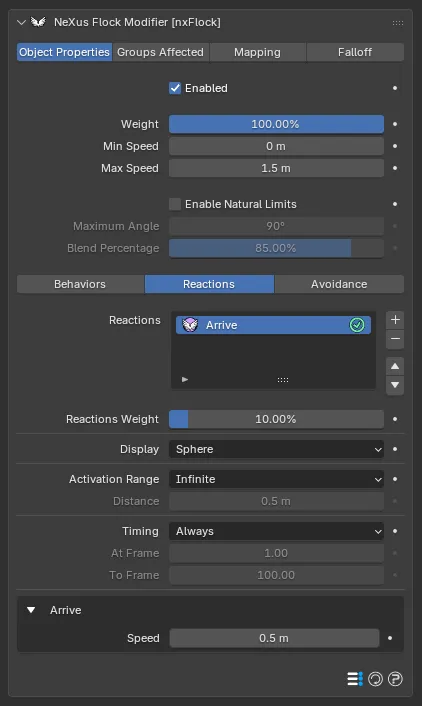
The Arrive reactor, which adds a single Speed control below the shared settings.
The particles circle around the reactor. Strength sets how strongly they are pulled into orbit, defaulting to 0.1 m. Higher values make them orbit faster.
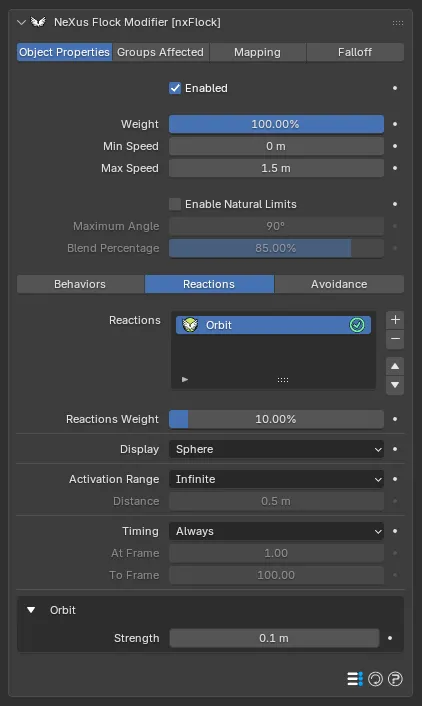
The Orbit reactor, which adds a single Strength control below the shared settings.
Avoidance
Section titled “Avoidance”The Avoidance section steers the flock around objects in your scene.
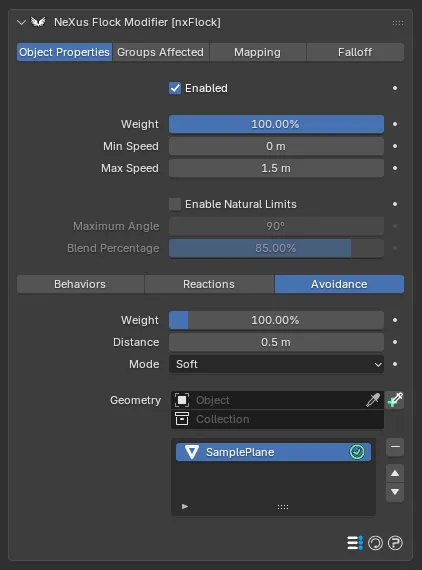
The Avoidance section, with an object added to the Geometry list.
Weight
Section titled “Weight”The strength of the avoidance. Defaults to 100%.
Distance
Section titled “Distance”How close a particle gets to an object before it starts to steer away. Defaults to 0.5 m.
How the particles avoid an object. Set as Soft, by default. The alternative is Hard.
- Soft: the particles flow around the object without being pushed away from it.
- Hard: the particles are turned away strongly, almost as if they bounced off it.
Geometry
Section titled “Geometry”The list of objects the flock avoids. Add Mesh and Curves objects to the list. Each entry has an enable toggle on the right of its row.
Groups Affected
Section titled “Groups Affected”Use the Groups Affected tab to restrict nxFlock to particles in specific nxGroup groups, rather than affecting every particle.
Mapping
Section titled “Mapping”Use the Mapping tab to drive nxFlock’s settings from particle data instead of fixed values, so a particle’s own attributes can change how it flocks. See Mapping for how this works.
Falloff
Section titled “Falloff”Use the Falloff tab to limit where nxFlock acts. Add one or more nxFalloff objects to the list and blend them, so only particles inside the falloff region flock.
Copyright © 2026 INSYDIUM LTD. All Rights Reserved.