

nxScatter Beta 3
nxScatter places points over meshes and shapes, ready to carry instanced objects such as trees, rocks, grass or buildings. Layers thin, scale, color and turn the points by the surface, by noise or by other objects.
nxScatter is an nxEmitter set up for scattering. It places its points on the start frame. Select one or more meshes, then choose Add ▸ INSYDIUM NeXus ▸ Presets ▸ nxScatter. The selected meshes become the targets of the first scatter. Point an nxGenerator at the scatter’s group to put objects on the points. All of its settings live in Properties ▸ Physics.
One nxScatter can hold several scatters, each with its own targets, settings and group. For example, one scatter places trees and another places rocks between them.
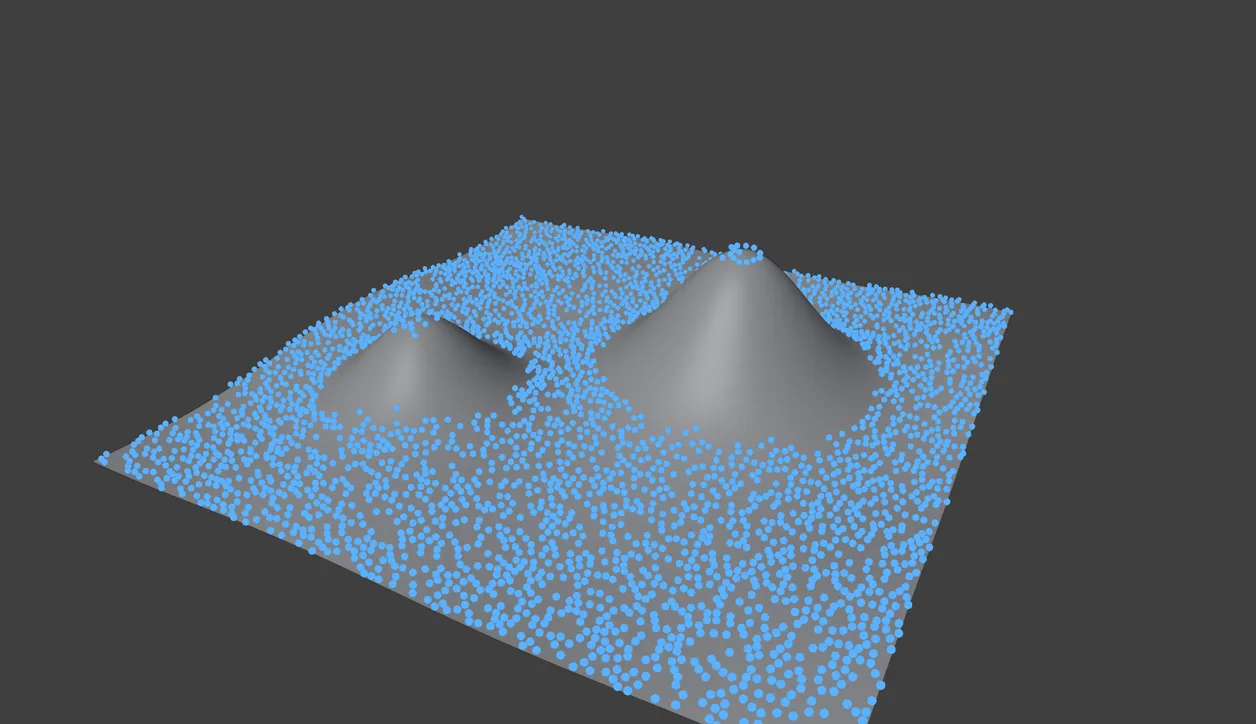
A Terrain Mask layer set to Slope keeps the points off the steep slopes.
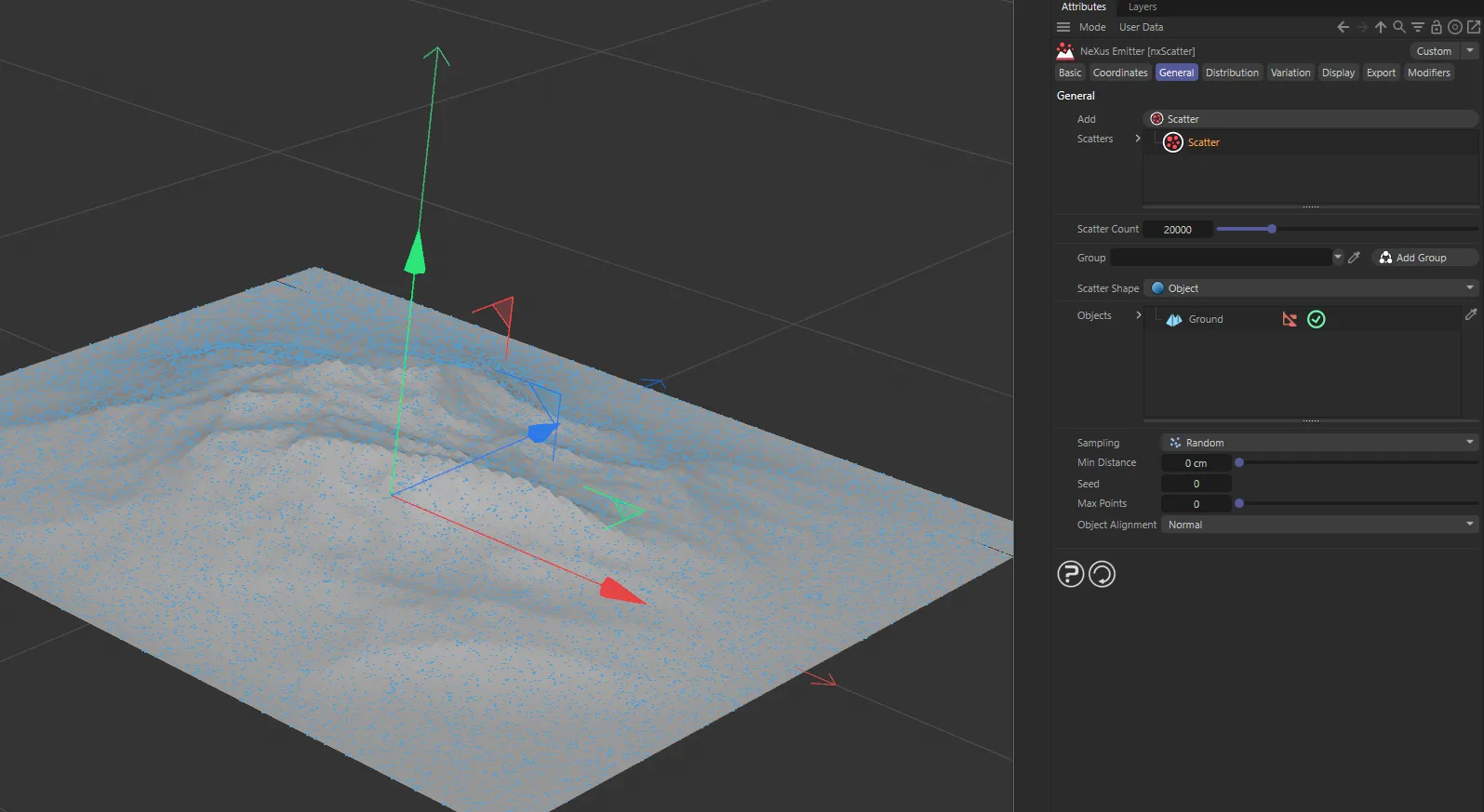
nxScatter in Cinema 4D. Here 20,000 points cover a landscape.
Scatters
Section titled “Scatters”The top of the panel, above the tabs, holds the list of scatters and the settings that name each one.
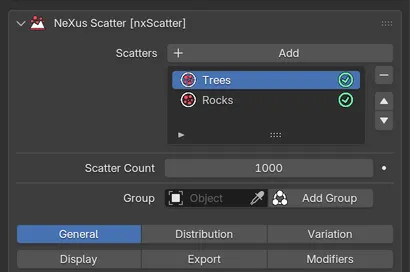
One nxScatter can hold several scatters.
Scatters
Section titled “Scatters”The list of scatters in this nxScatter. Use Add to add another. Each row has an enable toggle on the right. Switching a scatter off hides its points without losing its settings. Select a scatter to show its settings in the tabs below.
Scatter Count
Section titled “Scatter Count”The number of points to place. Defaults to 1000. It shows when the Mode is Random, for a Line shape and for the Arc layout. The other modes set the count with their own lattice settings.
The nxGroup this scatter’s points belong to. Point an nxGenerator at the group to give this scatter its own geometry. Add Group makes a new nxGroup named after the scatter and links it.
General
Section titled “General”The General tab sets where the selected scatter places its points.
Scatter Shape
Section titled “Scatter Shape”The shape the points are placed on. Set as Object, by default. The other options are Rectangle, Disc, Sphere, Box and Line. The settings for each shape match nxEmitter. The primitive shapes start at 4m across. Rectangle, Disc and Line lie flat, with Plane set to Z+. Line places points along a straight line of the given Length.
Objects
Section titled “Objects”Object shape only. The meshes the points are placed on. Each row has an enable toggle on the right. Select a row to show its settings:
- Selection: limits the points to a vertex group or an attribute on the mesh.
- Region: Include places points on the object. Exclude removes the points that fall inside it.
- Place On: Random mode only. Where on the mesh the points go: Polygon Center, Polygon Area, Points, Edges or Volume, as for nxEmitter’s Emit From. With Volume, turn on Shell to fill only a layer just inside the surface, as deep as Thickness. Thickness defaults to 0.25m.
- One per Element: places one point on each element, such as each polygon or each point. Shown when Place On is Polygon Center, Polygon Area, Points or Edges.
- Threshold: the weight a selection must reach to keep points, from 0 to 1. Defaults to 0.5.
Sampling
Section titled “Sampling”Random mode only. How the random points are spread. Set as Random, by default. The other options are Even, Stratified and Poisson.
- Random: independent random points, so some clump and some leave gaps.
- Even: an even spread with no clumps or gaps.
- Stratified: one random point in each cell of a grid.
- Poisson: Scatter Count points kept at least Min Distance apart.
Looseness
Section titled “Looseness”Stratified only. How far a point may roam in its cell, from 0 to 1. Defaults to 1. At 0 the points sit on a perfect grid.
Min Distance
Section titled “Min Distance”The least gap between points. Defaults to 0m. With Poisson sampling, 0 works the gap out from the Scatter Count.
Change it to get a different placement. Defaults to 0.
Max Points
Section titled “Max Points”The most points to keep. Defaults to 0, which means no limit.
Object Alignment
Section titled “Object Alignment”Where each point aims when no Alignment layer is set. Set as Normal, by default. The other options are X+ Axis, Y+ Axis, Z+ Axis, X- Axis, Y- Axis, Z- Axis and Random.
- Normal: along the surface normal.
- The axis options: every point along that world axis.
- Random: each point its own random way.
Distribution
Section titled “Distribution”The Distribution tab sets the pattern of the points and holds the Layers list that shapes them.
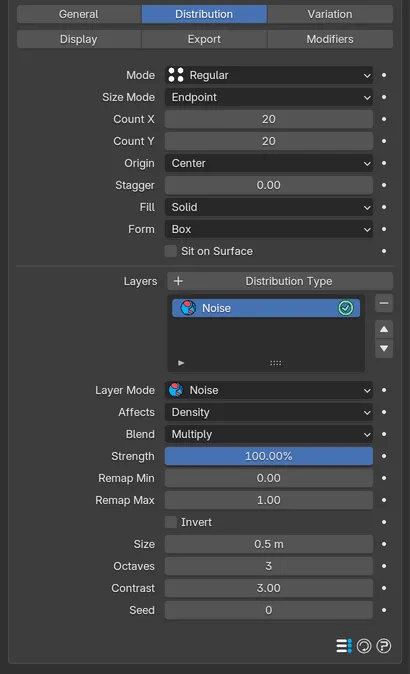
A Regular lattice with a Noise layer.
How the points are laid out. Set as Random, by default. The other options are Regular, Hexagonal and Radial. Radial is offered only for the Rectangle and Disc shapes.
Size Mode
Section titled “Size Mode”What sets the size of the lattice. Set as Endpoint, by default. The other options are Fit and Per Step. It shows for a Rectangle, Disc or Line in Regular or Hexagonal mode. It also shows for a Sphere or Box in Regular mode.
- Fit: the spacing fills the shape and sets the counts. Spacing shows in place of the counts.
- Endpoint: the counts spread across the shape’s size.
- Per Step: Step sets the gap between neighbors.
Layout
Section titled “Layout”Radial only. How the radial points are laid out. Set as Arc, by default. The alternative is Rings.
- Rings: rings of points that fill the shape.
- Arc: Scatter Count points along an arc or spiral.
Spacing
Section titled “Spacing”The gap between points, as a share of the point diameter. Defaults to 100%. It shows in Regular, Hexagonal and Radial mode wherever no counts set the lattice: for an Object shape, with Size Mode set to Fit, for a Sphere or Box in Hexagonal mode and for the Rings layout. It never shows for a Line.
Count X, Count Y and Count Z
Section titled “Count X, Count Y and Count Z”The number of points along each axis of the lattice. They show when Size Mode is Endpoint or Per Step. A Line has no counts here, as it uses Scatter Count. Count X and Count Y default to 20, or 9 in Hexagonal mode. Count Z shows only for the Box shape and defaults to 1.
A Sphere has only Count X, which sets the count along every axis. Its points fill a ball: only the points inside the sphere are kept.
The settings from here down to Form show only when the counts set the lattice.
Per Step only. The gap between neighboring points on each axis. Defaults to 0.2m. A Sphere uses the X gap on every axis.
Origin
Section titled “Origin”Where the lattice sits on the object. Set as Center, by default. The alternative is Corner, which puts the object at the lattice’s corner. This is the last lattice setting for a Line.
Row Offset
Section titled “Row Offset”Hexagonal only. Shifts every other row by this share of a step. Defaults to 0.5.
Trim to Circle
Section titled “Trim to Circle”Hexagonal only. Keeps only the points inside the largest centered circle. Off by default.
Stagger
Section titled “Stagger”Regular only. Shifts every other row by this share of a step. Defaults to 0.
Regular only. Which points of the lattice to keep. Set as Solid, by default. The other options are Surface, Edges and Corners. These follow the outline the lattice is clipped to, so a Sphere shape or a round Form keeps a shell of points.
Regular only. The outline the lattice is clipped to. Set as Box, by default. The other options are Sphere and Cylinder, an upright cylinder. It does not show for the Sphere shape, which is always clipped to a ball.
Arc Start, Arc End, Spiral Turns, Height Step and Radius Growth
Section titled “Arc Start, Arc End, Spiral Turns, Height Step and Radius Growth”Arc layout only. Arc Start and Arc End set the angles of the first and last points. They default to 0° and 360°, a full turn that spaces the points evenly. Spiral Turns adds extra full turns along the arc. Height Step raises the points by that much for each full turn and Radius Growth widens the arc by that much for each turn. These three default to 0.
Sit on Surface
Section titled “Sit on Surface”Lifts each point by its own radius, so it rests on the surface rather than sinking into it. Off by default.
Layers
Section titled “Layers”The Layers list, at the bottom of the Distribution tab, shapes the scatter. Add a layer with Distribution Type. Layers run from the top of the list down, each one combining with the result of the layers above it. Each row has an enable toggle on the right. Select a layer to show its settings.
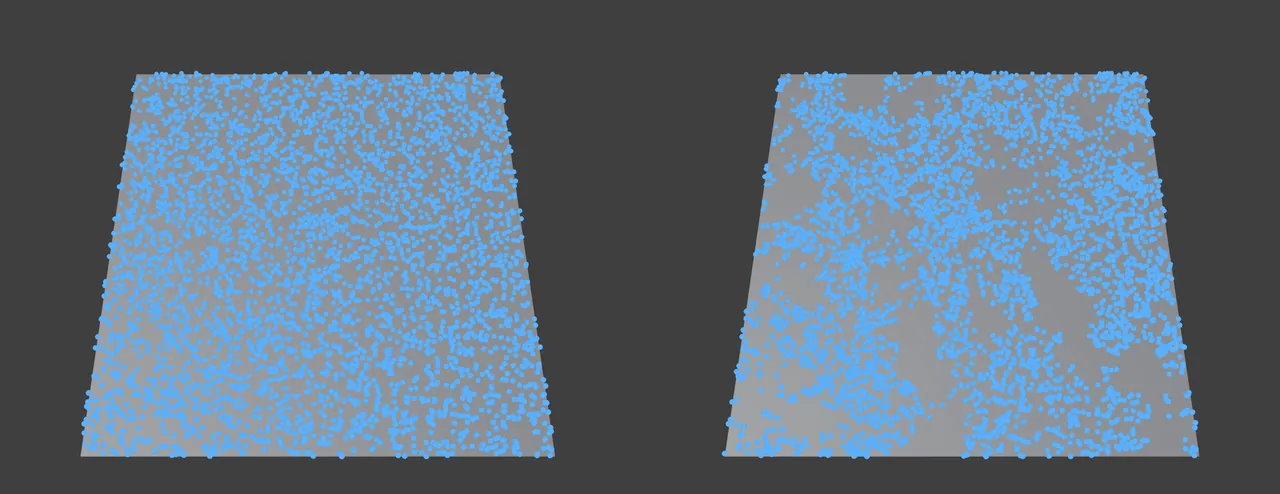
The same scatter with no layers on the left and with a Noise layer on the right.
Settings every layer has
Section titled “Settings every layer has”All layers except Alignment share these settings.
Layer Mode
Section titled “Layer Mode”What this layer measures. Set as Noise for a new layer. Changing it also renames the layer, as long as it still has a mode’s name.
Affects
Section titled “Affects”The channel this layer drives. Set as Density, by default. The other options are Scale and Color.
- Density: thins or thickens the scatter.
- Scale: multiplies each point’s size.
- Color: colors each point from the layer’s Color ramp, which shows below the layer’s settings. The ramp runs from black to white, by default.
While Blend is still Multiply or Normal, changing Affects sets it to suit: Multiply for Density and Scale, Normal for Color.
How this layer combines with the layers above it. Set as Multiply, by default. The other options are Normal, Add, Subtract, Min and Max.
- Normal: replaces what the layers above made, by Strength.
- Multiply: multiplies into the layers above.
- Add and Subtract: add to or subtract from the layers above.
- Min and Max: keep the lower or the higher of the two.
Strength
Section titled “Strength”How much of this layer shows over the layers above it, from 0 to 100%. Defaults to 100%.
Remap Min and Remap Max
Section titled “Remap Min and Remap Max”The values this layer reads that map to 0 and to 1. They default to 0 and 1.
Invert
Section titled “Invert”Flips the layer’s value after the remap. Off by default.
Layer modes
Section titled “Layer modes”Each mode adds its own settings below the shared ones.
Density Map
Section titled “Density Map”Weights from the targets. Set Source to Vertex Group, the default, or Attribute, then name the vertex group, or the float or color attribute, that holds the weights.
Fractal noise across the scatter. Size sets the size of its features and defaults to 0.5m. Octaves adds finer detail and defaults to 3. It runs from 1 to 8. Contrast pushes the noise toward 0 and 1 and defaults to 3. Seed re-rolls the layer without changing anything else.
Terrain Mask
Section titled “Terrain Mask”Reads the surface. Set Feature to Height, Slope, Curvature, Occlusion or Aspect. Set as Slope, by default. Up sets whether Up Axis is a World axis or one of the scatter object’s own. Up Axis is the axis slope, height and aspect are measured from. It defaults to the scene’s up axis.
Each feature has its own band settings. Points outside the band are removed:
- Height: Height Min and Height Max, as a share of the targets’ height. They default to 0% and 100%.
- Slope: Slope Min and Slope Max. They default to 0° and 90°, so points on overhangs are removed.
- Curvature: Curvature Min and Curvature Max, as a share of the curvature range, from concave to convex. They default to 0% and 100%. Curvature Radius sets how far around each point the curvature is measured and defaults to 0.25m.
- Occlusion: Occlusion Distance sets how far the occlusion rays reach and defaults to 1m. Occlusion Rays sets how many rays each point casts and defaults to 8. It runs from 1 to 64. Occlusion Min and Occlusion Max keep the points that a share of the rays find covered, from 0 to 1.
- Aspect: Aspect is the compass heading the kept slopes face and defaults to 0°. Aspect Range is how far a slope may turn from it and still keep points. It defaults to 180°, which keeps every heading.
With Affects set to Density, three more settings soften the band. Feather softens both edges, as a fraction of the band’s width. Breakup makes the edges ragged, by up to twice the band’s width. Breakup Size sets the size of that raggedness and defaults to 0.5m. Feather and Breakup default to 0.
Remap Layers Above
Section titled “Remap Layers Above”Reshapes the result the layers above built, with the shared Remap Min, Remap Max and Invert.
Proximity
Section titled “Proximity”Closeness to a mesh, reading 1 at its surface. Pick the mesh in Object. Radius sets how far the effect reaches and defaults to 1m.
Alignment
Section titled “Alignment”How each point leans, faces and spins. This mode has its own settings, listed under Alignment layer below.
Selection Mask
Section titled “Selection Mask”Places points only inside a selection and still reaches the Scatter Count. Set Source to Vertex Group or Attribute, then name the vertex group or attribute in Selection.
Boundary
Section titled “Boundary”Distance from the open edges of the targets. Distance is the distance that reads 0 and defaults to 0m. Falloff is the distance past it over which the value rises to 1 and defaults to 1m.
Spline Mask
Section titled “Spline Mask”Distance to a curve. Pick the curve in Spline, then set Distance and Falloff as for Boundary.
Random per Piece
Section titled “Random per Piece”One random value for each connected piece of the targets, so every separate island reads its own value. Seed re-rolls it.
Scatter Proximity
Section titled “Scatter Proximity”Distance to the points another scatter placed, with the count unchanged. Pick an nxScatter in Scatter and choose which of its scatters to read in Entry. All reads every one. Then set Distance and Falloff as for Boundary. Use it to keep rocks away from the trees, for example.
Cluster
Section titled “Cluster”Gathers the points into clumps, with the count unchanged. Clusters sets how many clumps and defaults to 20. Cluster Radius sets how far each clump reaches and defaults to 1m. Tightness sets how hard points pull to the middle of a clump and defaults to 2. Clumping runs from 0, an even spread, to 1, fully clumped, and defaults to 1. Seed re-rolls the clumps.
Projection
Section titled “Projection”Distance to the surface of a mesh. Pick the mesh in Object, then set Distance and Falloff as for Boundary.
Reads a list of nxFalloff objects, shown as a Falloffs list below the layer’s settings.
Point Value
Section titled “Point Value”Reads each point’s own value. Set Feature to Index, each point’s place in the placement order, or Distance, its distance from the scatter’s origin. Set as Index, by default.
Alignment layer
Section titled “Alignment layer”An Alignment layer turns the points instead of thinning them. It has no Affects, Blend or remap settings.
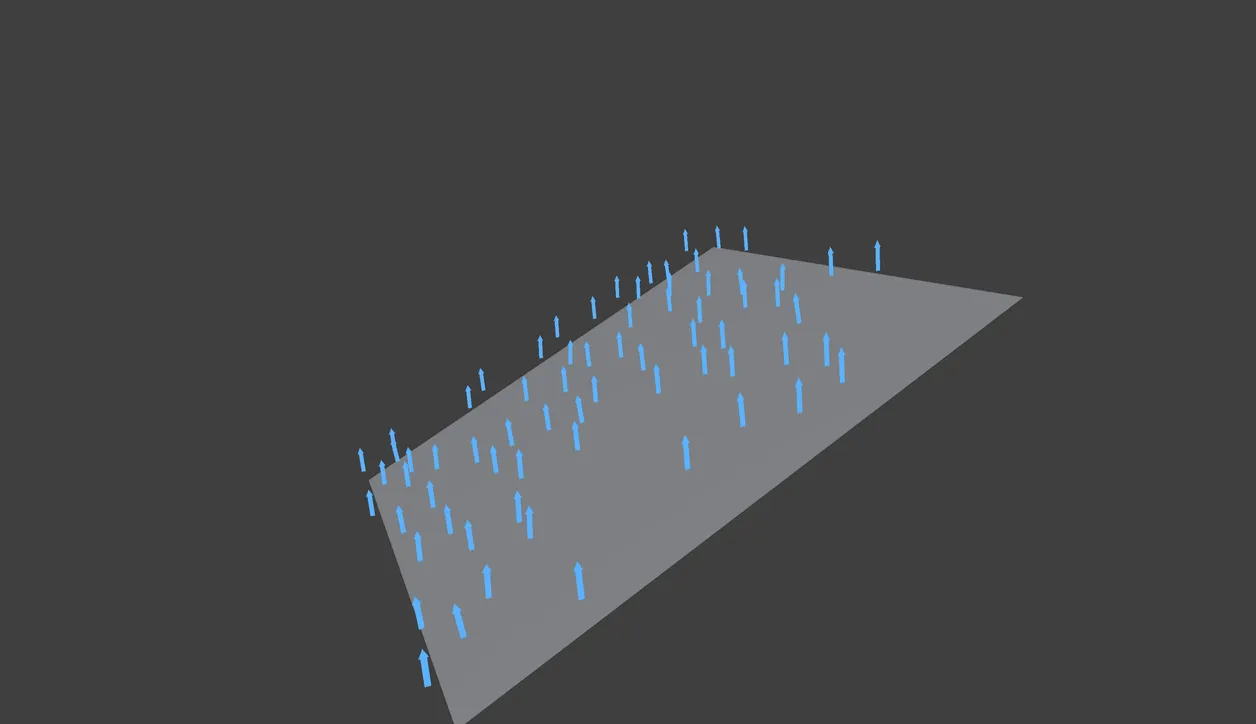
With Trees on a Slope, points stand upright with a slight lean.
Up and Up Axis
Section titled “Up and Up Axis”As for Terrain Mask. They set the axis upright points stand along.
Preset
Section titled “Preset”A starting setup. Set as Upright, by default. Choosing a preset sets the alignment values. With any preset but Custom, the panel shows only the settings that preset uses.
- Upright: every point stands straight up.
- Trees on a Slope: upright, with a slight lean into the surface. Shows Follow Surface and Tilt Variation.
- Rocks and Debris: lying on the surface at random angles. Shows Tilt Variation and Flip.
- Billboard: each point faces the scene camera. Shows Aim Object.
- Buildings: upright, turned in quarter turns. Shows Round To. It also sets the scatter’s Spin Variation to a full turn.
- Fence or Hedgerow: each point faces along a curve. Shows Spline.
- Custom: leaves the settings as they are and shows them all.
Follow Surface
Section titled “Follow Surface”Leans each point from upright toward the surface normal, from 0 to 1. Defaults to 0.
Align Axis
Section titled “Align Axis”The axis of each point that follows the surface. Set as Z+, by default.
Leans every point this far off its aligned axis. Defaults to 0°.
Tilt Direction
Section titled “Tilt Direction”Which way each point leans. Set as Random, by default. The other options are Downhill and Uphill.
Tilt Variation
Section titled “Tilt Variation”How much the lean varies per point, either way. Defaults to 0°.
Which way each point looks. This turn never changes the lean. Set as None, by default. The other options are Toward, Away, Nearest, Camera, Spline, Downhill and Uphill.
- Toward and Away: face toward or away from the Aim Object.
- Nearest: face the nearest object in the Aim Collection.
- Camera: face the Aim Object when it is a camera, or the scene camera when it is not.
- Spline: face along the nearest part of the curve in Spline.
- Downhill and Uphill: face down or up the slope.
Turns each point by a noise field, so neighbors turn together. Defaults to 0°. When it is not 0, two more settings show. Twist Steps snaps the twist into that many bands, from 0 to 64. At 0, the default, the twist stays smooth. Twist Size sets the size of the noise and defaults to 1m.
The share of the points turned upside down, from 0 to 1. Defaults to 0.
Round To
Section titled “Round To”Snaps each point’s spin to a multiple of this angle. Defaults to 0°, which means no snap.
Variation
Section titled “Variation”The Variation tab varies each point’s size, position, turn and color.
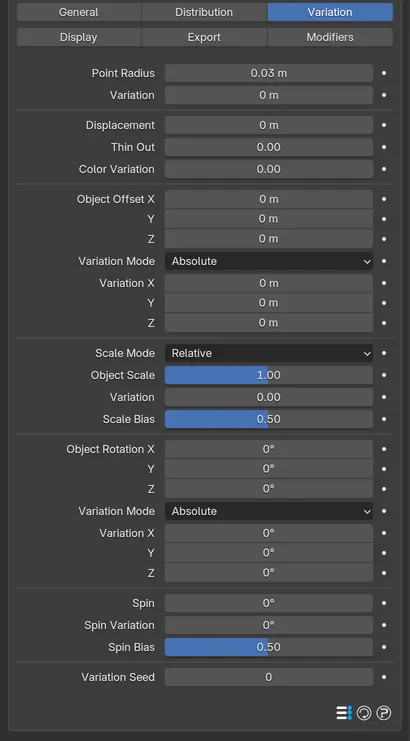
The Variation tab varies each point’s size, position, turn and color.
Point Radius
Section titled “Point Radius”The radius of each point. Defaults to 0.03m. Variation adds a random amount and defaults to 0m.
Displacement
Section titled “Displacement”Moves each point along a noise field, so neighbors drift together. Defaults to 0m. When it is above 0, three more settings show. Displacement Size sets the size of the noise and defaults to 1m. Octaves adds finer detail and defaults to 3. It runs from 1 to 8. Persistence sets how strongly each finer layer adds in and defaults to 0.5.
Thin Out
Section titled “Thin Out”Removes this share of the points at random, from 0 to 1. Defaults to 0.
Color Variation
Section titled “Color Variation”Shifts each point’s hue and brightness by a random amount, from 0 to 1. Defaults to 0.
Object Offset
Section titled “Object Offset”Shifts each point along its own aligned axes. Defaults to 0m on every axis.
Variation Mode and Variation
Section titled “Variation Mode and Variation”Below Object Offset, these set how much the offset varies per point, either way. Variation Mode is set as Absolute, by default. Absolute gives a Variation on each axis. Relative gives one Variation, as a share of Object Offset. Variation defaults to 0.
Scale Mode
Section titled “Scale Mode”How each point’s size is set. Set as Relative, by default. The alternative is Absolute.
- Relative: one Object Scale for every axis, as a share of the Point Radius. It defaults to 1.
- Absolute: an Object Scale on each axis, for instanced objects. It defaults to 1 on every axis.
Each has a Variation below it, which defaults to 0.
Scale Bias
Section titled “Scale Bias”Which side of the size variation most points land on, from 0 to 1. Defaults to 0.5, an even spread.
Object Rotation
Section titled “Object Rotation”Turns each point about its own aligned axes. Defaults to 0° on every axis. Its Variation Mode and Variation work as for Object Offset.
Turns every point this far about its own aligned axis. Defaults to 0°.
Spin Variation
Section titled “Spin Variation”How much the spin varies per point, either way, up to a full turn. Defaults to 0°.
Spin Bias
Section titled “Spin Bias”Which side of the spin and rotation variations most points land on, from 0 to 1. Defaults to 0.5.
Variation Seed
Section titled “Variation Seed”Change it to re-roll every variation and keep the placement. Defaults to 0.
Display
Section titled “Display”The Display tab has nxEmitter’s viewport settings and Display Channels list. The drawing Mode belongs to the selected scatter and is set as Circle Filled, by default. In place of nxEmitter’s particle color and Display Constraints settings, each scatter sets its own color.
Color Mode
Section titled “Color Mode”How this scatter’s points are colored. Set as Single Color, by default. The alternative is Gradient.
Single Color only. The color of every point in this scatter. Defaults to a bright blue.
Gradient Input
Section titled “Gradient Input”Gradient only. What sets each point’s place along the gradient. Set as Random, by default. The other options are None, Element, Height, Slope, Curvature, Occlusion, Aspect, Distance and Index. Element, Curvature and Occlusion are offered only for the Object shape. Height, Slope and Aspect add a Gradient Axis, set as Z+ by default. Curvature adds Curvature Radius. Occlusion adds Occlusion Distance and Occlusion Rays. Here Occlusion Distance defaults to 0m, which skips the test, so raise it to use Occlusion.
The gradient defaults to a ramp from deep blue to pale blue.
Export and Modifiers
Section titled “Export and Modifiers”The Export and Modifiers tabs work as on nxEmitter. With Transfer Properties set to Basic, a scatter’s point cloud also carries each point’s Group and Scale, which instancing needs. nxScatter has no Groups tab. Each scatter sets its own group with the Group field instead.
In Cinema 4D
Section titled “In Cinema 4D”Add it from INSYDIUM ▸ NeXus ▸ Presets ▸ nxScatter, with the meshes selected. The tabs and settings match Blender, with these differences:
- An Objects row’s Selection takes a selection tag or a Vertex Map tag.
- Density Map and Selection Mask layers read the Vertex Map tag named in Vertex Map. There is no Source choice.
- The Nearest face option aims at the objects in an Aim Objects list instead of a collection.
- Lengths are in cm, so Point Radius defaults to 3cm.
- Settings that run from 0 to 1 in Blender, such as Follow Surface, Flip and Thin Out, run from 0 to 100% in Cinema 4D.
The Help button opens this page.
Copyright © 2026 INSYDIUM LTD. All Rights Reserved.