

nxFluids - SPH solver parameters
The SPH (Smoothed-Particle Hydrodynamics) solver provides small to large-scale fluid dynamics and can also solve granular materials for sand and snow.
Select it from the Solver dropdown at the top of the Object Properties tab.
An SPH liquid streamed over Suzanne and settling. SPH resolves fine particle detail and is the only solver that also handles granular materials.
Granular materials
Section titled “Granular materials”Set Fluid Type to Granular and the solver handles sand, snow and other loose materials instead of a liquid. The same Suzanne, filled with grains and dropped, behaves very differently with the material and the accuracy of the solve. Snow, with high cohesion and a high substep and iteration count, holds its shape and cracks apart as it settles. Sand, with lower cohesion and a lighter solve, collapses and spreads out across the ground.
Snow
Sand
A monkey of granular material dropped onto the ground. Snow holds together and cracks, sand slumps and spreads. Both use the same setup, changed only by the granular Cohesion and the solver accuracy.
Object Properties
Section titled “Object Properties”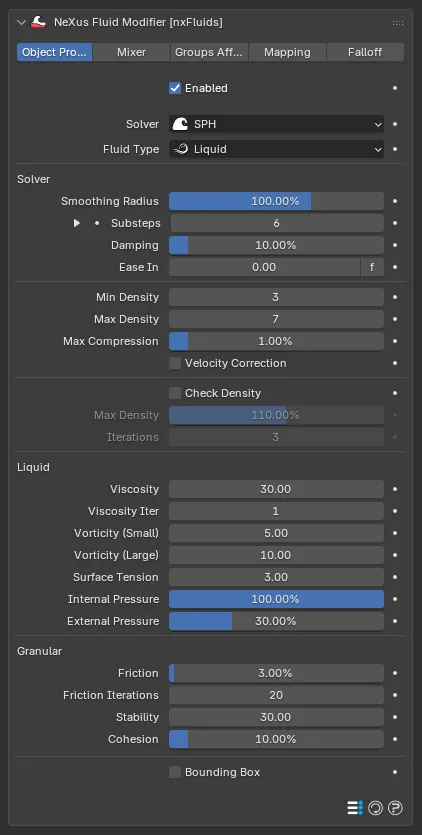
The nxFluids panel with the Solver set to SPH, showing the Solver, Liquid and Granular controls.
Enabled
Section titled “Enabled”Turns nxFluids on or off. Disable it to stop the fluid solve without deleting the modifier.
Solver
Section titled “Solver”Sets the simulation method. Set as SPH here. See the overview for the other solvers.
Fluid Type
Section titled “Fluid Type”Sets what the fluid is made of. Set as Liquid, by default. The alternative is Granular, for sand and snow.
Liquid uses the Liquid settings below. Granular uses the Granular settings. Per-emitter overrides in the Mixer tab let liquid and granular materials share one scene and interact.
Solver
Section titled “Solver”Smoothing Radius
Section titled “Smoothing Radius”Controls the blending with neighboring particles, to create a coherent simulation. Defaults to 100%.
Lowering it involves fewer particles in the smoothing, giving a choppier look. Values over 100% add more volume to the liquid, at the cost of detail.
Substeps
Section titled “Substeps”The number of solver steps per frame. Defaults to 6.
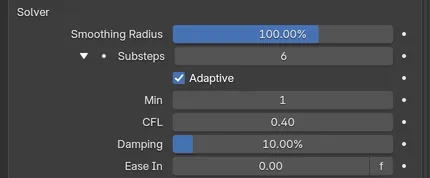
The Substeps group unfolded, with Adaptive on so Min and CFL are available.
Raise it for greater accuracy in the velocity calculation, which helps with fast-moving particles or animated colliders. Granular materials in particular need a high substep count to solve accurately. Sand tolerates lower values, while cohesive materials like snow need high accuracy to hold their shape and crack rather than slump. The more particles in the solve, the higher the count needs to be, up to the maximum of 30.
The expand triangle beside Substeps opens the Adaptive Substeps controls.
Adaptive
Section titled “Adaptive”Varies the substep count automatically with particle velocity, rather than always running the full count. On by default.
The minimum number of substeps when Adaptive is on. Defaults to 1. Available when Adaptive is on.
The Courant-Friedrichs-Lewy condition used to choose the adaptive substep count. Defaults to 0.4. Lower values produce more substeps and a more accurate solve. Available when Adaptive is on.
Damping
Section titled “Damping”Damps particle velocity for stability. Defaults to 10%.
Ease In
Section titled “Ease In”Eases the simulation in over this length of time, so the fluid starts gently. Defaults to 0. Click the f button beside the field to switch between frames and seconds.
Min Density
Section titled “Min Density”The minimum number of density solver iterations per step. Defaults to 3.
Max Density
Section titled “Max Density”The maximum number of density solver iterations per step. Defaults to 7.
More iterations give a more accurate, less compressible fluid, at the cost of simulation time.
Max Compression
Section titled “Max Compression”The amount the fluid is allowed to compress by before a further iteration is spent making it more accurate. Defaults to 1%.
At higher percentages the solver uses fewer iterations. At lower percentages it works up toward the Max Density iteration count.
Velocity Correction
Section titled “Velocity Correction”Adds an extra solve that corrects any divergence as the fluid starts to compress or expand, so it flows more naturally and is not compressed or smoothed out. Off by default.
Check Density
Section titled “Check Density”Fluids are normally incompressible and so have a constant density. When this is on, the density is checked to keep the particle stream consistent and avoid the excess pressure that can occur with emission. Off by default.
Any particle whose density exceeds the Max Density value below is killed before it is born. When it is off, no check is applied.
Max Density
Section titled “Max Density”The density limit used when Check Density is on. Defaults to 110%. Available when Check Density is on.
Iterations
Section titled “Iterations”The number of iterations used for the density check. Defaults to 3. Raise it for greater accuracy, at the cost of simulation speed. Available when Check Density is on.
Liquid
Section titled “Liquid”Viscosity
Section titled “Viscosity”Controls the level of viscosity in the fluid. Defaults to 30.
Viscosity Iter
Section titled “Viscosity Iter”The number of viscosity solver iterations per step. Defaults to 1. Raise it for a thicker viscosity.
Vorticity (Small)
Section titled “Vorticity (Small)”Controls the small-scale swirling in the fluid. Defaults to 5. Most visible with a low Viscosity value.
Vorticity (Large)
Section titled “Vorticity (Large)”Controls the large-scale swirling, exaggerating the natural levels in the fluid solve. Defaults to 10. Works well in conjunction with the nxVorticity modifier.
Surface Tension
Section titled “Surface Tension”Surface tension pulls particles toward the smallest possible surface area. Defaults to 3.
Higher values encourage this, leading to beading. Lower values let the particles spread out and flow.
Internal Pressure
Section titled “Internal Pressure”Separates individual particles as a force, preventing them collapsing in on each other so the fluid keeps its volume. Defaults to 100%.
External Pressure
Section titled “External Pressure”External pressure. Defaults to 30%. It acts as a cohesive binding agent that keeps the particles together as a fluid shape.
Granular
Section titled “Granular”These settings drive the solve when Fluid Type is set to Granular.
Friction
Section titled “Friction”The level of friction between particles. Defaults to 3%. As with viscosity, increasing Substeps further encourages friction.
Friction Iterations
Section titled “Friction Iterations”The number of friction solver iterations per step. Defaults to 20. Raise it for stronger friction.
Stability
Section titled “Stability”A relative-speed threshold. Defaults to 30.
Particles moving relative to each other faster than this are freed from the friction, so they can break away. Particles moving slower than this get the full friction force, keeping them together.
Cohesion
Section titled “Cohesion”How far apart particles can get before they are bound back together. Defaults to 10%.
Bounding Box
Section titled “Bounding Box”SPH has no simulation domain of its own, so the Bounding Box gives it a quick container that stops the fluid falling away. It is drawn at the bottom of the Object Properties tab and works exactly as it does on the PBD page.
Turn on Bounding Box to contain the fluid, set the Box Size on each axis and set each of the six Box Walls to Closed, Open or Kill. You can resize the box interactively with the gizmo handles in the viewport.
Copyright © 2026 INSYDIUM LTD. All Rights Reserved.