

nxFluid2D Beta 3
nxFluid2D runs a realtime 2D fluid in the UV map of a mesh. Objects stir colored dye into it, colliders block it and the result shows on the surface as a texture.
Add it from Add ▸ INSYDIUM NeXus ▸ Generators ▸ nxFluid2D. Pick the mesh to run on in Object, then add the objects that feed the fluid to the Emitters list. The fluid flows across the surface and follows the mesh as it moves. It does not use particles. All of its settings live in Properties ▸ Physics, across four tabs at the top of Object Properties: Object, Colliders, Fluid and Export.
The mesh needs a UV map. nxFluid2D runs in the UV map that is set to render. Where the UV map is cut into islands, the fluid crosses the seams to the matching edge.
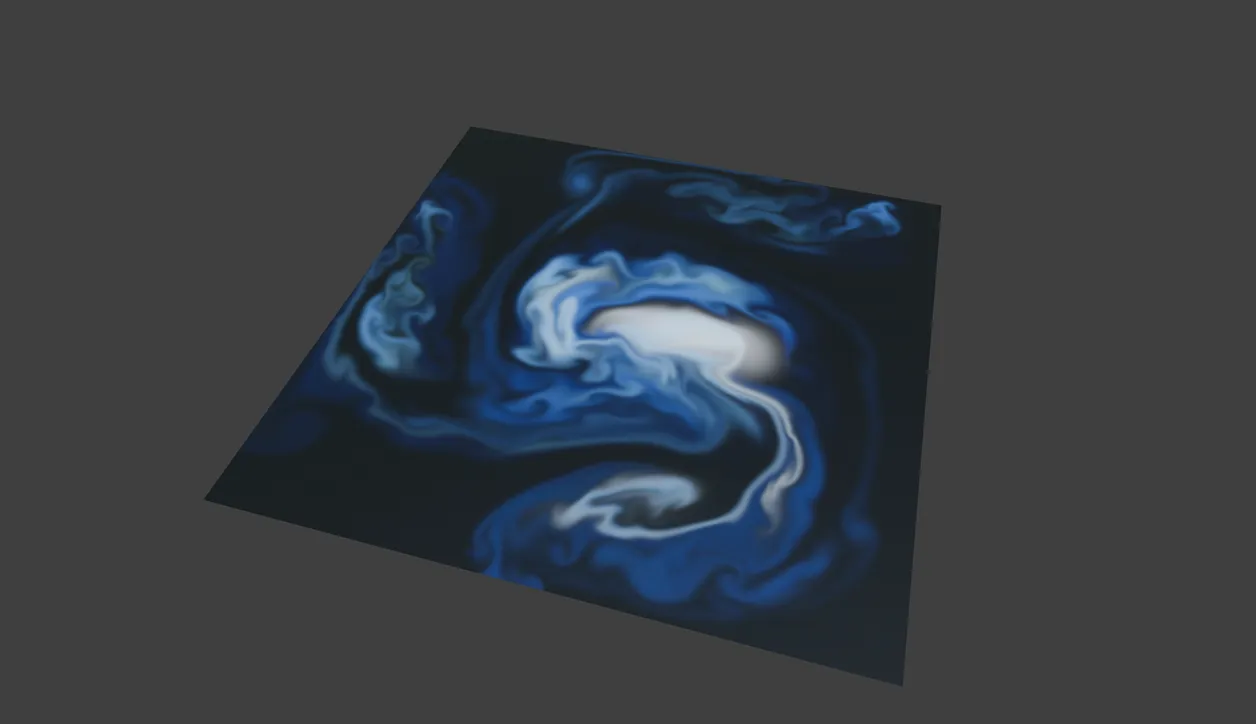
One moving emitter stirs dye into the fluid on a plane.
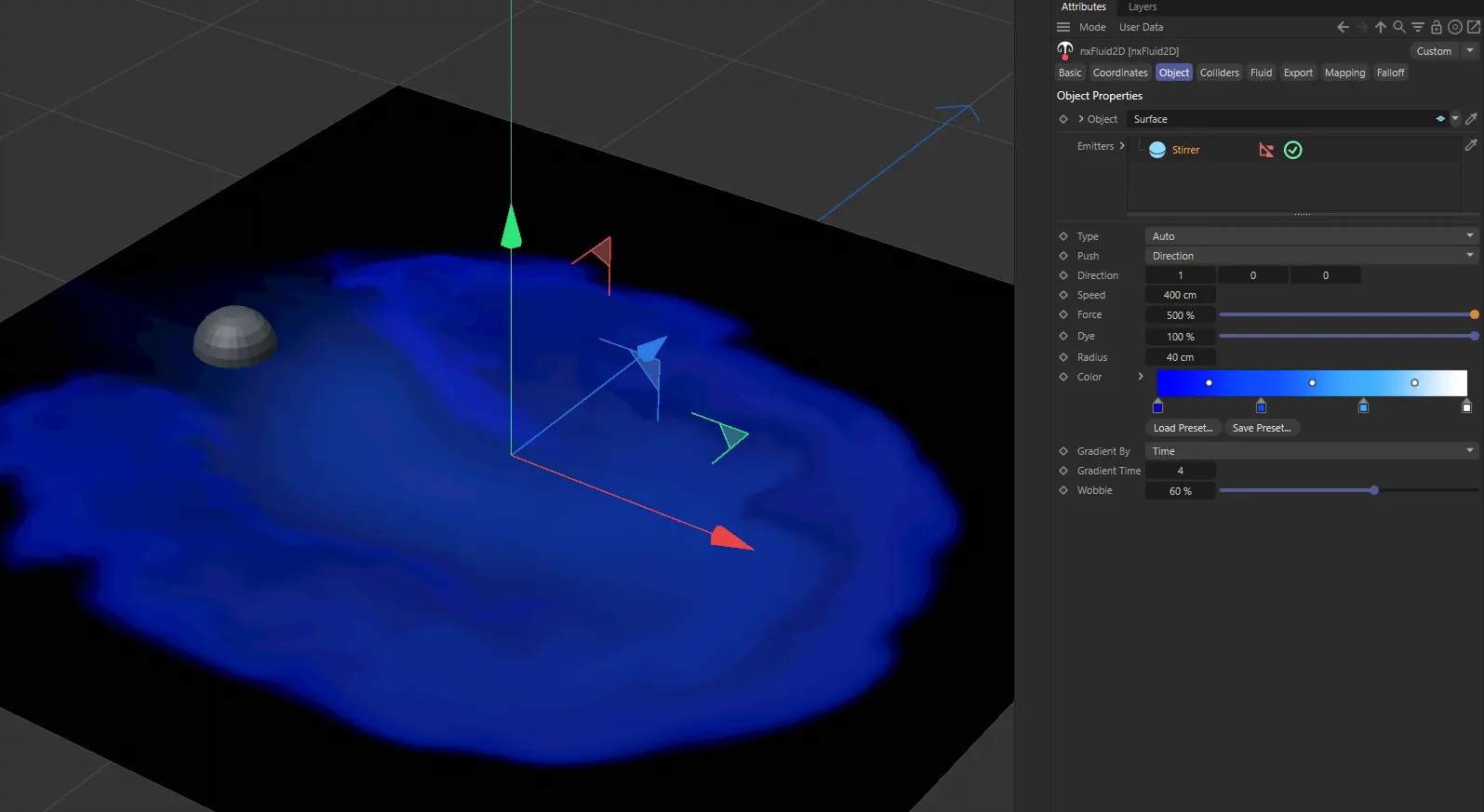
nxFluid2D in Cinema 4D. A sphere in the Emitters list stirs blue dye across the plane.
Showing the fluid
Section titled “Showing the fluid”When you pick the mesh in Object, nxFluid2D gives it a material that shows the fluid, unless one of its materials already does. The material is named after the nxFluid2D object. An Image Texture node reads the fluid image into the Base Color and the Emission Color of a Principled BSDF, with an Emission Strength of 0.6, so the dye glows a little.
nxFluid2D writes two images, named after the nxFluid2D object:
- Fluid: the dye color, with alpha. For an object named nxFluid2D, the image is nxFluid2D Fluid.
- Fluid Speed: a grayscale image of how fast the fluid moves, stored as non-color data.
An image is only written while a material uses it. To use the speed, add an Image Texture node with the Fluid Speed image to any material.
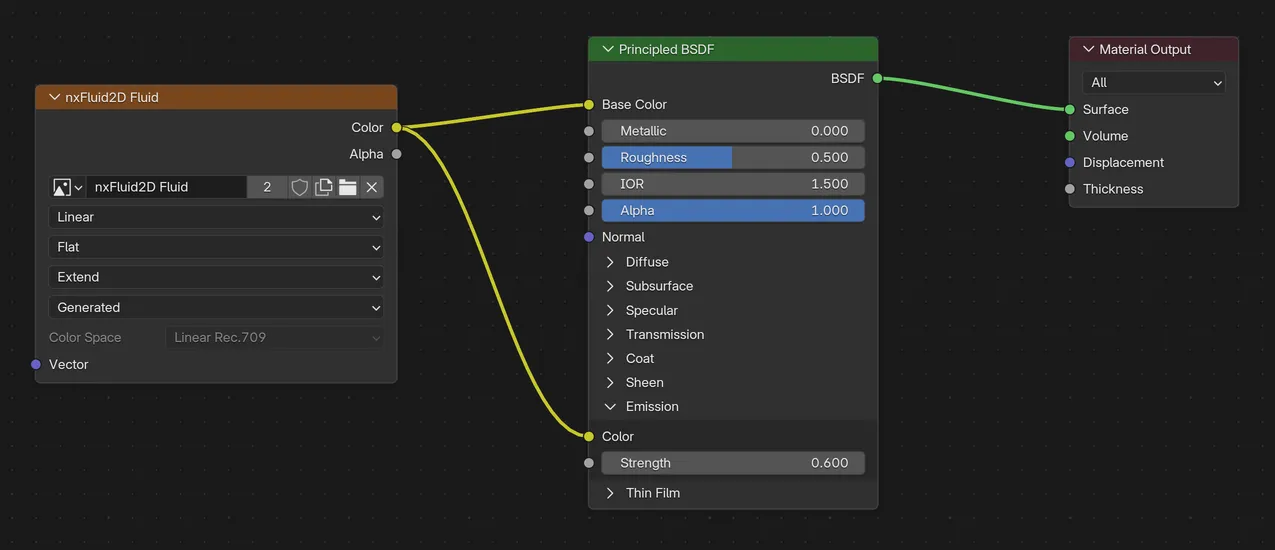
The material nxFluid2D makes, with an Emission Strength of 0.6.
Object
Section titled “Object”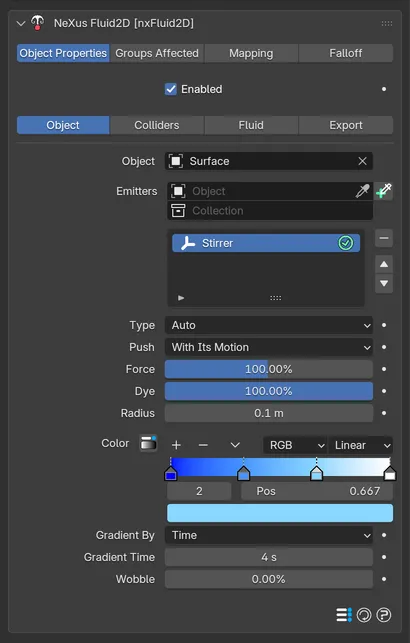
The emitter settings show below the Emitters list.
Enabled
Section titled “Enabled”Turns nxFluid2D on or off. Turning it off clears the images and the exported maps.
Object
Section titled “Object”The mesh whose UV map the fluid flows in. Only mesh objects can be picked.
Emitters
Section titled “Emitters”The objects that add dye and push the fluid. You can add Mesh, Curve and Empty objects. Each row has an enable toggle on the right. Select a row to show its settings below the list.
Emitter settings
Section titled “Emitter settings”These settings apply to the emitter selected in the list.
How the object feeds the fluid. Set as Auto, by default. The other options are Object, Geometry and Spline.
- Auto: along the curve for a curve, or at the object’s origin for anything else.
- Object: at the object’s origin.
- Geometry: over the whole mesh.
- Spline: along the curve.
Which way the emitter pushes the fluid. Set as With Its Motion, by default. The other options are Along The Object and Direction.
- With Its Motion: pushes the way the object moves, so a still emitter only adds dye.
- Along The Object: pushes along the curve, or along the object’s up axis.
- Direction: pushes in the fixed Direction below.
Direction
Section titled “Direction”Direction only. The world direction of the push. Only the direction counts. Speed sets the strength. Defaults to straight up, along Z.
The speed of the push, per second. Defaults to 1m. It shows when Push is not With Its Motion or when Gradient By is set to Speed.
How strongly the push drives the fluid. Defaults to 100%. The range is 0 to 1,000%.
How much dye the emitter adds. Defaults to 100%. The range is 0 to 1,000%. Set it to 0% for an emitter that only stirs.
Radius
Section titled “Radius”The width of the spot where the object adds dye and push: at its origin, along the curve or around the mesh. Defaults to 0.1m.
The gradient the dye color is picked from. Defaults to a ramp from deep blue through light blue to white.
Gradient By
Section titled “Gradient By”What picks the dye color from the Color gradient. Set as Time, by default. The other options are Along The Spline, Speed and Random.
- Time: cycles through the gradient over time.
- Along The Spline: by position along the curve.
- Speed: by how fast the push is.
- Random: a random color each frame.
Gradient Time
Section titled “Gradient Time”Time only. The seconds it takes to cycle once through the gradient. Defaults to 4 seconds.
Wobble
Section titled “Wobble”A random sideways turn of the push, from 0 to 100%. Defaults to 0%. Raise it for a less regular, more organic stream.
Colliders
Section titled “Colliders”The Colliders tab holds the meshes the fluid flows around or that wipe the dye away. Add Mesh objects to the list. Each row has an enable toggle on the right. Select a row to show its settings below the list.
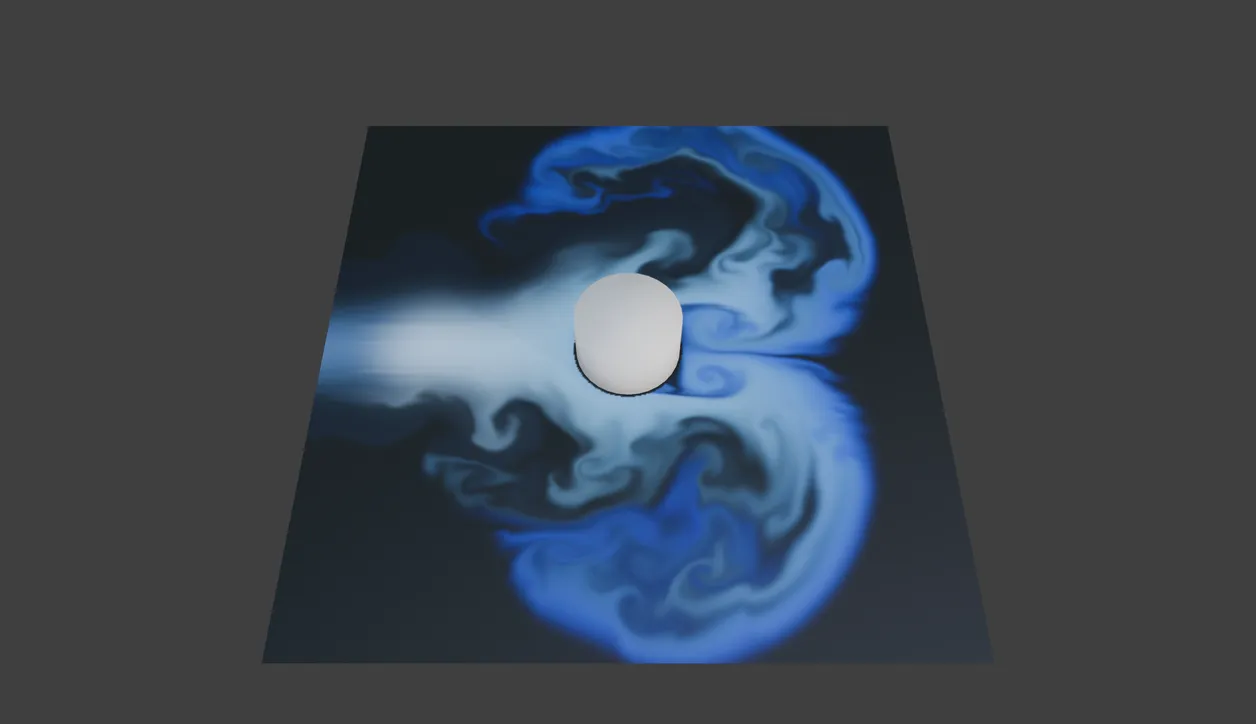
A Solid collider makes the fluid flow around it.
What the collider does. Set as Solid, by default. The alternative is Eraser.
- Solid: the fluid flows around the object.
- Eraser: the object wipes away the dye it covers.
Moving Pushes Fluid
Section titled “Moving Pushes Fluid”A moving collider drags the fluid along with it. On by default.
Margin
Section titled “Margin”Extra distance around the object that also blocks the fluid. Defaults to 0.01m.
The Fluid tab sets how the fluid moves.
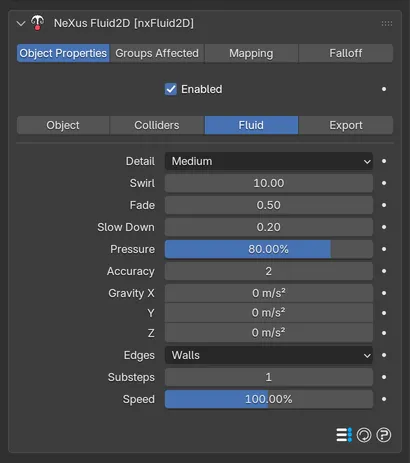
The Fluid tab sets how the fluid moves.
Detail
Section titled “Detail”The size of the fluid’s texture. Set as Medium (512 x 512), by default. The other options are Low (256 x 256), High (1024 x 1024) and Very High (2048 x 2048). Higher detail gives finer swirls and costs more.
How strongly the fluid curls into eddies. Defaults to 10. The range is 0 to 1,000.
How fast the dye fades away. Defaults to 0.5. The range is 0 to 100.
Slow Down
Section titled “Slow Down”How fast the fluid loses its speed. Defaults to 0.2. The range is 0 to 100.
Pressure
Section titled “Pressure”How much pressure carries over from one step to the next, from 0 to 100%. Defaults to 80%.
Accuracy
Section titled “Accuracy”The number of pressure solver passes, from 1 to 8. Defaults to 2. More passes keep the fluid from squeezing together.
Gravity
Section titled “Gravity”A pull on the fluid, in world space. Defaults to 0 on every axis. For example, a negative Z pulls the dye downhill across a tilted surface.
What the fluid does at the edges of the UV map. Set as Walls, by default. The other options are Open and Wrap.
- Walls: the fluid stops at the edges.
- Open: the fluid flows out at the edges.
- Wrap: the fluid comes back in on the far side. The material’s image node is switched to repeat, so the pattern tiles.
Substeps
Section titled “Substeps”Fluid steps per frame, from 1 to 16. Defaults to 1.
How fast the fluid plays, from 0 to 1,000%. Defaults to 100%.
Export
Section titled “Export”The Export tab writes the fluid onto the mesh’s points, so modifiers and other tools can use it.
Vertex Map
Section titled “Vertex Map”Writes the fluid into a vertex group on the mesh, named after the nxFluid2D object. Off by default.
Vertex Color
Section titled “Vertex Color”Writes the fluid’s color into a color attribute on the mesh, named after the nxFluid2D object followed by Color. Off by default.
Map Value
Section titled “Map Value”What the vertex group holds. Set as Density, by default. The other options are Speed and Brightness. It is grayed out while Vertex Map is off.
- Density: how much dye there is.
- Speed: how fast the fluid moves.
- Brightness: how bright the dye is.
The values are written per point, so the mesh needs enough points to show the detail.
Groups Affected, Mapping and Falloff
Section titled “Groups Affected, Mapping and Falloff”nxFluid2D does not act on particles. It still shows the Groups Affected, Mapping and Falloff tabs that every NeXus modifier has, but they have no effect on it. The Mapping tab shows No mappable parameters.
In Cinema 4D
Section titled “In Cinema 4D”Add it from INSYDIUM ▸ NeXus ▸ Generators ▸ nxFluid2D. Object, Colliders, Fluid and Export are tabs in the Attribute Manager, beside Mapping and Falloff. There is no Groups Affected tab. Until the Emitters list holds an emitter there is no dye, so the surface shows black. The lists accept any object. Every emitter setting is always shown, whatever the Push and Gradient By choices. Lengths are in cm, so the emitter Speed defaults to 100cm, Radius to 10cm and the collider Margin to 1cm. The default push Direction is along Y, the Cinema 4D up axis.
Instead of image files, Cinema 4D uses an nxFluid2D shader. Picking the Object gives it a Standard material with the shader in its Color and Luminance channels. You can add the shader to any material or to a Displacer. It has three settings:
- Fluid: the nxFluid2D object to read.
- Channel: Color, Density or Speed. Set as Color, by default.
- Gain: a multiplier on the value. Defaults to 1.
Vertex Map and Vertex Color write a Vertex Map tag and a Vertex Color tag on the mesh.
Copyright © 2026 INSYDIUM LTD. All Rights Reserved.