

Quill
Quill is nxQuestion’s built-in AI author. Describe the behavior you want in plain language and Quill builds the questions, actions, loops, variables and scripts for you.
Quill lives on the Quill tab of the nxQuestion panel. You pick a model, type a description such as “color particles red as they speed up” and press Build. Quill constructs a working nxQuestion setup that you can then run, review and adjust like any hand-built logic.
Before you start
Section titled “Before you start”Quill needs at least one model configured under Preferences ▸ Add-ons ▸ NeXus ▸ Quill. You can use a cloud model through an API token, a local model through Ollama or an installed CLI such as the claude or codex command. See Quill in the preferences for the full list of model types and how to set one up.
The first time you build, Quill asks you to accept its terms. This happens once.
The Quill tab
Section titled “The Quill tab”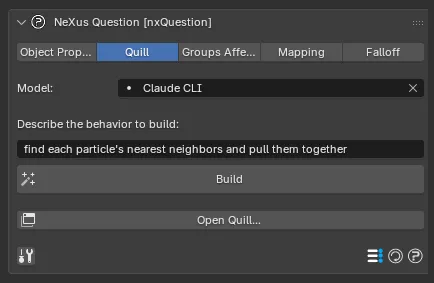
The Quill tab in Properties ▸ Physics, with a model configured.
The menu at the top of the tab chooses which configured model Quill uses. When you add an nxQuestion object it is set to your active Quill model automatically, so you rarely need to change it. If no model is set up yet, the tab shows a short message and a pointer to the preferences instead of the prompt.
Describe the behavior to build
Section titled “Describe the behavior to build”The prompt box. Type what you want in plain language, for example “find each particle’s nearest neighbors and pull them together” or “kill particles once they fall below the floor”. Be specific about the particle data to use (age, speed, color, position) and the result you want.
Starts the generation. Quill streams the items it is building into the tab as it works, so you can watch the setup take shape. When it finishes, the new items appear in the Questions list ready to run.
Cancels a run in progress. It appears in place of Build while Quill is working.
Conversation
Section titled “Conversation”Above the prompt, Quill keeps a short history of your recent requests and their results. This gives follow-up requests context, so you can refine an effect with prompts like “make it twice as fast” or “go back to that”. Use New to clear the history and start a fresh conversation.
How many turns Quill remembers is set by Conversation Memory in the preferences.
The Quill window
Section titled “The Quill window”The Open Quill… button opens a larger, resizable Quill window, handy when you are iterating on a complex effect and want more room than the panel allows.
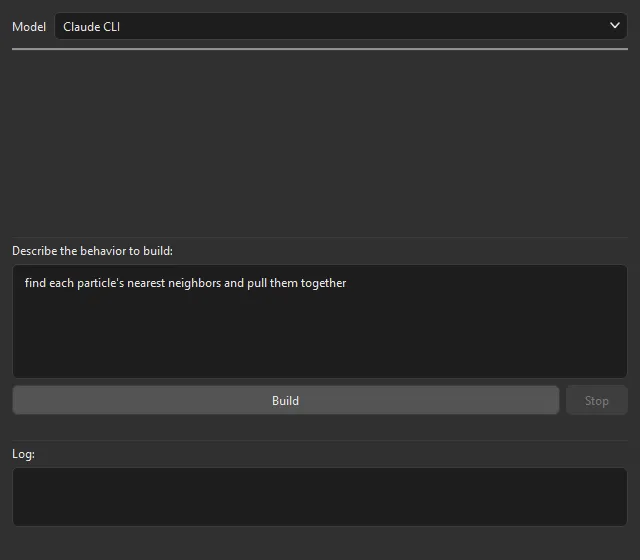
The larger Quill window: model picker, conversation, prompt with Build and Stop and the Log pane.
The window has the same Model picker, Conversation history and prompt as the tab, plus a Build and Stop button and a Log pane along the bottom that reports each build step in detail. The three panes are separated by draggable dividers, so you can give more space to whichever you need.
Press Enter in the prompt to build or Shift-Enter for a new line. The window stays in sync with the tab, so the model, prompt and conversation are shared between them.
Writing good prompts
Section titled “Writing good prompts”Quill works best with clear, concrete requests. A few guidelines:
- Name the particle data to drive the effect: age, speed, color, position, neighbors, life.
- Describe the outcome, not the node setup. “Fade from orange to blue over each particle’s life” is better than “add a question and a set-color action”.
- Iterate. Build once, look at the result, then refine with a follow-up prompt rather than rewriting the whole request.
- For anything involving custom per-particle math, ask for a script. Quill can author a Script item as readily as questions and actions.
Examples
Section titled “Examples”Color by speed
Section titled “Color by speed”Prompt: “Color particles blue when they are slow and red when they are fast.”
Quill builds a setup that reads each particle’s speed and drives its color from blue through to red. Slow particles stay blue. Particles accelerate into red as they gain speed.
The shower is born slow and blue at the top, then reddens as gravity accelerates it, so a blue-to-red front sweeps down and breaks over Suzanne. Here Quill built a single Script item, shown in the panel.
Pull neighbors together
Section titled “Pull neighbors together”Prompt: “For each particle, find its nearest neighbors within a short distance and pull them together.”
Quill builds a neighbor Loop that draws nearby particles toward each other, so a loose cloud tightens into clumps over time.
Kill on contact
Section titled “Kill on contact”Prompt: “Kill each particle when it hits an object.”
Quill builds a Question on the Hit Object flag with a Kill Action nested under it, so particles vanish as they strike the collider.
The falling particles disappear the instant they touch Suzanne, so none pile up or pass through. The If Hit Object Question and its child Kill Particle action are shown in the panel.
Reviewing the result
Section titled “Reviewing the result”Treat every Quill result as a first draft. Open the items it created, read what they do and adjust the values, then build on top with your own questions, actions and scripts.
The controls that shape how Quill works, its reasoning Effort, how many compile-and-fix Max Attempts it takes, Conversation Memory, the Self Check pass and the Troubleshooting Log, all live under Preferences ▸ Add-ons ▸ NeXus ▸ Quill. See Quill in the preferences.
Copyright © 2026 INSYDIUM LTD. All Rights Reserved.