

nxBioLogic Beta
nxBioLogic grows organic, cellular patterns from your NeXus particles, such as reaction-diffusion mazes, coral, slime-mold networks and living cell colonies.
Add it from Add ▸ INSYDIUM NeXus ▸ Modifiers ▸ nxBioLogic. It arrives as an empty with a domain box drawn in the viewport, already set up to run Reaction-Diffusion. Pick a Growth Mode, link an emitter and the pattern grows inside the domain. It can also build a tube mesh that follows the pattern. All of its settings live in Properties ▸ Physics.
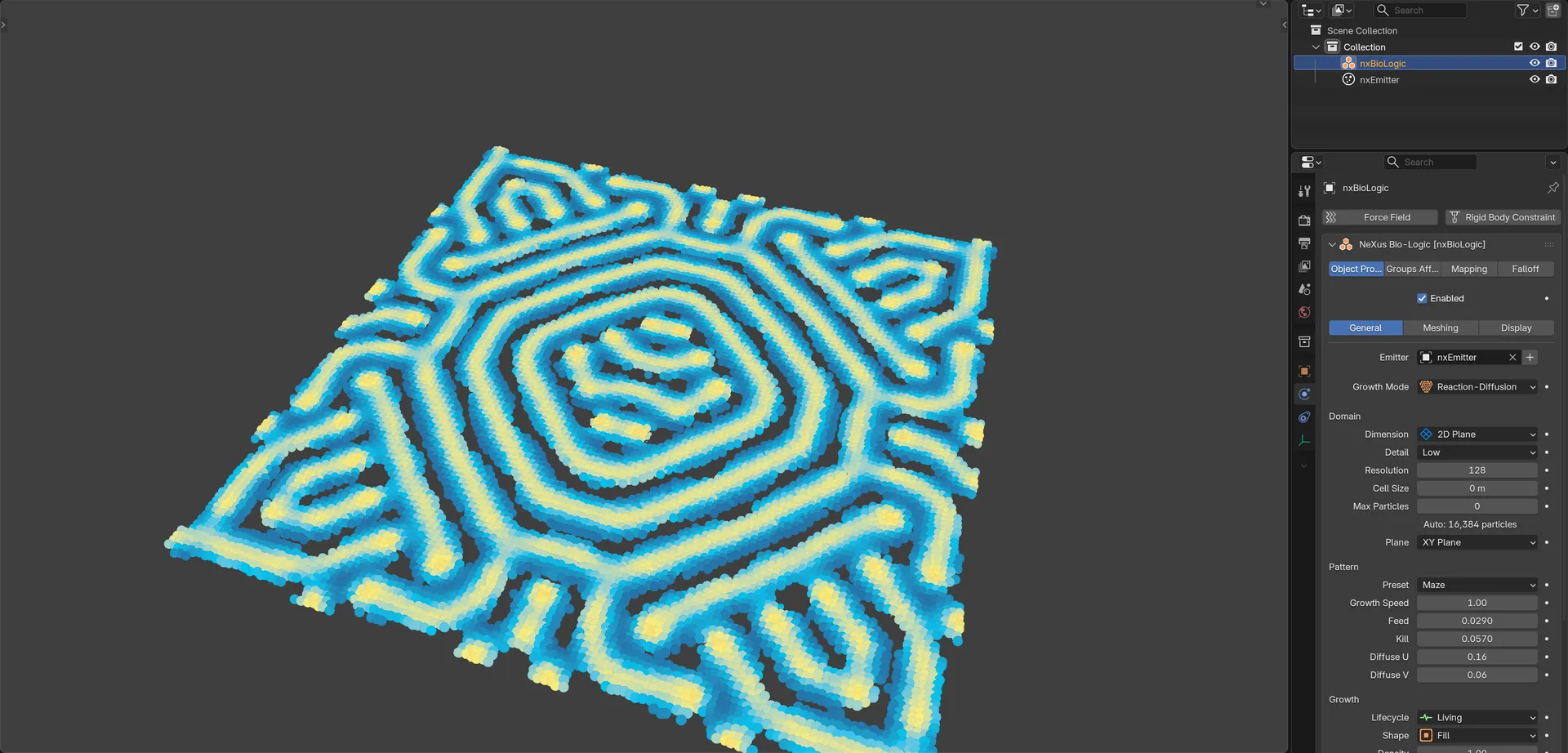
A Reaction-Diffusion pattern grown by nxBioLogic on a flat plane with the Maze preset.
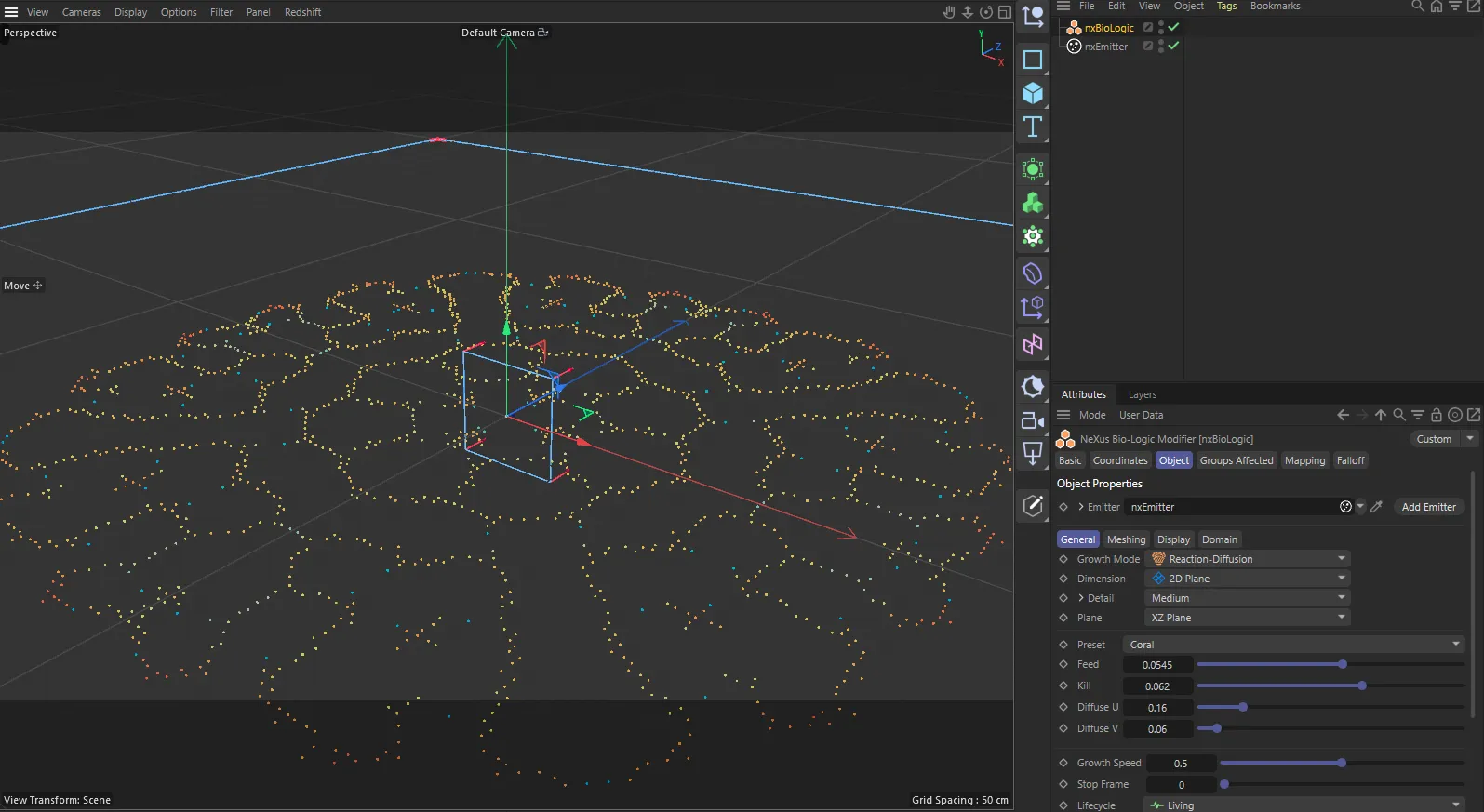
nxBioLogic in Cinema 4D. The settings are the same and sit in the Attribute Manager.
Object Properties
Section titled “Object Properties”Enabled
Section titled “Enabled”Turns nxBioLogic on or off. Disable it to stop the growth without deleting the modifier.
The rest of the Object Properties tab is split into three tabs: General, Meshing and Display.
General
Section titled “General”Emitter
Section titled “Emitter”The emitter that drives the growth. Linking one lets nxBioLogic set it up for the current Growth Mode: a single shot of particles at zero speed and, for Physarum, Primordial Particle Life and Particle Life, a box-shaped emitter that matches the domain with a suitable particle count. It does not restrict which particles are affected. You can leave it empty. Click the + button next to the field to create a new emitter that is already set up and linked.
Growth Mode
Section titled “Growth Mode”Sets the growth algorithm. Set as Reaction-Diffusion, by default. The other options are Differential Growth, Physarum, Primordial Particle Life, Particle Life and Coral (Reaction-Diffusion).
- Reaction-Diffusion: a two-chemical Gray-Scott pattern that spawns cells, for spots, stripes and mazes.
- Differential Growth: chains of nodes that lengthen and push apart, so the line buckles into brain-coral folds.
- Physarum: slime-mold agents that lay down a trail and follow it, forming vein networks.
- Primordial Particle Life: cells emerge, divide and swarm from one simple motion rule, like a living petri dish.
- Particle Life: colored particle types attract and repel each other through an editable matrix, forming clusters and creatures.
- Coral (Reaction-Diffusion): reaction-diffusion run on the particles themselves. It grows a coral outward from the seed and holds it, with particles starting small and maturing larger.
Each mode shows its own settings below the Domain settings. Changing the mode loads that mode’s preset values.
Domain
Section titled “Domain”The Domain settings set where the growth happens. Some only appear in certain modes.
Dimension
Section titled “Dimension”Sets whether the growth spreads across a flat plane or through a volume. Set as 2D Plane, by default. The alternative is 3D Volume.
Detail
Section titled “Detail”Available in Reaction-Diffusion, Coral and Physarum. Sets the grid resolution. Set as Medium, by default. The other options are Low, High and Ultra. Higher settings give finer cells and more detail in the same space but are slower. 3D is heavier than 2D. It has no effect while Cell Size is above 0.
Resolution
Section titled “Resolution”Available in Reaction-Diffusion, Coral and Physarum. The number of cells along the longest side of the Grid Size. Higher is finer. Changing it sets the Cell Size for you.
Cell Size
Section titled “Cell Size”Available in Reaction-Diffusion, Coral and Physarum. The size of each grid cell. Smaller cells resolve finer detail but cost more time and memory. Defaults to 0 m, which uses the Detail setting instead.
Max Particles
Section titled “Max Particles”Available in Reaction-Diffusion, Coral and Physarum. The particle budget for the growth. Defaults to 0, which is automatic: enough particles to fill the grid at the current Detail and Fill Density, shown below the field. Set a number to cap heavy scenes. The pattern stops growing once the budget is spent.
Available in 2D Plane. Sets the world plane the growth spreads across. Set as XY Plane, by default. The other options are XZ Plane and YZ Plane.
Confine
Section titled “Confine”Available in 3D Volume. Sets what bounds the growth. Set as Grid, by default. The other options are Object Volume and Object Surface.
- Grid: grow freely through the domain box.
- Object Volume: fill the inside of one or more meshes.
- Object Surface: grow over the surface of one or more meshes. Use a dense mesh.
Objects
Section titled “Objects”Available when Confine is set to Object Volume or Object Surface. The list of meshes to fill or grow over. Pick or drop a mesh to add it or drop a collection to add all of its meshes. Each entry has an enable toggle on the right of its row. While the growth is confined to objects, the domain fits them and Grid Size is disabled.
Wireframe
Section titled “Wireframe”Available with the Objects list. Shows the listed objects as wireframe, so the growth inside or behind them stays visible. Off by default.
Pattern Size
Section titled “Pattern Size”Available in Reaction-Diffusion and Coral when Confine is set to Object Surface. The size of the pattern features on the surface. Smaller values give a finer pattern but a slower first-frame build. Defaults to 0.12 m.
Surface Pull
Section titled “Surface Pull”Available in Differential Growth, Primordial Particle Life and Particle Life when Confine is set to Object Surface. How strongly the particles are held onto the mesh surface. Defaults to 1, which glues them to it. Lower values let them float a little, so the pattern reads less packed.
Reaction-Diffusion
Section titled “Reaction-Diffusion”Preset
Section titled “Preset”Loads a ready-made Feed and Kill combination. Set as Coral, by default. The other options are Spots, Stripes, Maze and Mitosis. You can still edit the values afterward.
Growth Speed
Section titled “Growth Speed”The overall speed of the growth. Defaults to 0.5. 1 is the fastest stable speed. Turn it down if the pattern forms too quickly.
Feed, Kill
Section titled “Feed, Kill”The two Gray-Scott rates that decide the pattern. Feed is how fast fresh substrate is added and Kill is how fast the pattern chemical is removed. They default to 0.0545 and 0.062. Small changes give very different patterns.
Diffuse U, Diffuse V
Section titled “Diffuse U, Diffuse V”How fast each of the two chemicals spreads. They default to 0.16 and 0.06. A Diffuse V of about 0.06 gives clean labyrinths. Below about 0.04 the pattern goes spotty.
Lifecycle
Section titled “Lifecycle”Sets whether cells stay once they form. Set as Living, by default. The alternative is Grow & Remain.
- Grow & Remain: each cell grows to full size and stays, so the colony fills in steadily. Good for meshing.
- Living: cells appear and die as the pattern moves, so the shape follows the living reaction.
Sets which part of the pattern spawns cells. Set as String, by default. The other options are Fill and Ribbon.
- Fill: fill the whole pattern with cells.
- Ribbon: a flat ribbon that hugs the pattern outline.
- String: a single line of cells down the center of the shape.
Density
Section titled “Density”The fraction of the pattern that spawns cells. Defaults to 1, a solid fill. Lower it for a sparser, lighter pattern, which helps a 3D volume read open.
Grow-In Time
Section titled “Grow-In Time”How long, in seconds, a new cell takes to scale up to full size. Defaults to 0.5. 0 pops cells in instantly.
Sets the coral form, which sets Feed and Kill for you. Set as Brain Coral, by default. The other options are Packed Polyps, Branching, Honeycomb Holes and Custom. Choose Custom to reveal the Feed and Kill values and set them yourself.
Particles
Section titled “Particles”Sets how the particle size reads the pattern. Set as Fill (solid), by default. The alternative is Rings (polyps), where particles ring the holes like coral polyps. Pair it with Packed Polyps.
Diffuse U, Diffuse V
Section titled “Diffuse U, Diffuse V”How fast each of the two chemicals spreads, as in Reaction-Diffusion. They default to 0.16 and 0.06.
Growth Speed
Section titled “Growth Speed”How fast the pattern evolves. Defaults to 0.5. Low values give slow, smooth growth that is easy to animate. 1 is the fastest and can shimmer.
Density, Grow-In Time
Section titled “Density, Grow-In Time”Work as in Reaction-Diffusion.
Differential Growth
Section titled “Differential Growth”Growth Rate
Section titled “Growth Rate”The chance, per edge and per frame, that a new node is inserted. This is the main speed control. Defaults to 0.04. Higher values make the line lengthen and fold faster.
Seed Nodes
Section titled “Seed Nodes”The number of nodes in the starting ring placed on each seed. Defaults to 32.
Max Nodes
Section titled “Max Nodes”A hard cap on the total number of nodes. Defaults to 50000.
Attraction
Section titled “Attraction”The spring pull between connected nodes, which keeps the line together. Defaults to 0.05.
Repulsion
Section titled “Repulsion”The push between nearby nodes. This is what makes the line buckle away from itself into folds. Defaults to 0.12.
Repulsion Radius
Section titled “Repulsion Radius”The distance within which nodes push each other apart, roughly twice the node spacing. Defaults to 0.5.
Split Length
Section titled “Split Length”The edge length above which a node is always inserted, so the line never develops gaps. Defaults to 0.7.
Smoothing
Section titled “Smoothing”Pulls each node toward the midpoint of its neighbors. Defaults to 0.12. Higher values give rounder, smoother folds.
Physarum
Section titled “Physarum”Preset
Section titled “Preset”Loads a ready-made look and sets the agent values below. Set as Network, by default. The other options are Mycelium, Veins and Explore. You can still edit the values afterward.
Sensor Angle
Section titled “Sensor Angle”The angle between each agent’s left and right sensors. Defaults to 22.5.
Sensor Distance
Section titled “Sensor Distance”How far ahead the agents sense the trail. Defaults to 9.
Rotation Angle
Section titled “Rotation Angle”How sharply an agent turns toward the strongest trail. Defaults to 45.
Deposit
Section titled “Deposit”The amount of trail each agent lays down per step. Defaults to 5.
The fraction of the trail that fades each step. Defaults to 0.1.
Diffuse
Section titled “Diffuse”How much the trail blurs each step. Defaults to 1, which is also the maximum.
Step Size
Section titled “Step Size”How far an agent moves per step. Defaults to 1.
Primordial Particle Life
Section titled “Primordial Particle Life”Preset
Section titled “Preset”Loads a ready-made look and sets the values below. Set as Cells, by default. The other options are Membranes, Swarm and Blobs. You can still edit the values afterward.
Base Turn
Section titled “Base Turn”The fixed angle every particle turns each step. Defaults to 180, the wobble that forms membranes.
Neighbor Turn
Section titled “Neighbor Turn”The extra turn added for each nearby neighbor, toward the crowded side. Defaults to 17. Raise it for tighter cells.
Sense Radius
Section titled “Sense Radius”How far a particle looks for neighbors. This is the key control. Defaults to 0.15. Set it to about 2 to 4 times your particle spacing. Too large gives one even blob. Too small leaves the cloud just drifting. Cells need a few thousand particles to form.
How far a particle moves forward each step. Defaults to 0.03. A good starting point is about the Sense Radius divided by 7.
Cohesion
Section titled “Cohesion”A gentle pull toward nearby neighbors that tightens the cell walls. Defaults to 0.3. 0 gives the pure motion rule and high values form dense clumps. It applies in 2D only.
Smoothness
Section titled “Smoothness”Carries momentum from step to step, so particles flow in smooth curves instead of jittering. Defaults to 0.6.
Size by Density
Section titled “Size by Density”Grows a particle’s radius with its neighbor count, so the cell nuclei swell. Defaults to 0.6. 0 keeps every particle the same size.
Particle Life
Section titled “Particle Life”The number of particle types, each with its own color. Defaults to 4, from 2 to 5.
Radius
Section titled “Radius”How far particles feel each other. Defaults to 3.
The overall strength of the attraction and repulsion. Defaults to 0.6.
How far particles move per step. Defaults to 0.5. Lower it for slower, smoother motion.
Friction
Section titled “Friction”How much the motion is damped. Defaults to 0.85. Low values are slippery and energetic. High values are calm.
Inner Repel
Section titled “Inner Repel”A short-range push between all particles, so they never overlap and clusters do not collapse to a point. Defaults to 1.5.
Repel Zone
Section titled “Repel Zone”The part of the Radius, as a fraction, used for the Inner Repel push. The rest is the zone where the Attraction Matrix applies. Defaults to 0.3.
Attraction Matrix
Section titled “Attraction Matrix”A grid with one row and one column for each type. The value in row i, column j sets how strongly type i is pulled toward (positive) or pushed away from (negative) type j, from -1 to 1. Edit any cell directly. Change Randomize next to the heading to generate a fresh random matrix, the quickest way to explore new behaviors.
Every mode
Section titled “Every mode”These settings appear in every mode, after the mode’s own settings.
Flow, Flow Scale
Section titled “Flow, Flow Scale”Flow adds a drifting curl-noise current, so the growth wanders organically instead of sitting still. Flow Scale sets the size of that current: small values give big, sweeping currents and large values give fine swirls. Flow defaults to 0 in Reaction-Diffusion, Coral and Differential Growth. It defaults to 0.2 in the other modes. Flow Scale defaults to 0.25 (0.15 in Primordial Particle Life and Particle Life).
Particle Size
Section titled “Particle Size”Sets the size of the particles. In Reaction-Diffusion and Coral it is the radius a fully grown cell reaches, 0.14 m by default. In Differential Growth it is the radius of each node, 0.05 by default. In Primordial Particle Life it is the base radius of each particle, 0.1 by default. In Physarum and Particle Life it scales the emitter’s own particle size, 1 by default.
Fill Density
Section titled “Fill Density”Fills the growth out so it stops reading as a grid. Ranges from 0, which is off, to 8. Defaults to 0. In Reaction-Diffusion and Coral it adds extra particles inside each cell, so keep an eye on Max Particles. In the other modes it makes each particle larger instead.
Stop Frame
Section titled “Stop Frame”Freezes the growth at this frame, so it holds its form instead of overgrowing. Defaults to 0, which never stops. Set it to the frame where the pattern looks best.
Seed Objects
Section titled “Seed Objects”The list of seeds the growth starts from. Add a seed and a sphere empty is created as a child of nxBioLogic. Move it to where you want the growth to start. Select a seed to reveal its settings:
- Shape: the seed object. An empty is a single start point. A curve, mesh or text object starts the pattern from its whole shape.
- Radius: the radius of the seed area. Defaults to 1 m.
With no seeds, Reaction-Diffusion and Coral start from the center of the domain or of the confine objects.
Substeps
Section titled “Substeps”The scene’s global substeps setting, repeated here for convenience.
Meshing
Section titled “Meshing”The Meshing tab builds a tube mesh that follows the pattern, as a curve object with a round bevel. It is available in Reaction-Diffusion, Differential Growth, Primordial Particle Life and Particle Life. In Coral and Physarum it is empty.
Output Tubes
Section titled “Output Tubes”Builds the tube mesh. Off by default. Turn it on to reveal the other tube settings. In Primordial Particle Life and Particle Life the tubes trace the cell membranes.
Iso Level
Section titled “Iso Level”Available in Reaction-Diffusion. The field level the tubes trace. Defaults to 0.3, which follows the maze channel walls. Lower values give fatter shapes and higher values keep only the strongest cores. In Primordial Particle Life and Particle Life the same control is called Membrane Level.
Membrane Smooth
Section titled “Membrane Smooth”Available in Primordial Particle Life and Particle Life. The number of blur passes applied before the membranes are traced. Defaults to 3. Higher values give smoother, rounder rings.
3D Style
Section titled “3D Style”Available in Reaction-Diffusion in 3D Volume. Sets how the volume pattern becomes tubes. Set as Trace 3D, by default. The alternative is Slice Rings.
- Trace 3D: the tubes flow along the pattern’s own filaments through the volume.
- Slice Rings: contours of slices through the volume are stacked into a ring network.
Slice Step
Section titled “Slice Step”Available in Reaction-Diffusion with Slice Rings and in Primordial Particle Life and Particle Life in 3D Volume. Traces every Nth slice of the volume. Defaults to 2. Lower values give a denser stack, which is slower.
Tube Radius
Section titled “Tube Radius”The thickness of the tubes. Defaults to 0.08 m.
Tube Smoothness
Section titled “Tube Smoothness”The roundness of the tube cross-section. Defaults to 3.
Height
Section titled “Height”Available in Reaction-Diffusion in 2D Plane, under Extrude (3D). Extrudes the tube pattern upward by stacking it in layers to this height. Defaults to 0 m, which keeps it flat.
Layers
Section titled “Layers”Available when Height is above 0. The number of stacked layers across the height. Defaults to 16. More layers give smoother vertical tubes.
Available when Height is above 0. The total rotation, in degrees, applied across the height, which twists the stack into a helical form. Defaults to 0.
Sets the tube color. Set as None, by default, which assigns no material. The other options are Single and Gradient. Single reveals one Color. Gradient reveals a Start and End color that blend along the length of each tube.
Display
Section titled “Display”Sets how the growth particles are colored. Set as Gradient, by default. The alternative is Emitter, which keeps the emitter’s own color.
With Gradient, a gradient and these controls appear:
- Parameter: what the gradient is mapped by. Set as Formation, by default, which is the mode’s own pattern value. The other options are Radial, Age, Speed and Radius. Radial runs from the center outward and follows the Grid Size.
- Min, Max: the range of values mapped to the start and end of the gradient. They default to 0 and 1.
- Repeat: how many times the gradient repeats across the range. Defaults to 1. Higher values give bands (or rings with Radial).
A collapsible group, closed by default, with the domain display settings.
- Show Domain Box: draws the domain box in the viewport. On by default.
- Show Cells: draws the cell grid on one face of the domain, as a guide to the cell size. Off by default.
- Cell Face: available with Show Cells in 3D Volume. Sets which face of the domain the cell grid is drawn on. Set as Away From Camera, by default. The other options are Camera-Facing, +X, -X, +Y, -Y, +Z and -Z.
- Grid Size: the size of the domain along each axis. Defaults to 20 m on each axis. Disabled while the growth is confined to objects.
Groups Affected
Section titled “Groups Affected”Use the Groups Affected tab to restrict nxBioLogic to particles in specific nxGroup groups, rather than affecting every particle.
Mapping
Section titled “Mapping”Use the Mapping tab to drive nxBioLogic’s settings from particle data instead of fixed values. See Mapping for how this works.
Falloff
Section titled “Falloff”Use the Falloff tab to limit where nxBioLogic acts. Add one or more nxFalloff objects to the list and blend them, so nxBioLogic only acts inside the falloff region.
In Cinema 4D
Section titled “In Cinema 4D”In Cinema 4D, add it from INSYDIUM ▸ NeXus ▸ Modifiers ▸ nxBioLogic. Grid Size and Cell Size are on a separate Domain tab, with a read-only grid readout in place of Resolution. Confine takes a single object rather than a list. Plane defaults to XZ Plane, which is the same ground plane as Blender’s XY Plane, because Cinema 4D is Y-up. Lengths are in centimeters, so Grid Size defaults to 2000cm. Several values that are plain numbers in Blender, such as Sense Radius and Split Length, are shown as lengths.
Copyright © 2026 INSYDIUM LTD. All Rights Reserved.